Launch a Free Tier EC2 instance and connect to it
Launch a Free Tier EC2 instance and connect to it
Every step in this workshop revolves around one EC2 instance, so we start by launching it. Along the way we’ll set up just enough networking — a security group — so you can connect to the instance the easiest way possible, and confirm the AWS CLI is ready to use once you’re on it.
This lab uses your account’s default VPC. A default VPC already has an Internet Gateway attached and public subnets with auto-assign public IP enabled in every Availability Zone, so there is no VPC or subnet to build by hand — one less thing to configure, and it costs nothing extra.
Step 1a: Create a security group for SSH access
A security group is a virtual firewall attached to your instance. We’ll create one that allows inbound SSH (port 22), which is enough to connect using the console’s browser-based SSH tool.
- Use the search bar at the top of the console and type
VPCto open the VPC console.
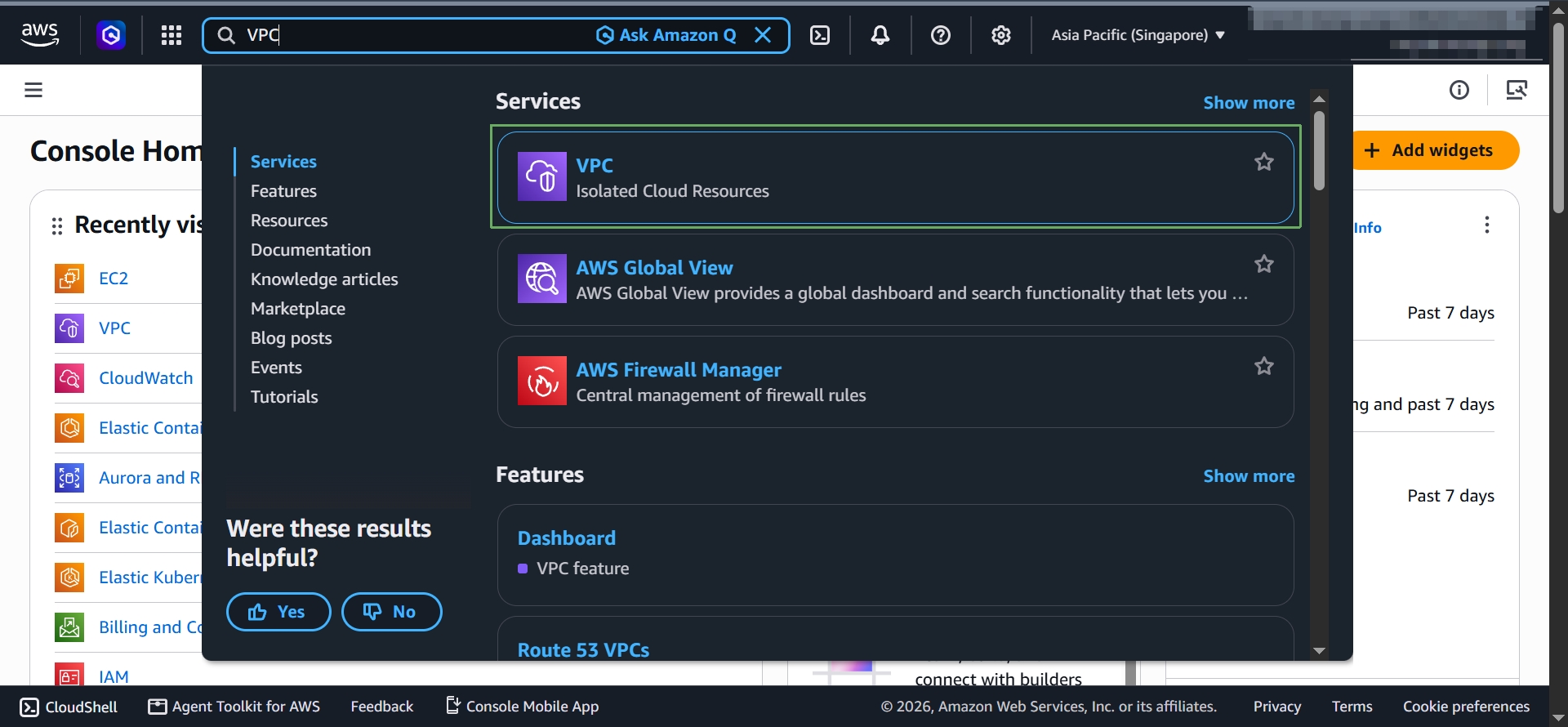
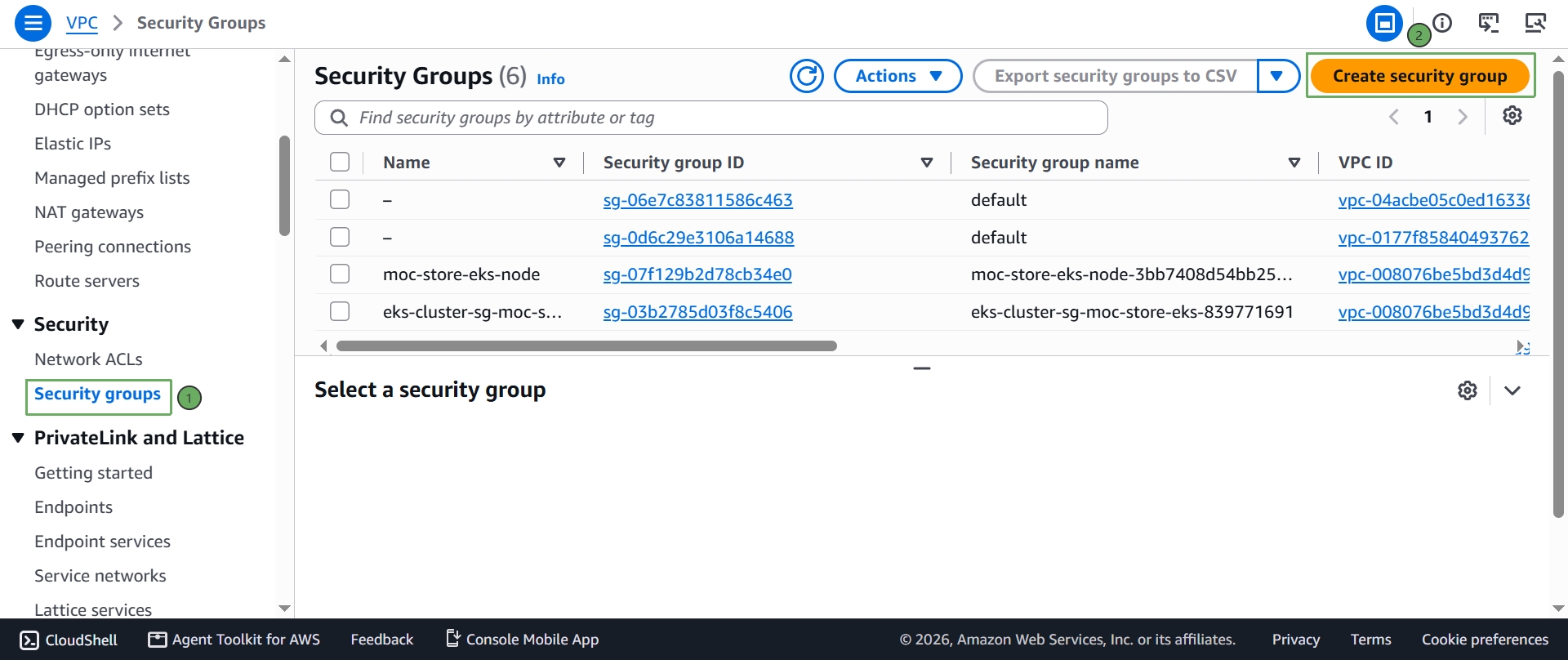
- In the left navigation pane, under Security, select Security groups, then select Create security group.
- Fill in the basic details and the inbound rule:
- Security group name:
ec2-rightsizing-lab-sg - Description:
Allow SSH for EC2 rightsizing lab - VPC: your default VPC (pre-selected)
- Inbound rules — select Add rule, then set Type:
SSHand Source: your IP range
- Security group name:
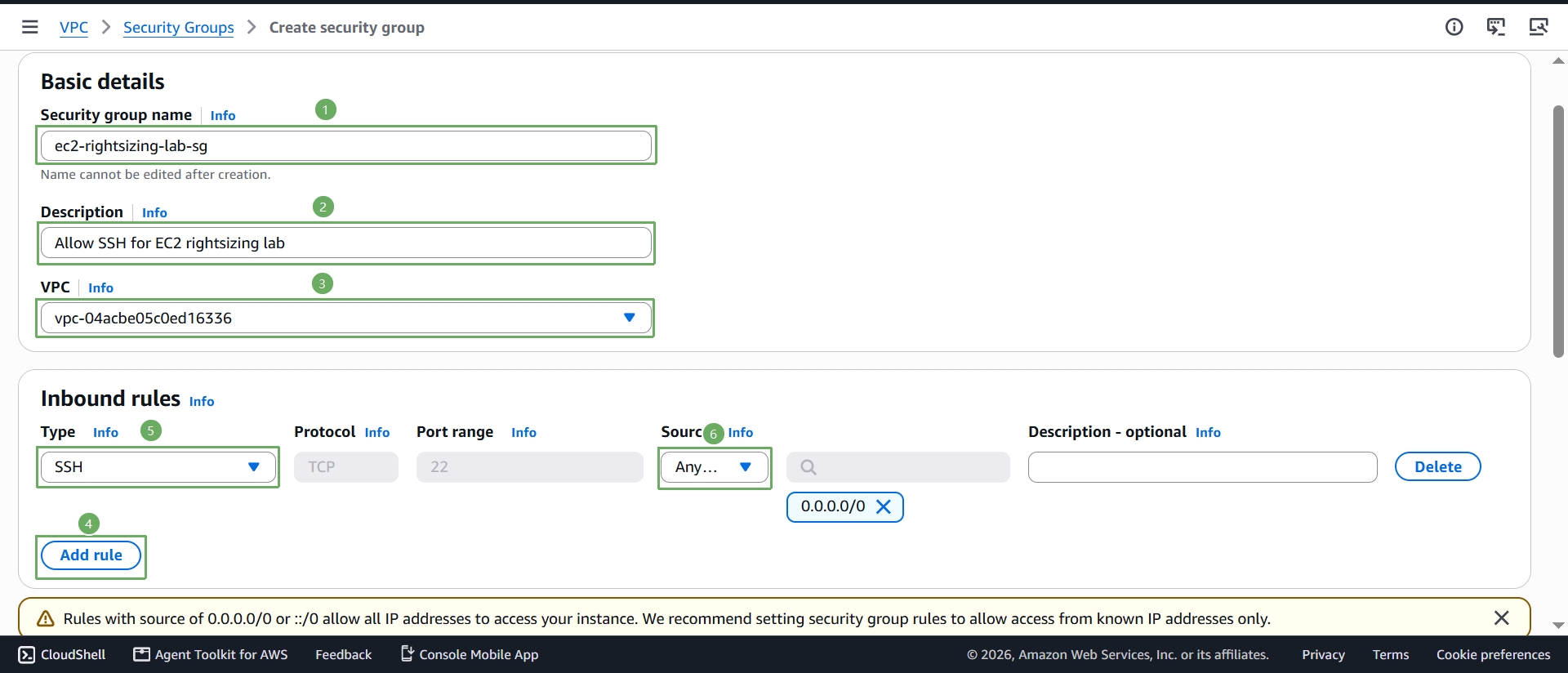
The console itself warns you about this: a source of 0.0.0.0/0 allows any IP address on the internet to attempt an SSH connection to your instance. For a real lab, choose My IP as the source instead of Anywhere-IPv4 — the console automatically fills in your current public IP, so only your machine can connect. Use 0.0.0.0/0 only if you understand and accept that trade-off (for example, in a short-lived, disposable classroom demo).
- Scroll down — leave the outbound rule at its default (all traffic allowed), which is what lets the instance reach the internet later. Select Create security group.
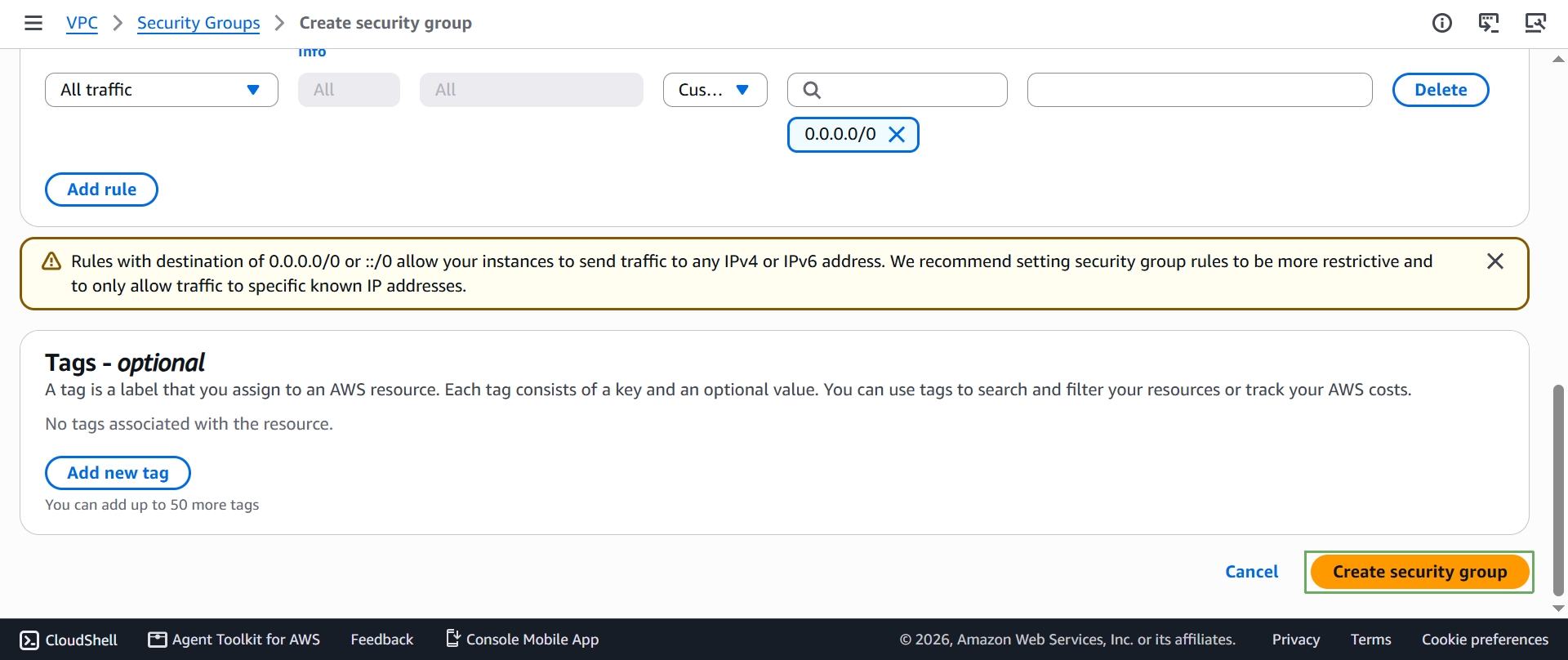
Security groups are free — you’re only ever billed for the resources they’re attached to.
Step 1b: Launch the instance
- Use the search bar and type
EC2to open the EC2 console. Check the Region selector in the top-right corner and make sure it’s the Region you intend to use for the entire workshop — you’ll stay in this same Region for every later step.
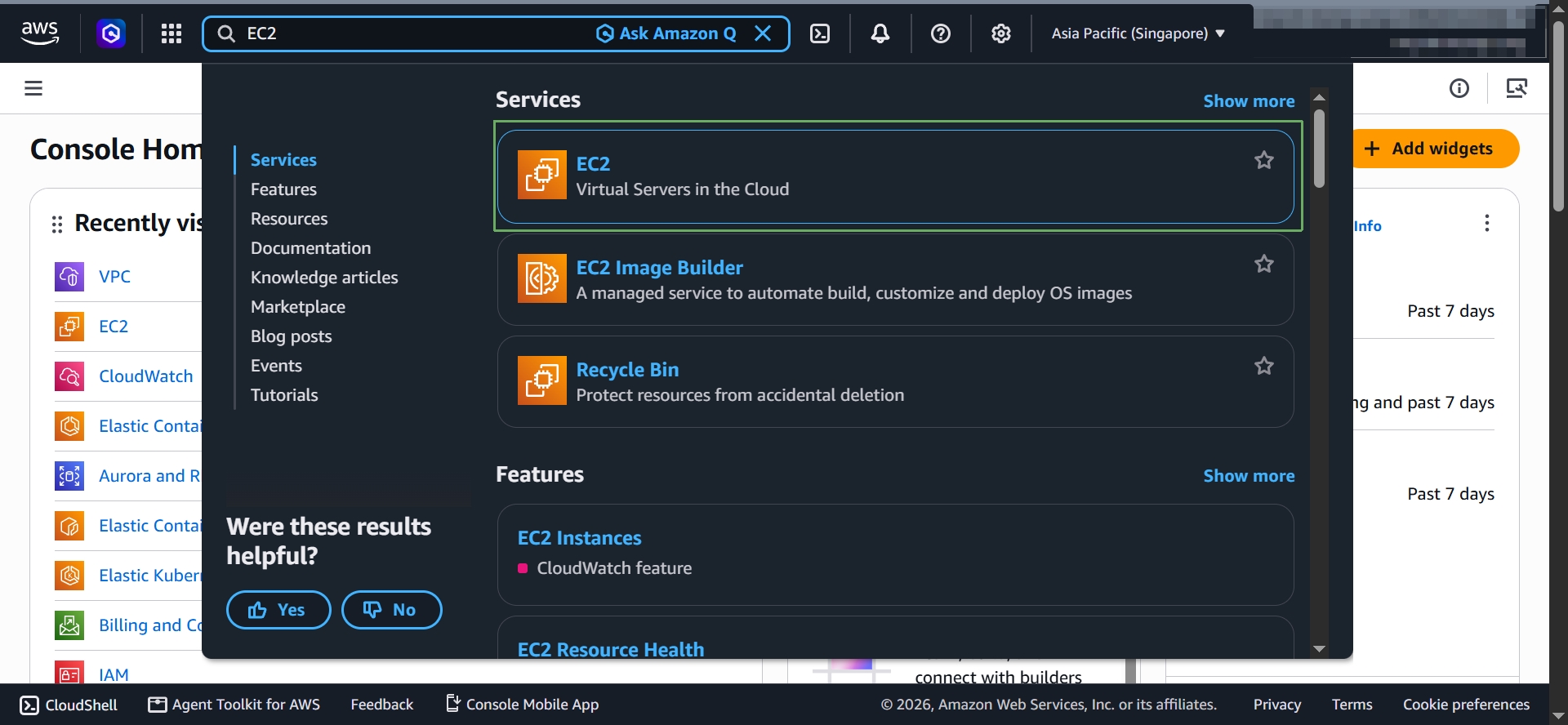
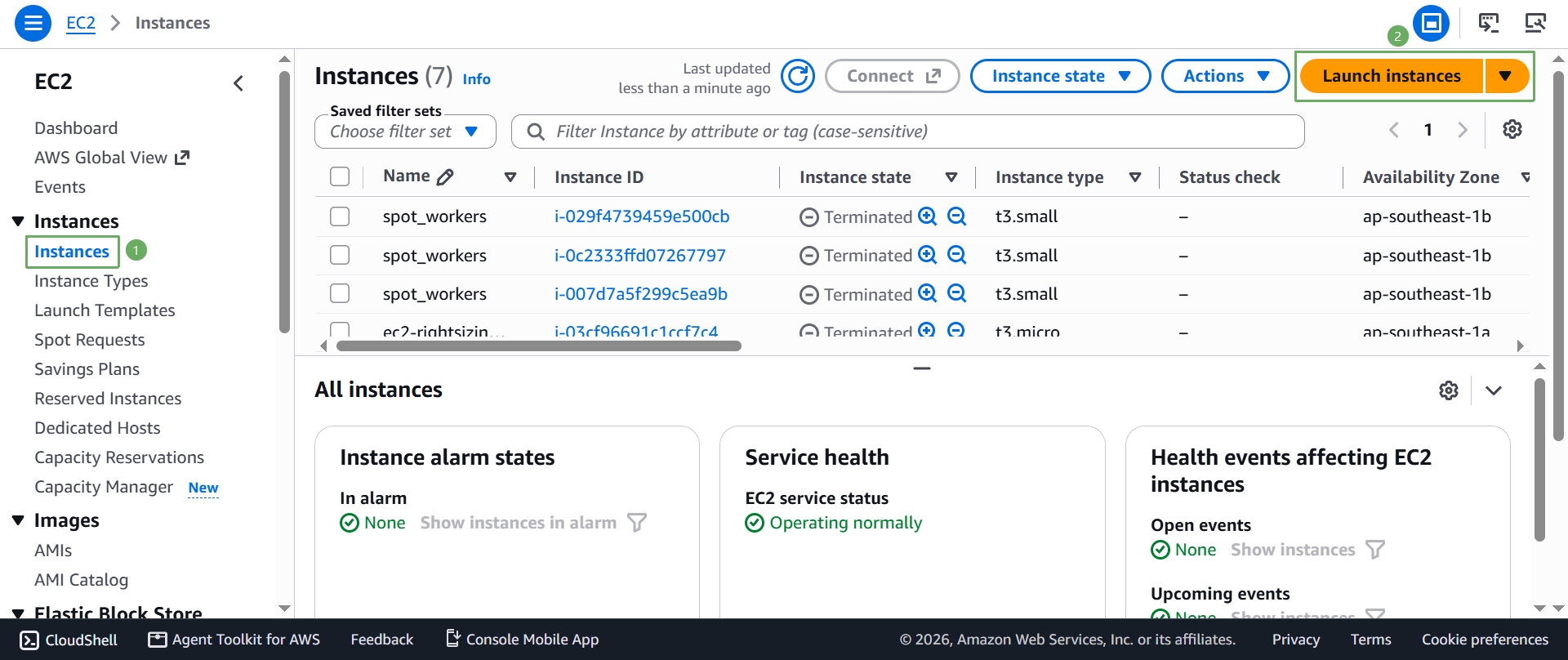
- From Instances, select Launch instances.
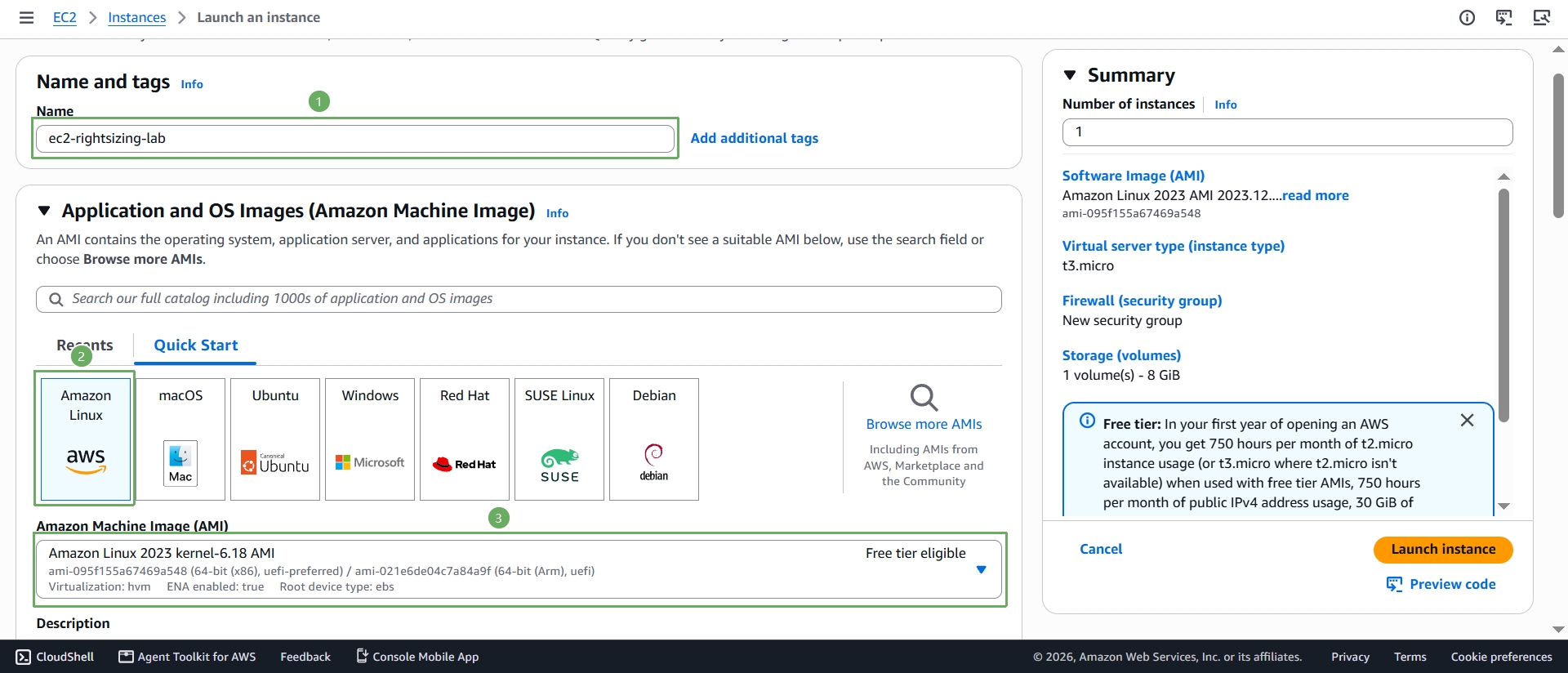
- Configure the instance:
- Name:
ec2-rightsizing-lab - Application and OS Images (AMI): under Quick Start, keep Amazon Linux selected — the Amazon Linux 2023 AMI is Free Tier eligible and comes with both the AWS CLI v2 and the SSM Agent preinstalled, which saves us from installing anything by hand later.
- Name:
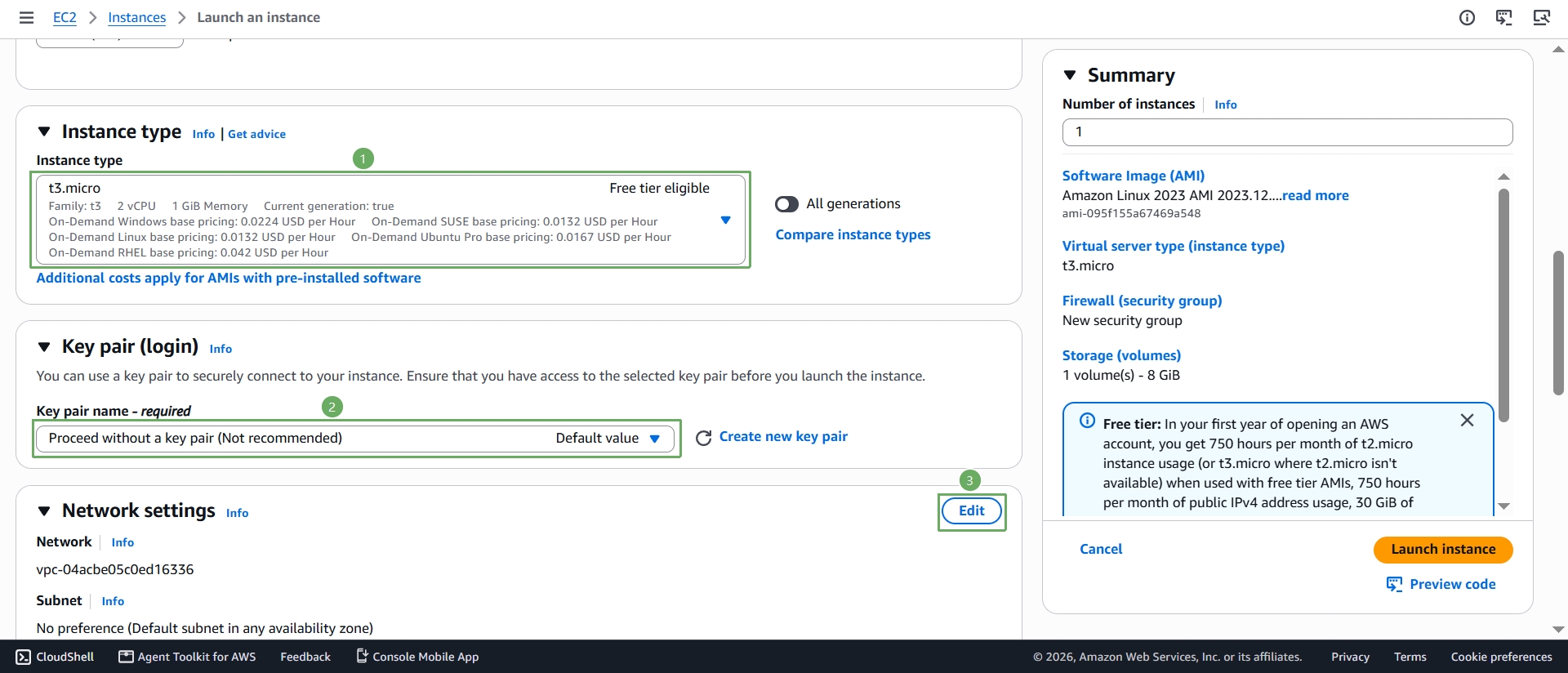
- Scroll down:
- Instance type: keep t3.micro, marked Free tier eligible in the console
- Key pair (login): select Proceed without a key pair (Not recommended). We’ll connect using EC2 Instance Connect, a browser-based SSH tool built into the console that needs no key file to manage or lose — the simplest option for a student lab.
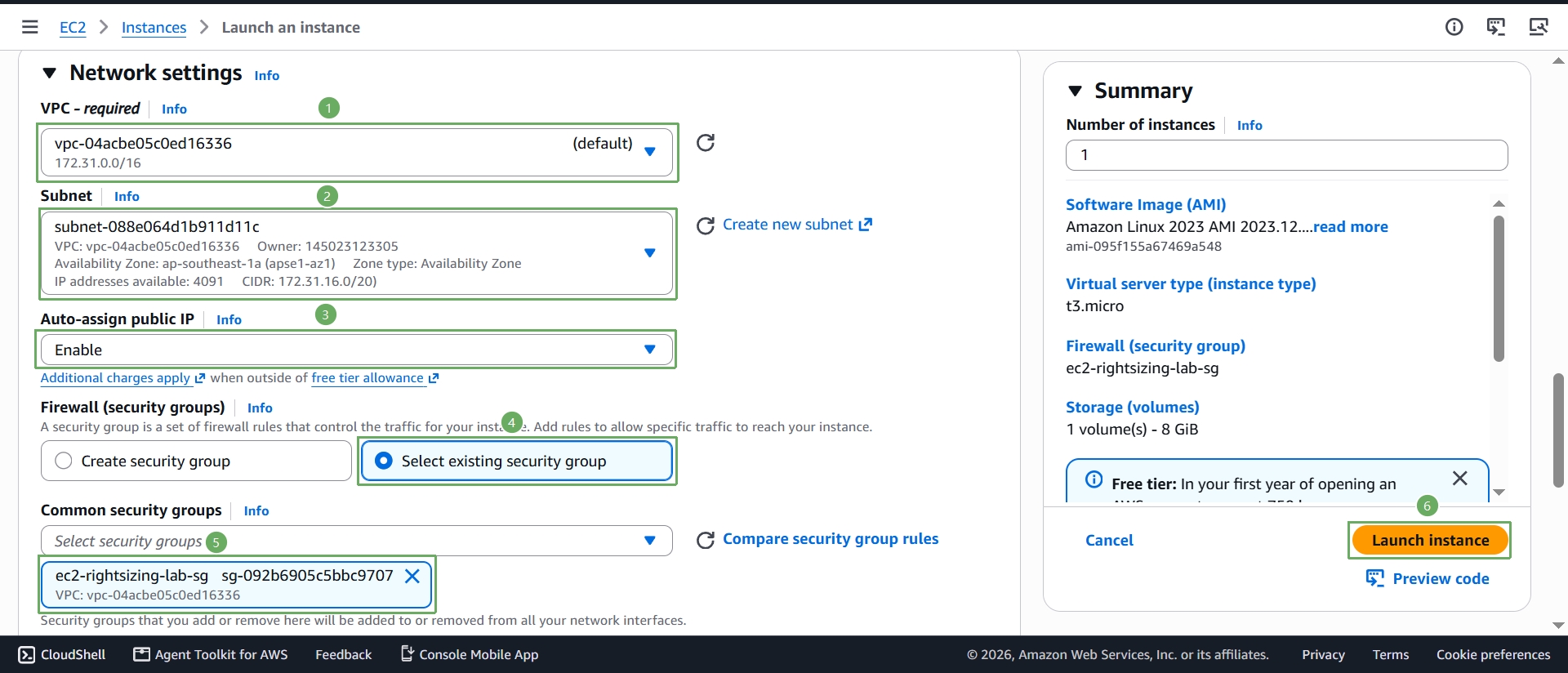
- Under Network settings, select Edit.
In the expanded Network settings:
- VPC: your default VPC (pre-filled)
- Subnet: any subnet with auto-assign public IP (the default is fine)
- Auto-assign public IP: Enable — without a public IP, EC2 Instance Connect and the AWS CLI on the instance have no way to reach the internet
- Firewall (security groups): select Select existing security group, then choose the
ec2-rightsizing-lab-sggroup you created in Step 1a
Review the Summary panel on the right to confirm the security group shows
ec2-rightsizing-lab-sg, then select Launch instance.
- Wait for the instance to reach the Running state with 3/3 status checks passed (usually 1–2 minutes) before moving on.
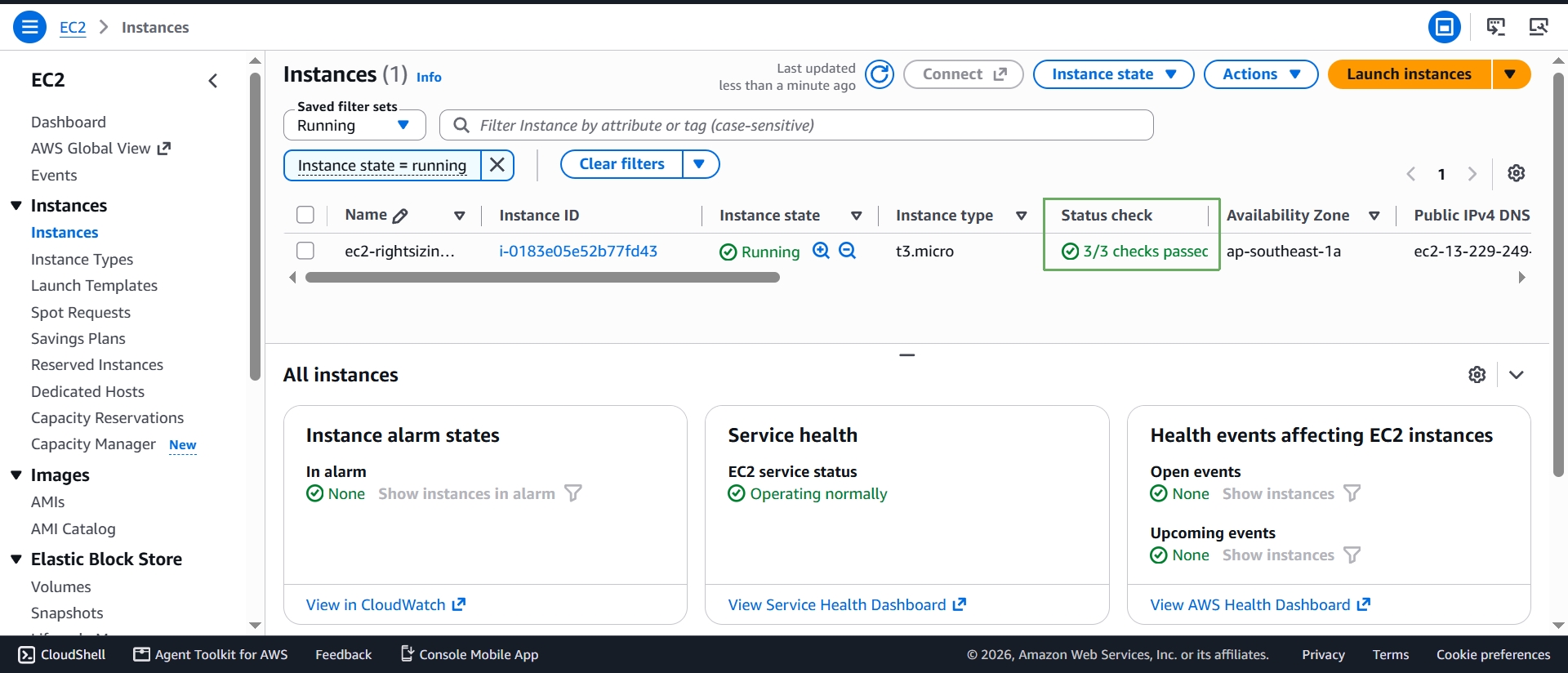
Step 1c: Connect the easiest way — EC2 Instance Connect
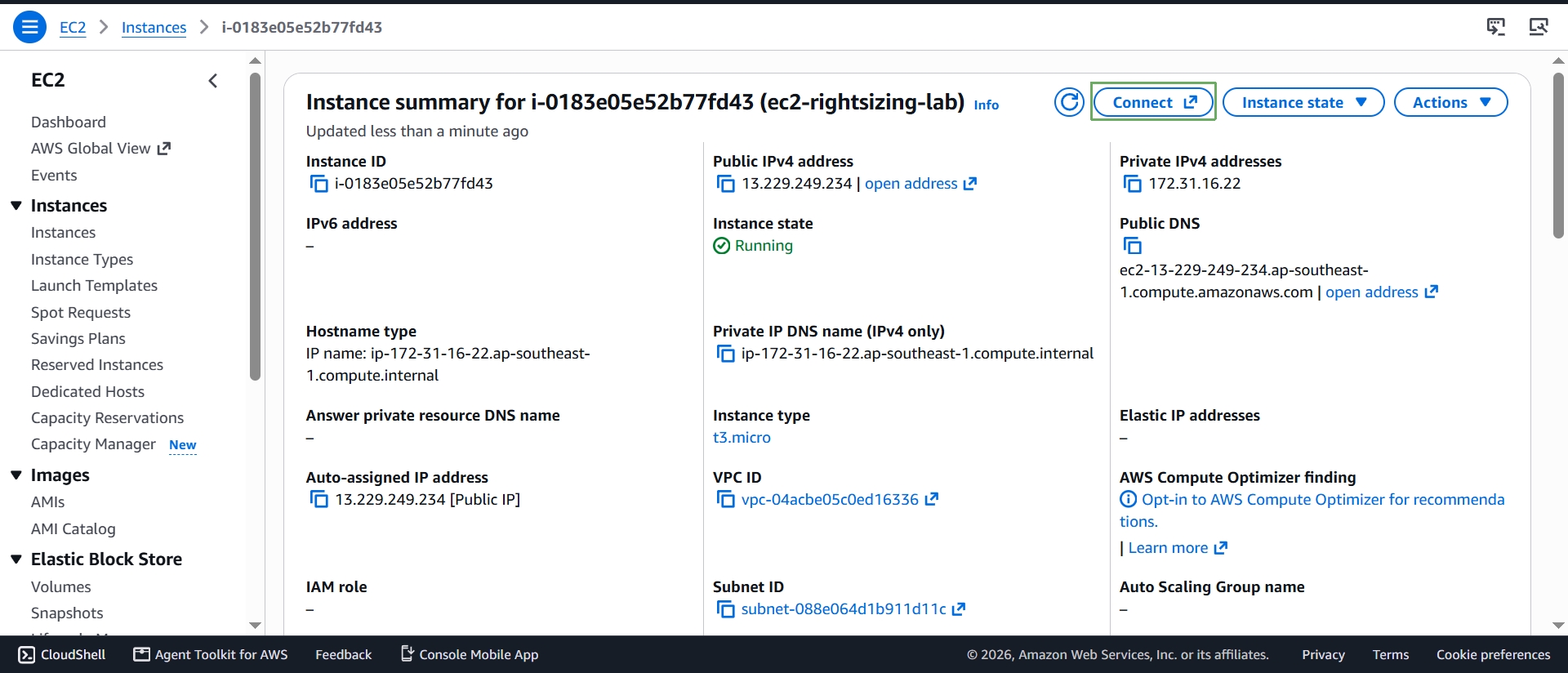
- Select your instance, then select Connect. On the In web browser tab, keep EC2 Instance Connect selected (public subnet access, managed SSH keys — no key pair required), keep the default username
ec2-user, and select Connect.
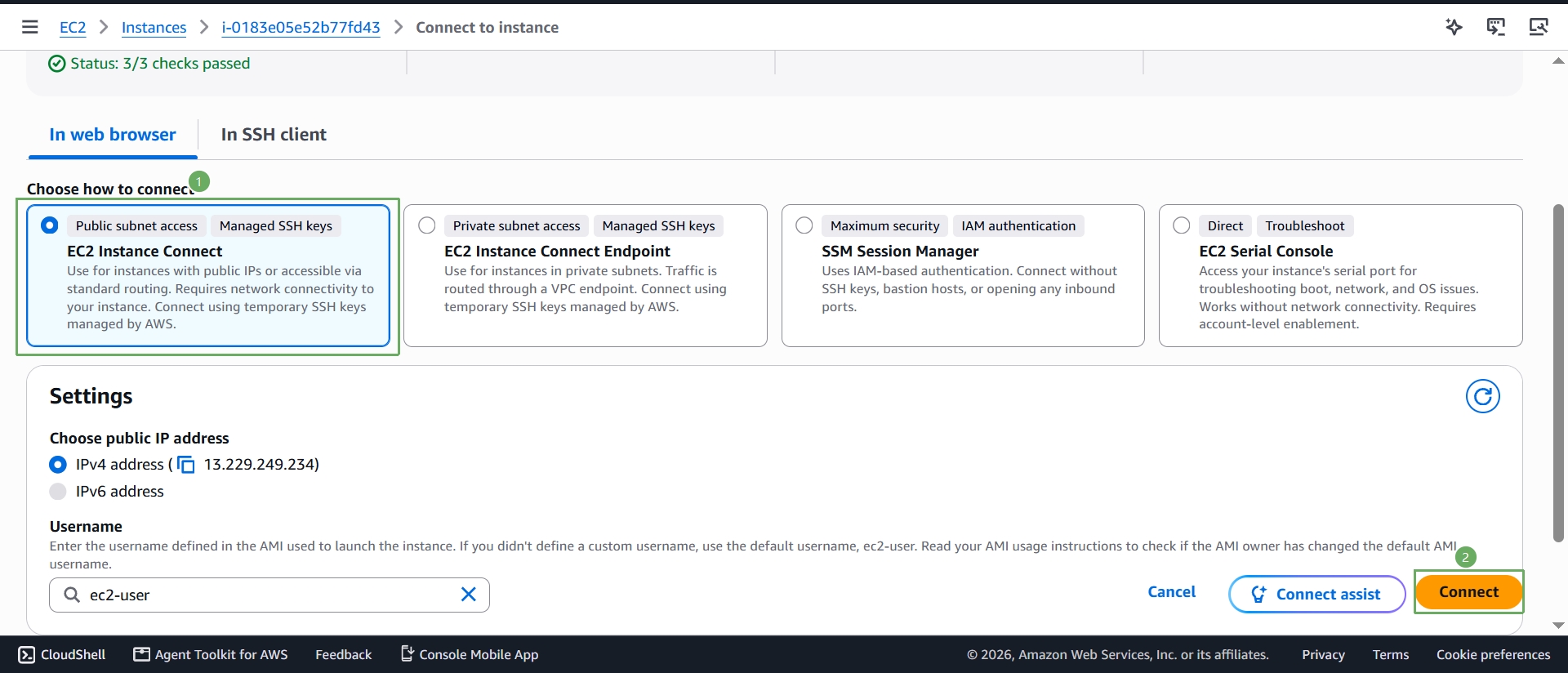
- The console opens a browser-based terminal session directly on your instance — no SSH client, no key file, and no extra inbound ports beyond the one you already opened for your own IP.
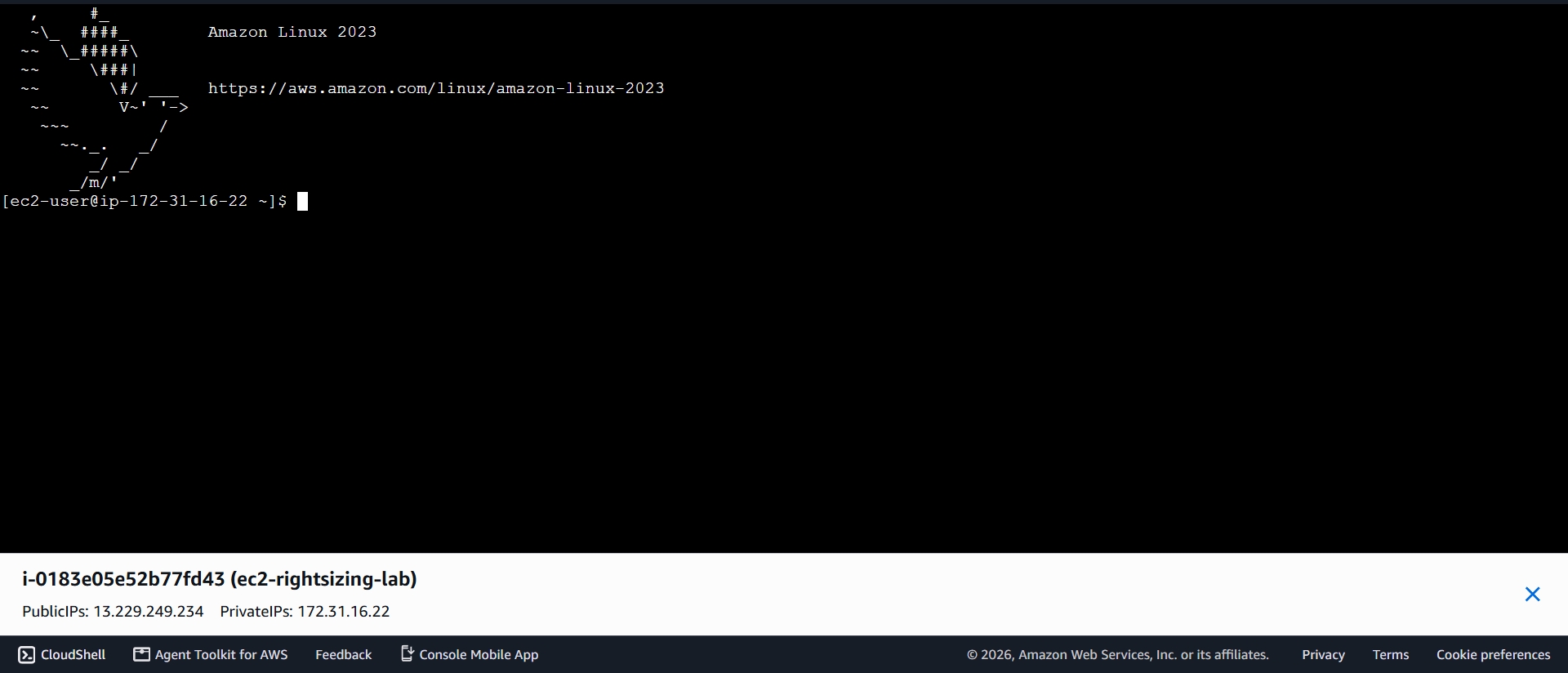
Step 1d: Try the AWS CLI on the instance
Amazon Linux 2023 ships with AWS CLI v2 already installed, so there’s nothing to set up — but this instance can’t call AWS APIs yet.
- In the terminal, check the CLI is present, then try an actual API call:
aws --version
aws sts get-caller-identity
- You should see an error similar to:
Unable to locate credentials. You can configure credentials by running "aws login".
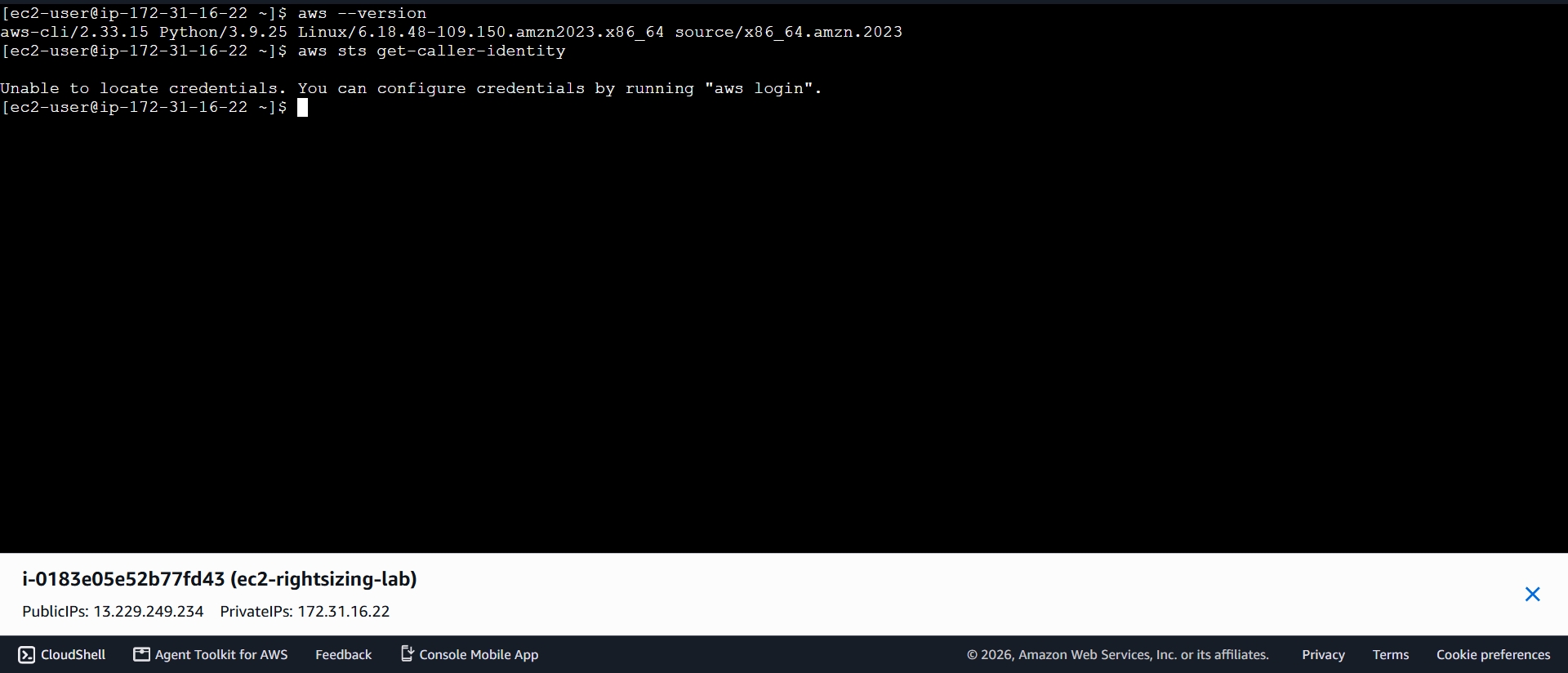
This is expected — an EC2 instance gets AWS credentials automatically through an IAM role attached to it (via the instance metadata service), and this instance doesn’t have one yet, exactly as the instance summary page told you in Step 1b. Fixing that is what Steps 2 and 3 do next: we’ll create an IAM role, attach it to this instance, and then this same command will succeed without you ever typing a secret key.
t2.micro and t3.micro both qualify for 750 free hours per month during your first 12 months (accounts created before July 15, 2025) or under the new credit-based Free Tier (accounts created on or after July 15, 2025). Remember to terminate the instance once you finish this workshop so it doesn’t keep running and consuming your Free Tier hours or, after the Free Tier period ends, incurring charges.