Getting acquainted with Amazon CloudWatch
Getting to know Amazon CloudWatch
The first step to choosing the correct EC2 size is to monitor and analyze current usage to gain insight into the performance of your virtual machines and their usage patterns. To collect enough data, observe usage over a period of at least 2 weeks (ideally 1 month) to understand workload and peak periods. The most common metrics used to determine virtual machine performance are vCPU, memory, network, and disk usage.
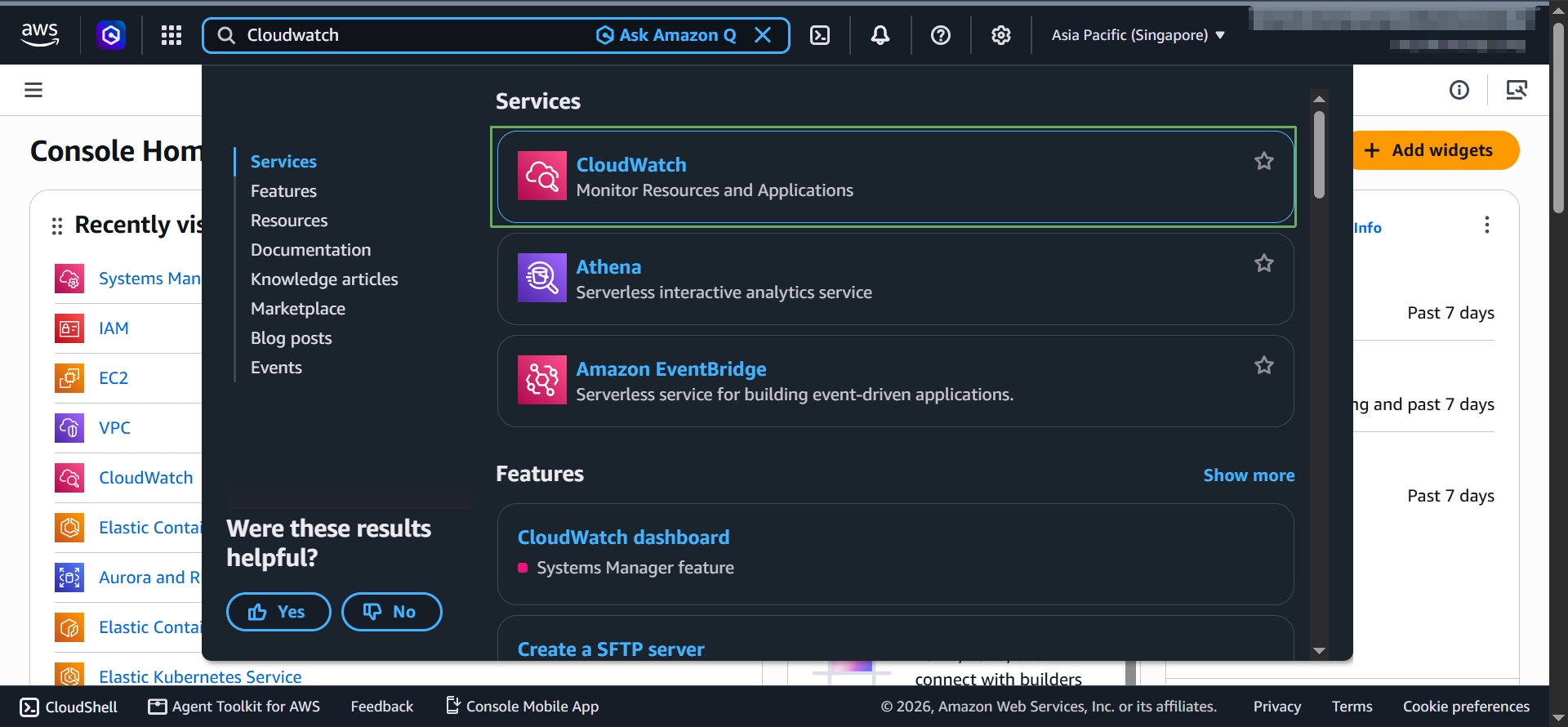
- Use the search bar at the top of the console and type
Cloudwatchto open the CloudWatch console.
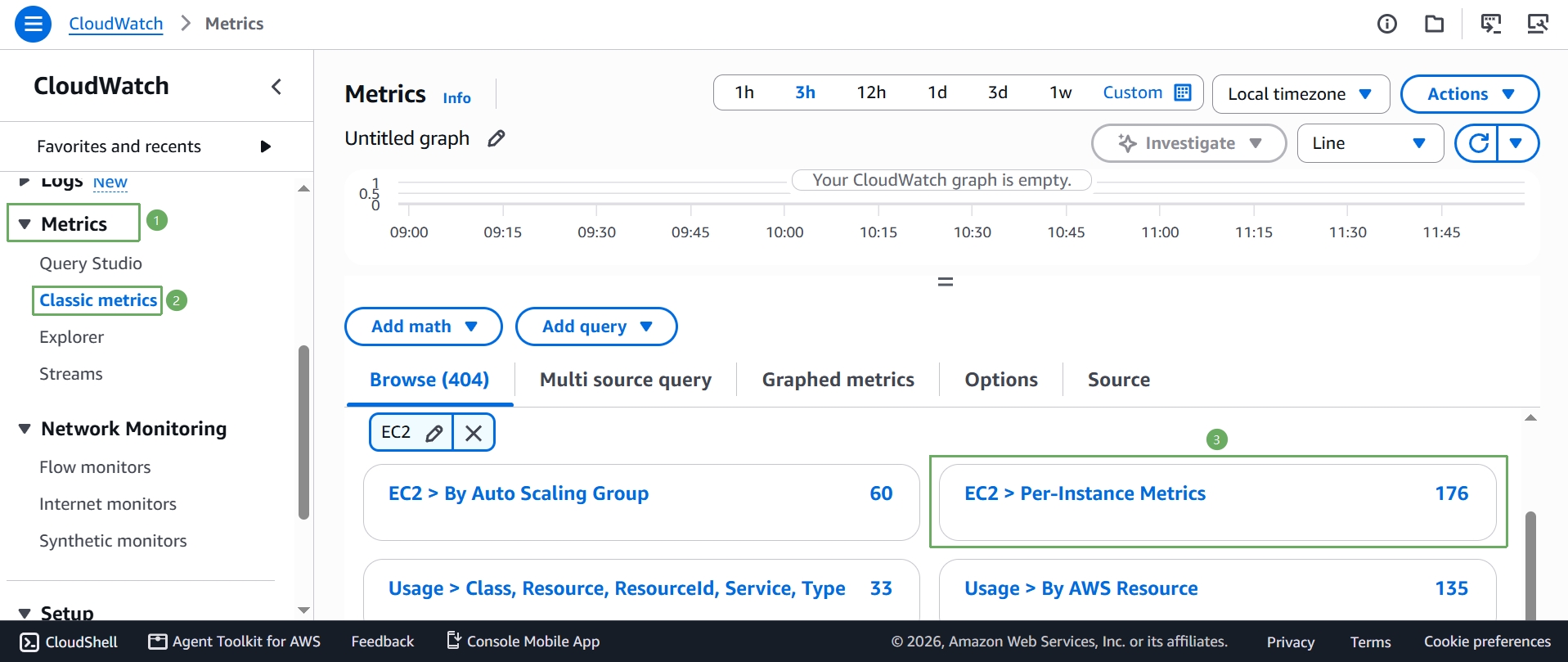
- In the left navigation pane, expand Metrics and select Classic metrics. Under Browse, select the EC2 namespace, then select EC2 > Per-Instance Metrics. This is where the default EC2 metrics live — the ones CloudWatch collects automatically at no extra cost (every 5 minutes), such as CPUUtilization, NetworkIn, and NetworkOut. These are enough to get started, but they don’t include memory or disk usage — we’ll add those with the CloudWatch agent in Step 5.
- Select the checkbox next to the metric and instance you want to inspect (for example, CPUUtilization for your
ec2-rightsizing-labinstance ID). The metric moves to the Graphed metrics tab, where you can see and adjust its Statistic (Average, Maximum, …), Period, and Y axis — and the graph appears above.
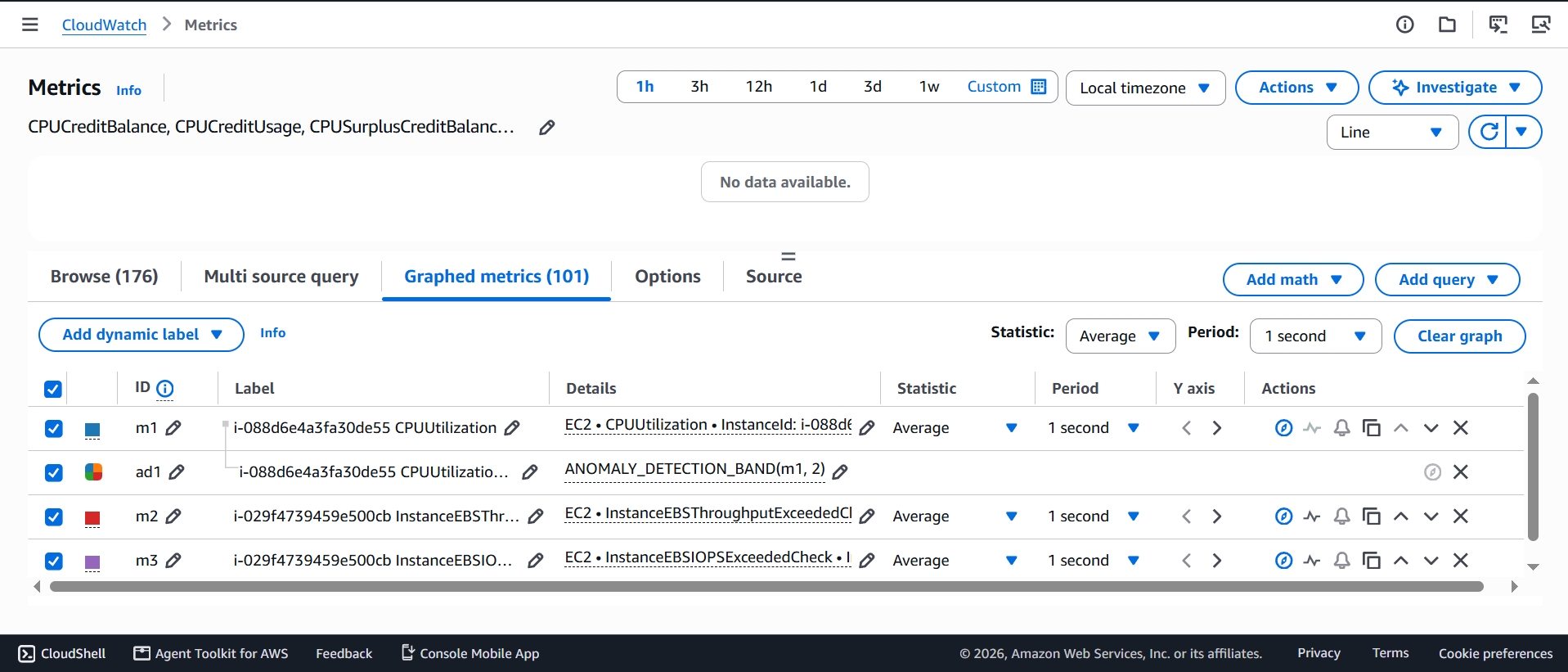
If your account already has other resources, the Graphed metrics tab may show extra rows left over from earlier work — that’s normal, just look for the row whose Details column matches your instance ID, and remove the others with the X icon on the right if you want a cleaner view. You can also change the time range shown in the graph using the time picker in the top-right corner (1h, 3h, … or Custom for a specific date range) — useful once you’ve collected a few days or weeks of data.
The basic EC2 metrics shown above (CPUUtilization, NetworkIn/Out, disk I/O) are collected automatically and included in the AWS Free Tier at no additional cost. You only start paying for CloudWatch when you publish custom metrics (like memory usage from the CloudWatch agent) beyond the free tier of 10 custom metrics, which is more than enough for this lab.