Install CloudWatch Agent
Install CloudWatch Agent
The CloudWatch agent collects metrics that aren’t available by default, most importantly memory utilization. Your instance’s IAM role, attached in Step 3 with the AmazonSSMManagedInstanceCore policy, means it’s already registered as a Systems Manager managed instance, so we can install and configure the agent remotely, with no SSH connection and no cost beyond the Free Tier.
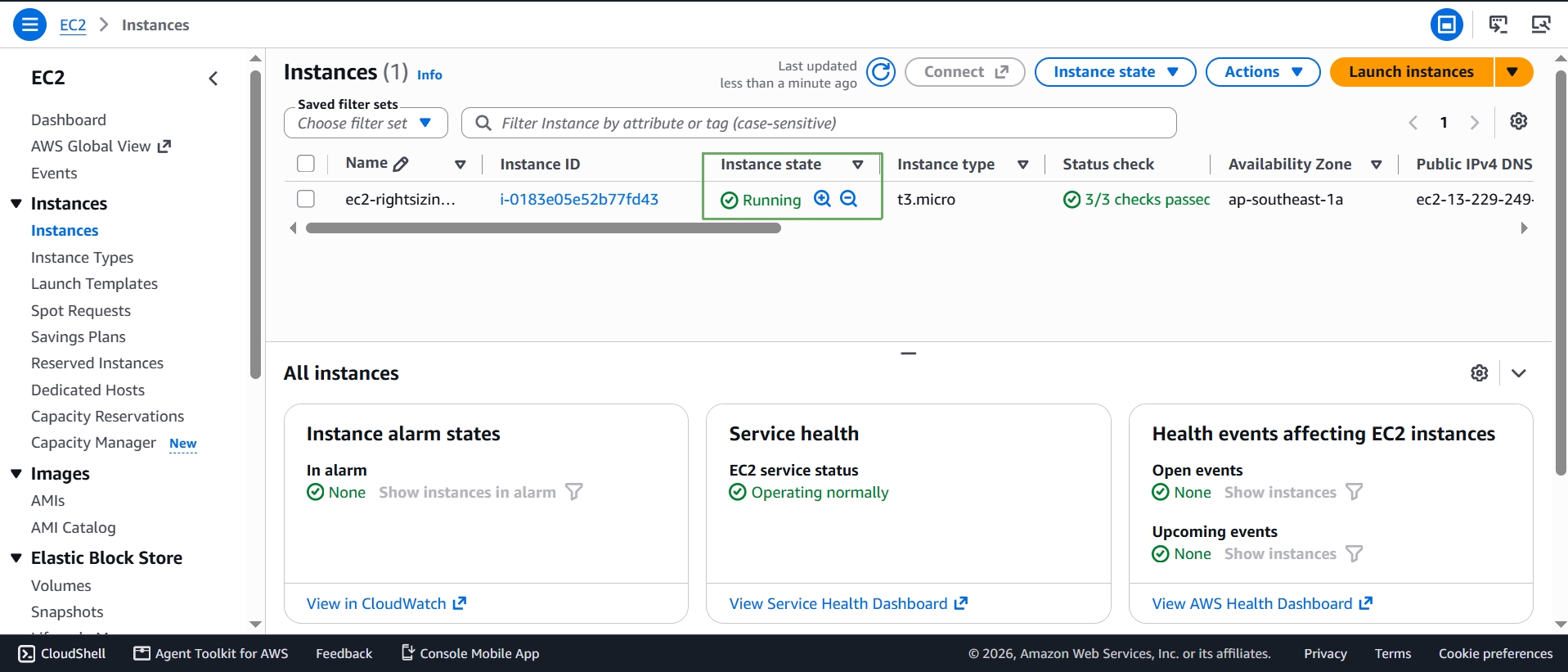
- Open the Amazon EC2 console and confirm your instance from Step 1 is in the Running state with 3/3 status checks passed.
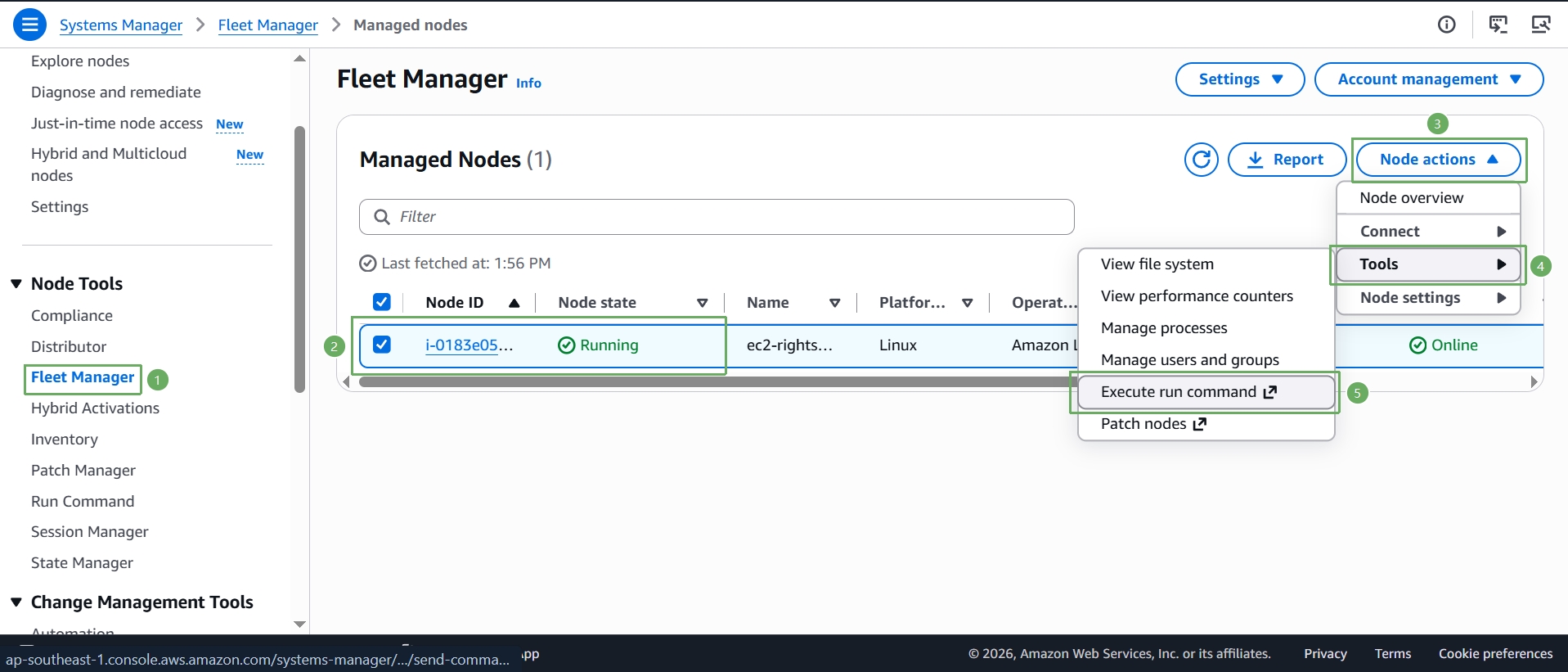
- A quick way to reach Run Command already targeted at this exact instance: open the AWS Systems Manager console, select Fleet Manager, check the box next to your instance, then select Node actions > Tools > Execute run command.
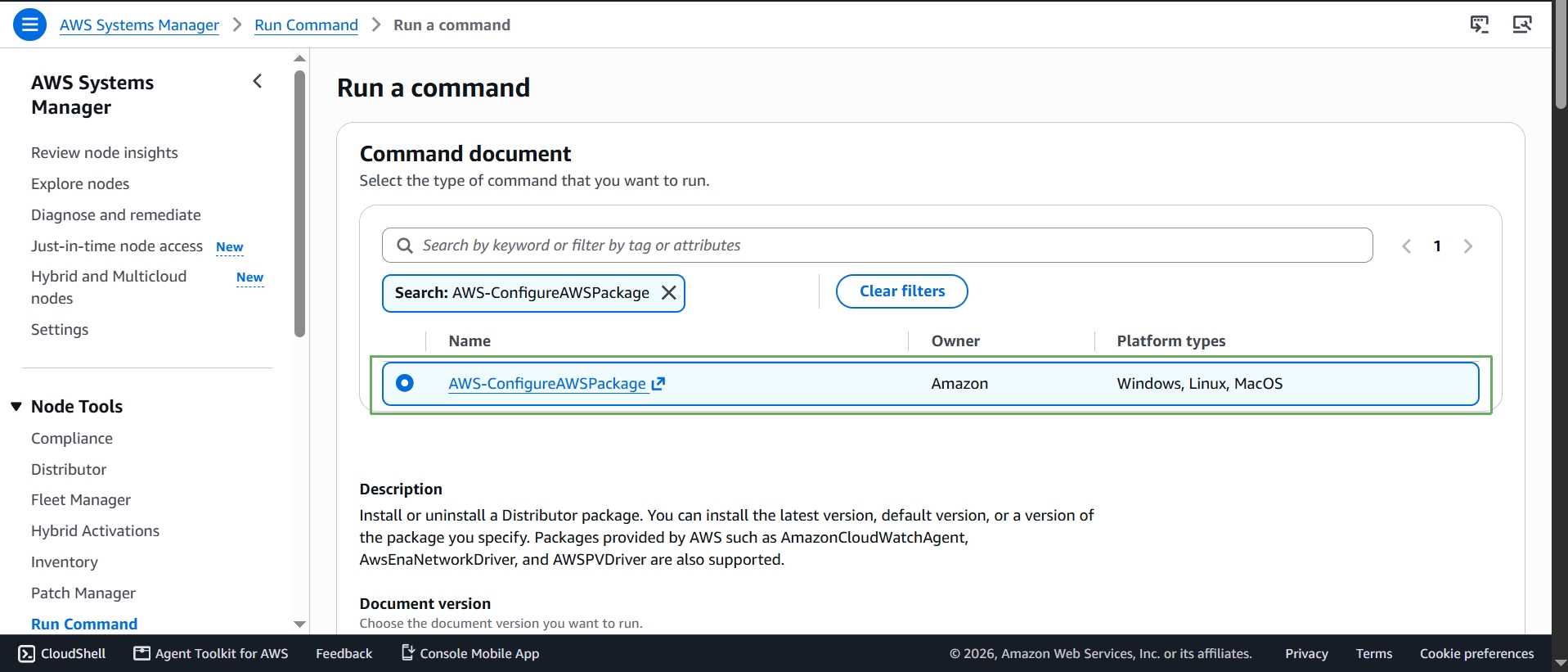
- On the Run a command page, the AWS-ConfigureAWSPackage command document is already selected — this document installs or uninstalls AWS-provided packages, including the CloudWatch agent.
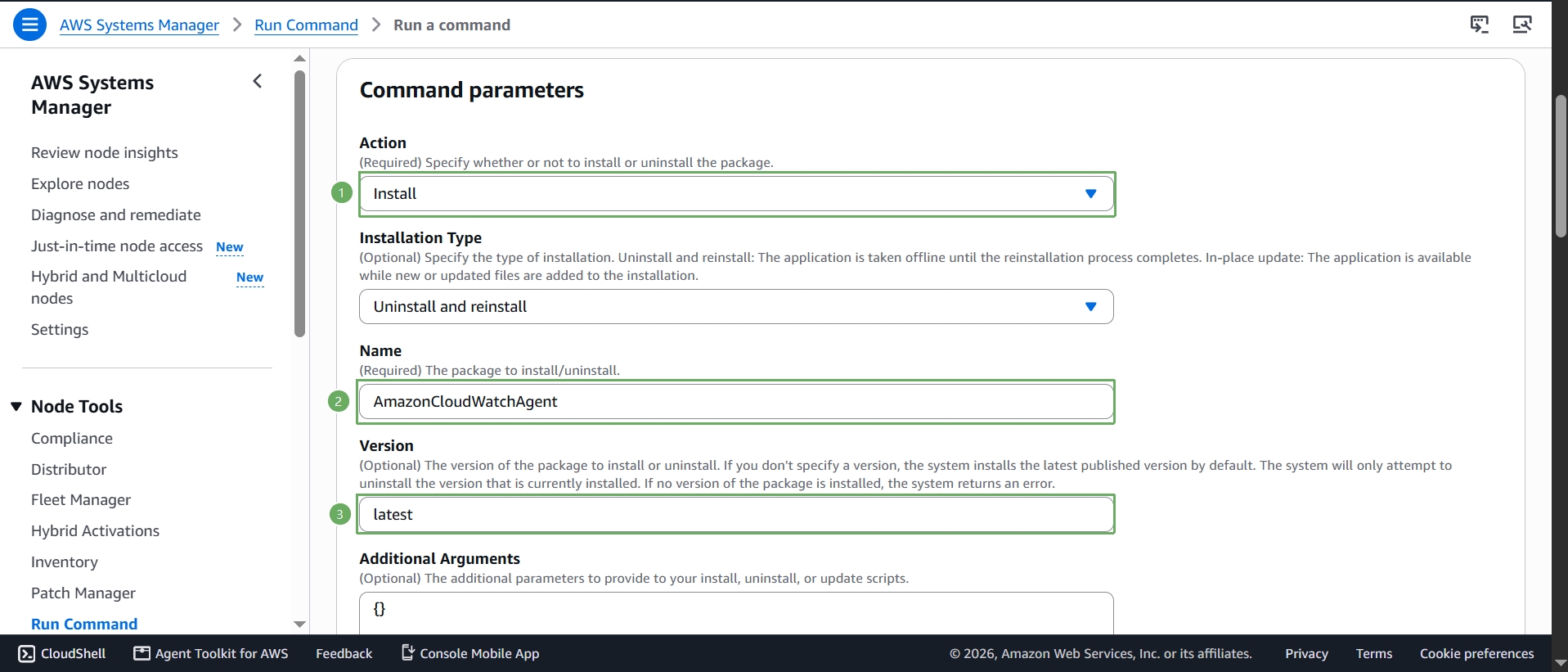
- Under Command parameters, set:
- Action:
Install - Name:
AmazonCloudWatchAgent - Version: leave as
latest
- Action:
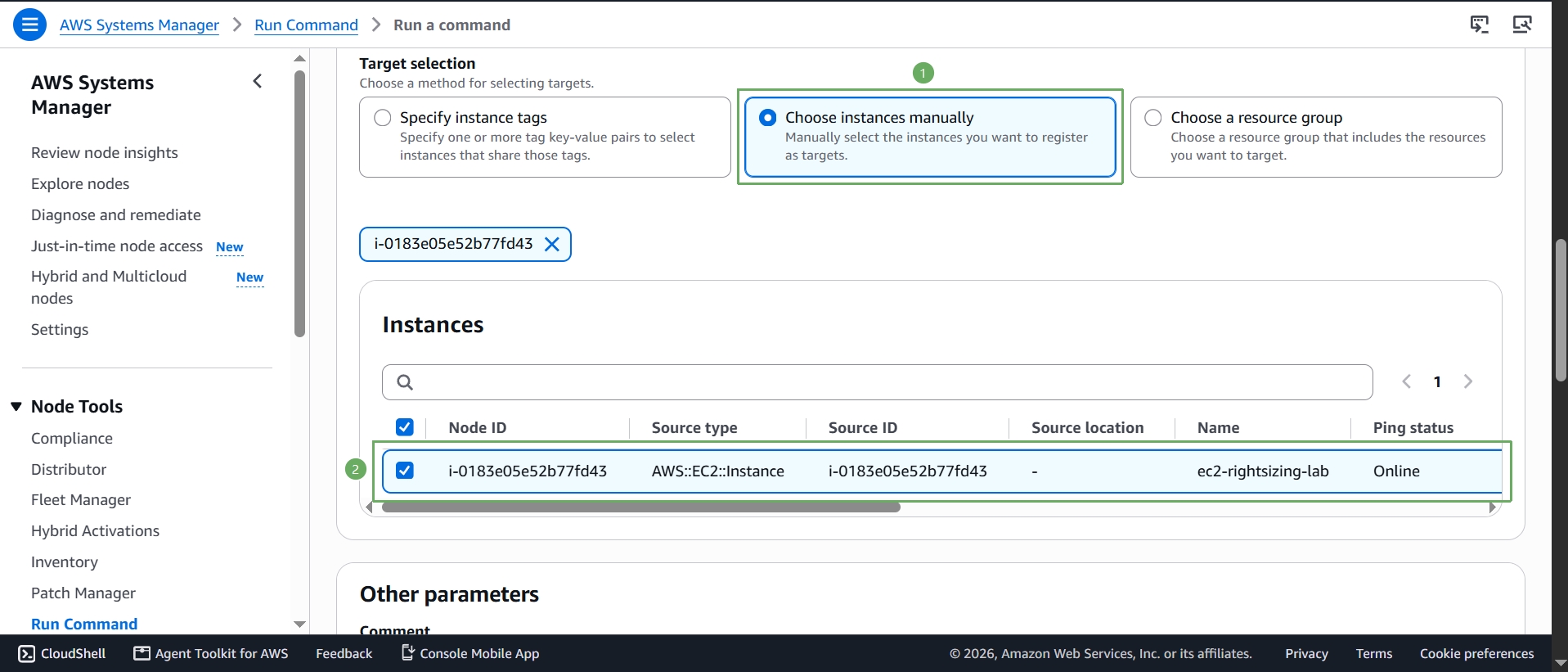
- Scroll down to Target selection — since you arrived here from Fleet Manager, Choose instances manually is already selected with your
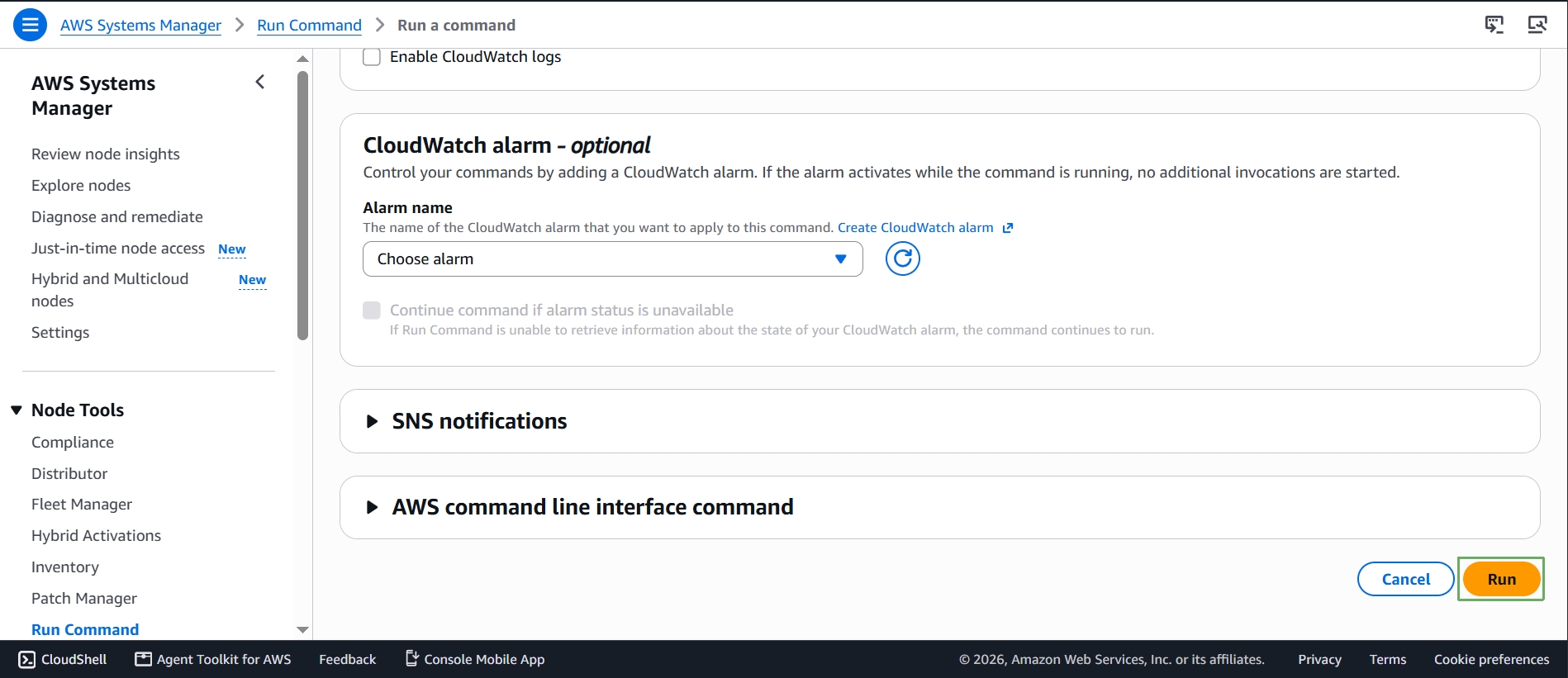
ec2-rightsizing-labinstance checked. Scroll further down and select Run.
- The rest of the page (CloudWatch alarm, SNS notifications) is optional — leave it as is and select Run.
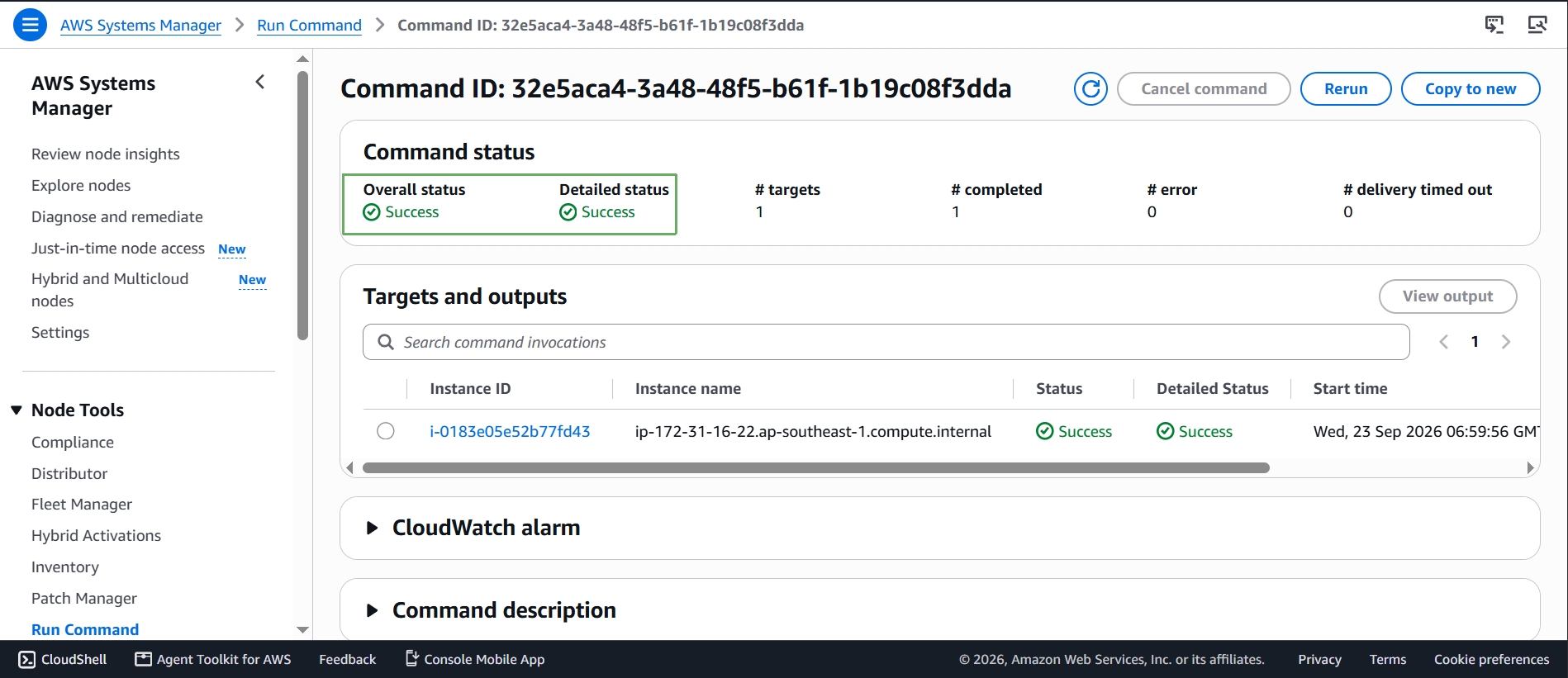
- Wait for the Overall status to show Success. This installed the CloudWatch agent binary, but it still needs a configuration file to know which metrics to collect.
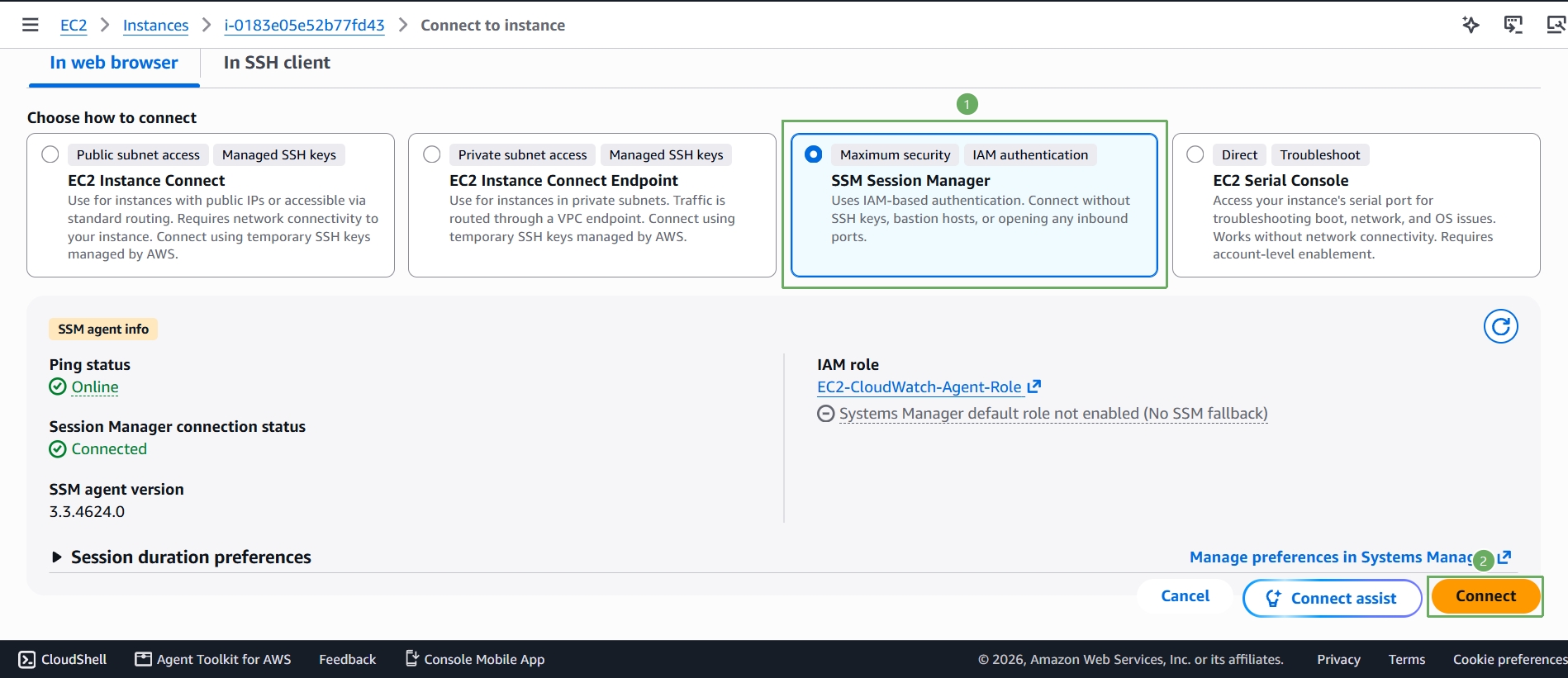
- To create the configuration interactively, connect to the instance using SSM Session Manager instead of SSH — this uses the same IAM role and doesn’t require a key pair or open ports. From the EC2 console, select your instance, choose Connect, then on the In web browser tab select SSM Session Manager (notice the panel confirms Ping status: Online and lists your IAM role), and select Connect.
- In the Session Manager terminal, run the configuration wizard:
sudo /opt/aws/amazon-cloudwatch-agent/bin/amazon-cloudwatch-agent-config-wizard
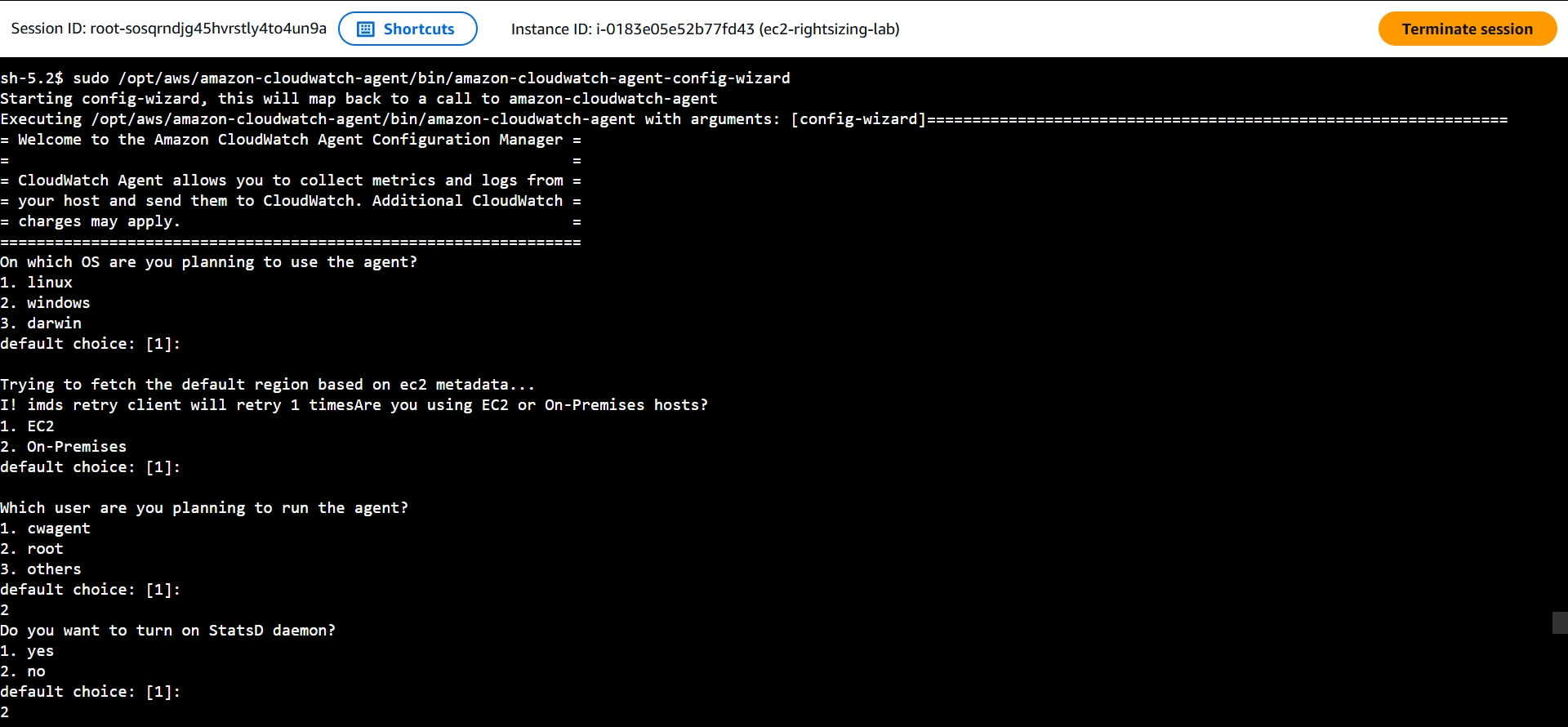
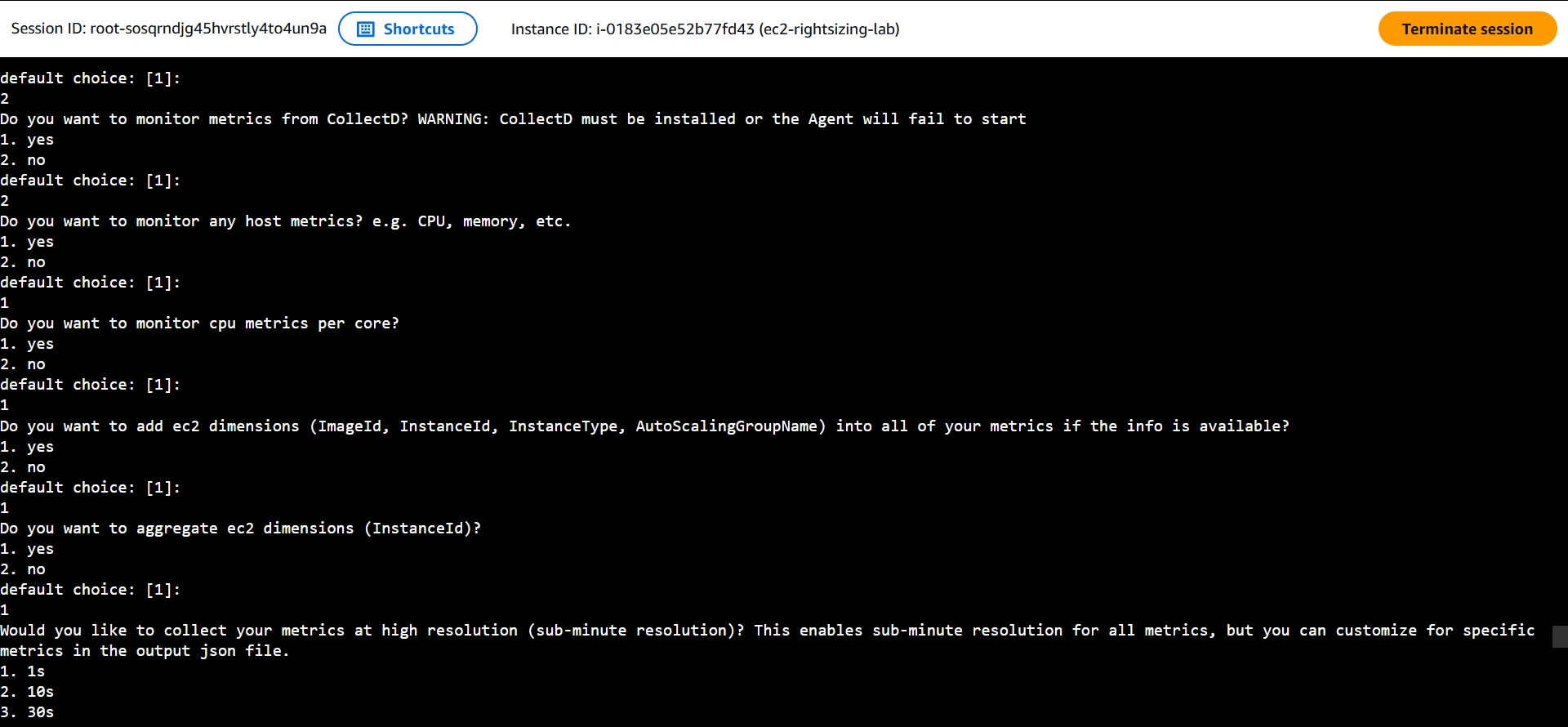
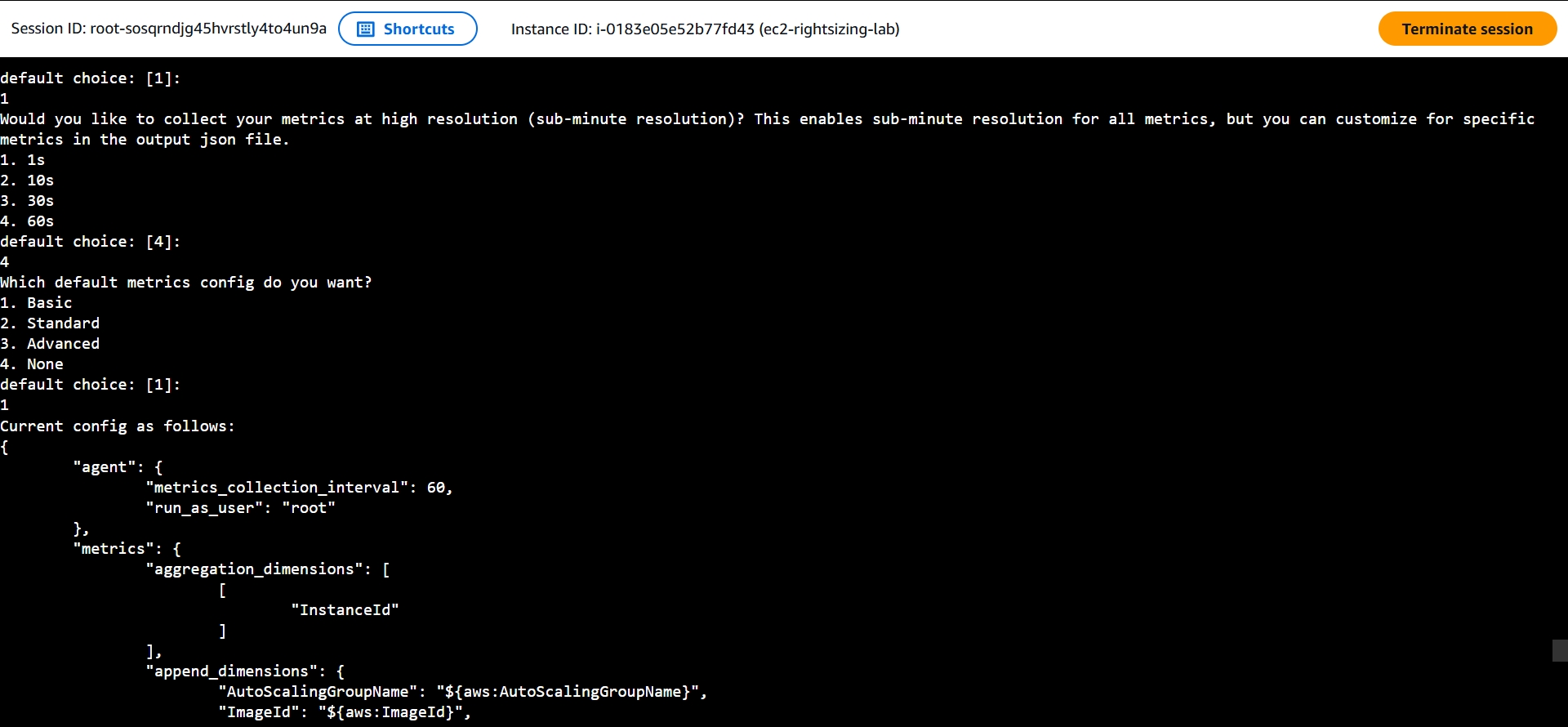
The wizard asks a long series of questions. Follow the table below in order and give the exact answer shown — answering “yes” on the StatsD/CollectD questions is the most common way people break the config before the agent ever starts, since CollectD needs a package we don’t have installed:
| Wizard question | Answer to give |
|---|---|
| On which OS are you planning to use the agent? | 1 (linux) |
| Are you using EC2 or On-Premises hosts? | 1 (EC2) |
| Which user are you planning to run the agent? | 2 (root) |
| Do you want to turn on StatsD daemon? | 2 (no) |
| Do you want to monitor metrics from CollectD? | 2 (no) |
| Do you want to monitor any host metrics? e.g. CPU, memory, etc. | 1 (yes) |
| Do you want to monitor cpu metrics per core? | 1 (yes) |
| Do you want to add ec2 dimensions (ImageId, InstanceId, InstanceType, AutoScalingGroupName) into all of your metrics if the info is available? | 1 (yes) |
| Do you want to aggregate ec2 dimensions (InstanceId)? | 1 (yes) |
| Would you like to collect your metrics at high resolution (sub-minute resolution)? | 4 (60s) |
| Which default metrics config do you want? | 1 (Basic) |
| Are you satisfied with the above config? | 1 (yes) |
| Do you have any existing CloudWatch Log Agent configuration file to import for migration? | 2 (no) |
| Do you want to monitor any log files? | 2 (no) |
| Do you want to monitor journald logs? | 2 (no) |
| Do you want the CloudWatch agent to also retrieve X-ray traces? | 2 (no) |
| Do you want to store the config in the SSM parameter store? | 2 (no) |
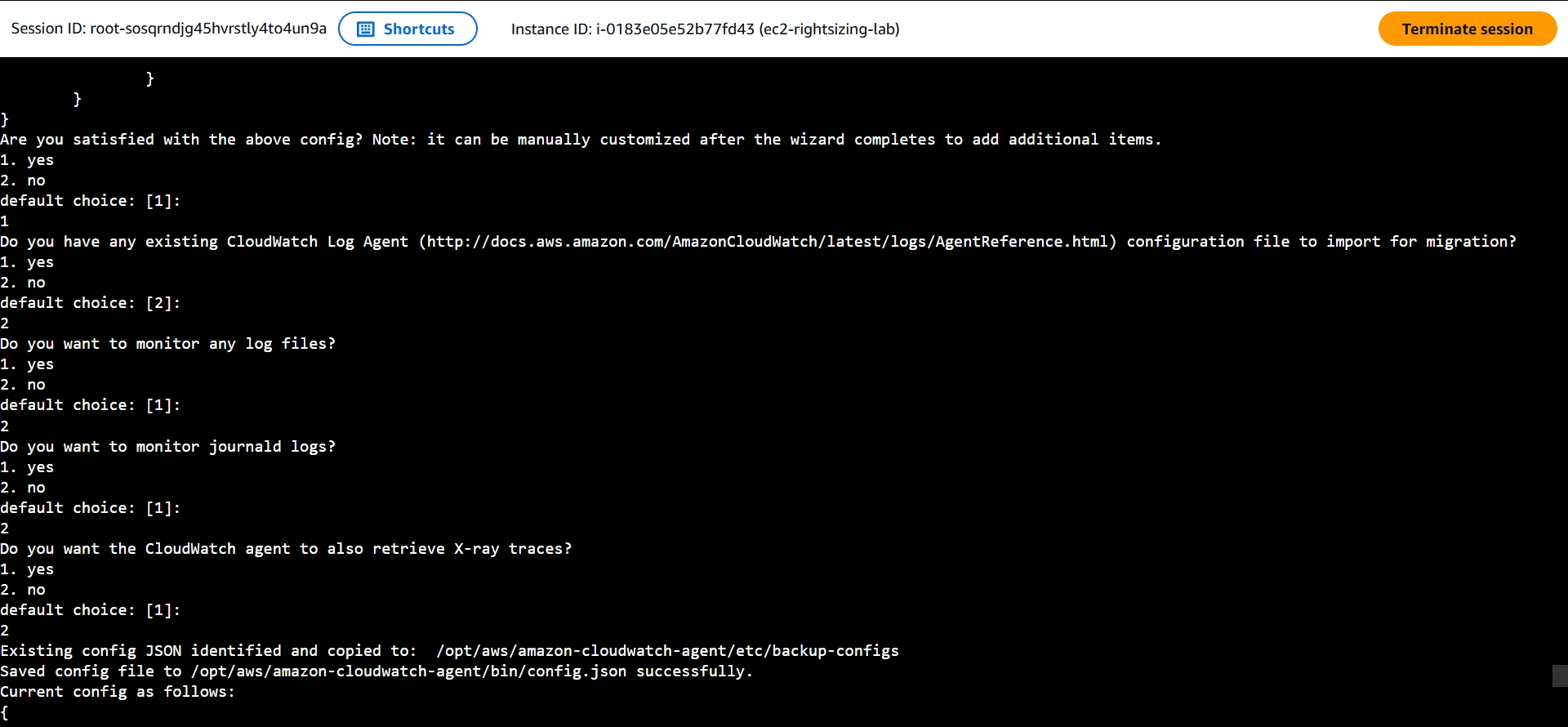
The generated config should show a "mem": { "measurement": ["mem_used_percent"], ... } block alongside "disk" under metrics_collected — this confirms mem_used_percent is enabled, the metric Compute Optimizer needs for a full recommendation (see Step 8).
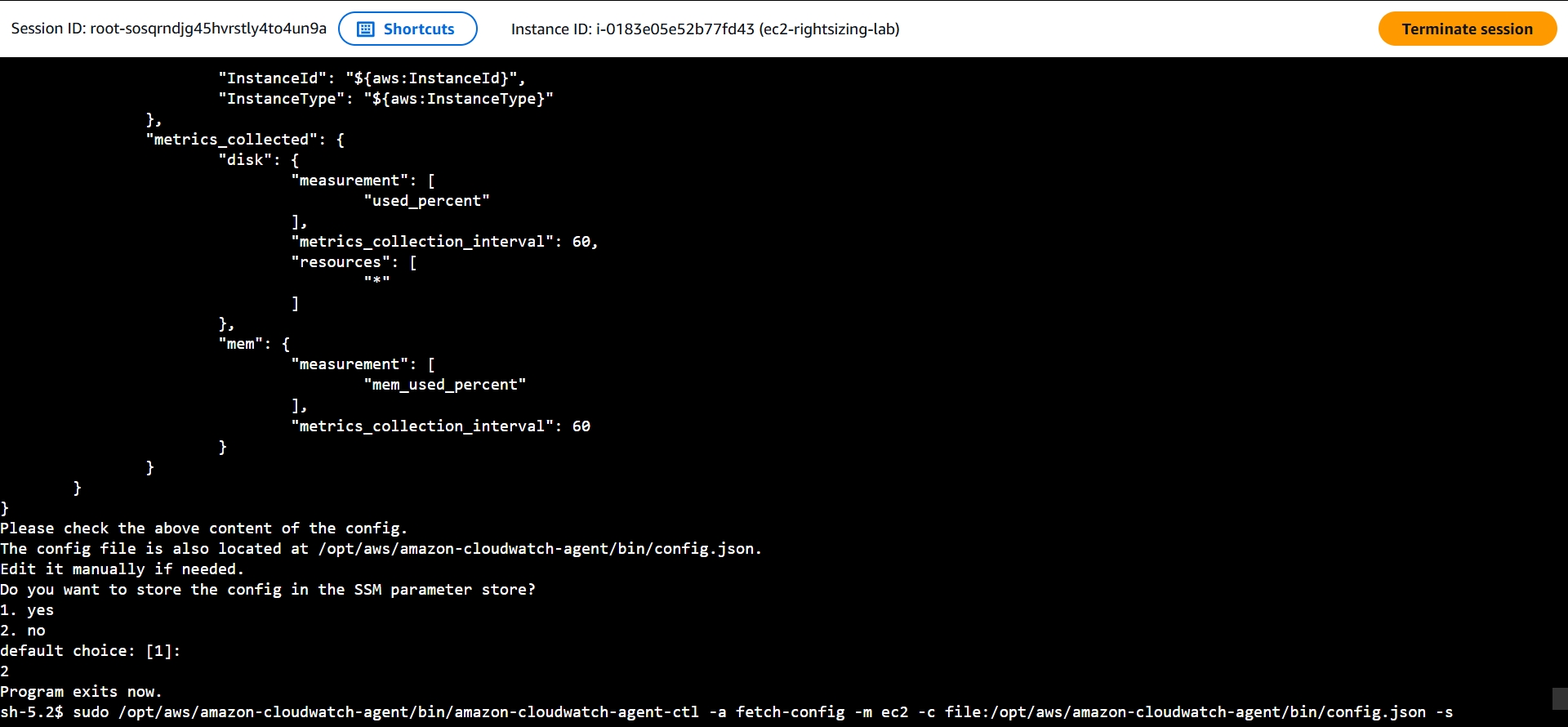
- Start the agent using the configuration file you just created:
sudo /opt/aws/amazon-cloudwatch-agent/bin/amazon-cloudwatch-agent-ctl -a fetch-config -m ec2 -c file:/opt/aws/amazon-cloudwatch-agent/bin/config.json -s
You should see Configuration validation succeeded near the end of the output, with no error lines.
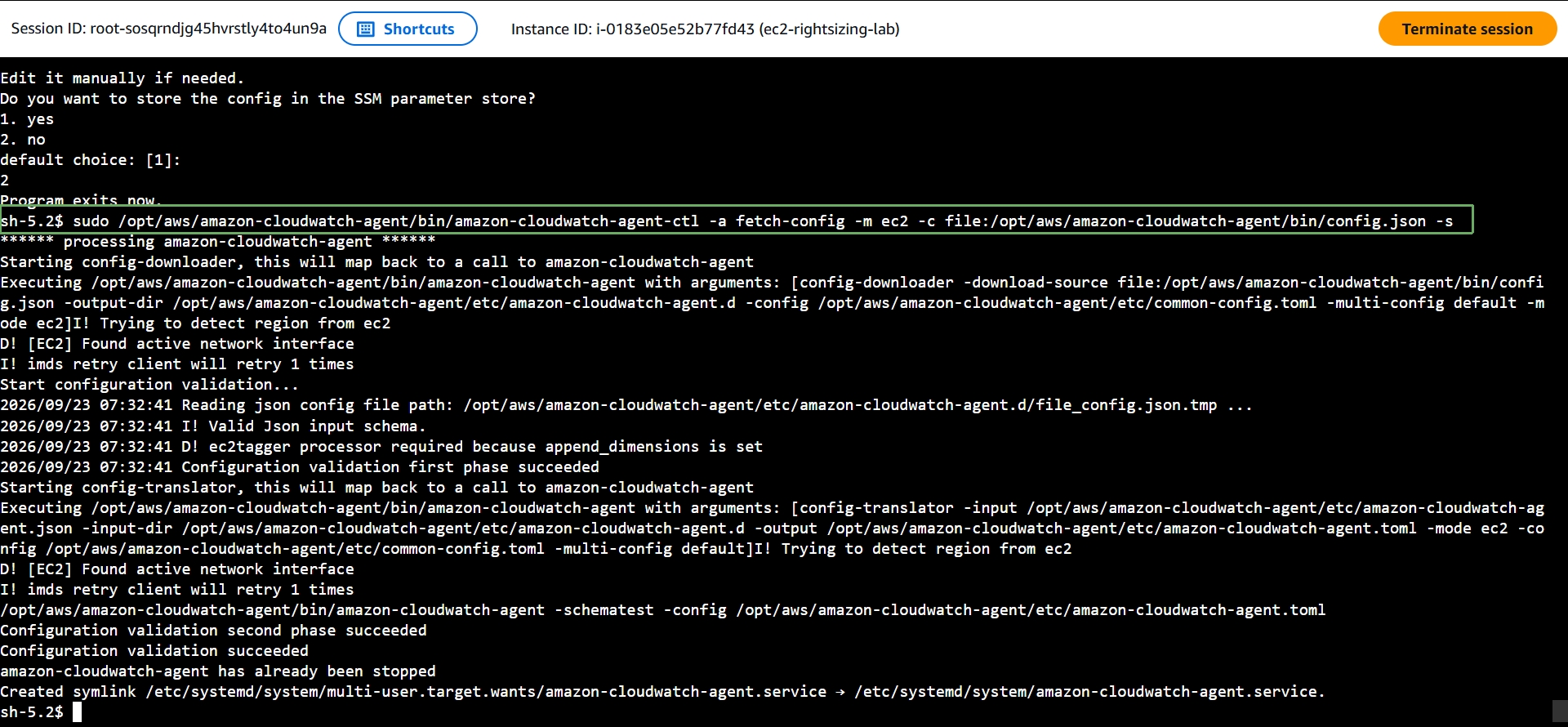
- Confirm the agent actually started:
sudo systemctl status amazon-cloudwatch-agent
You should see Active: active (running).
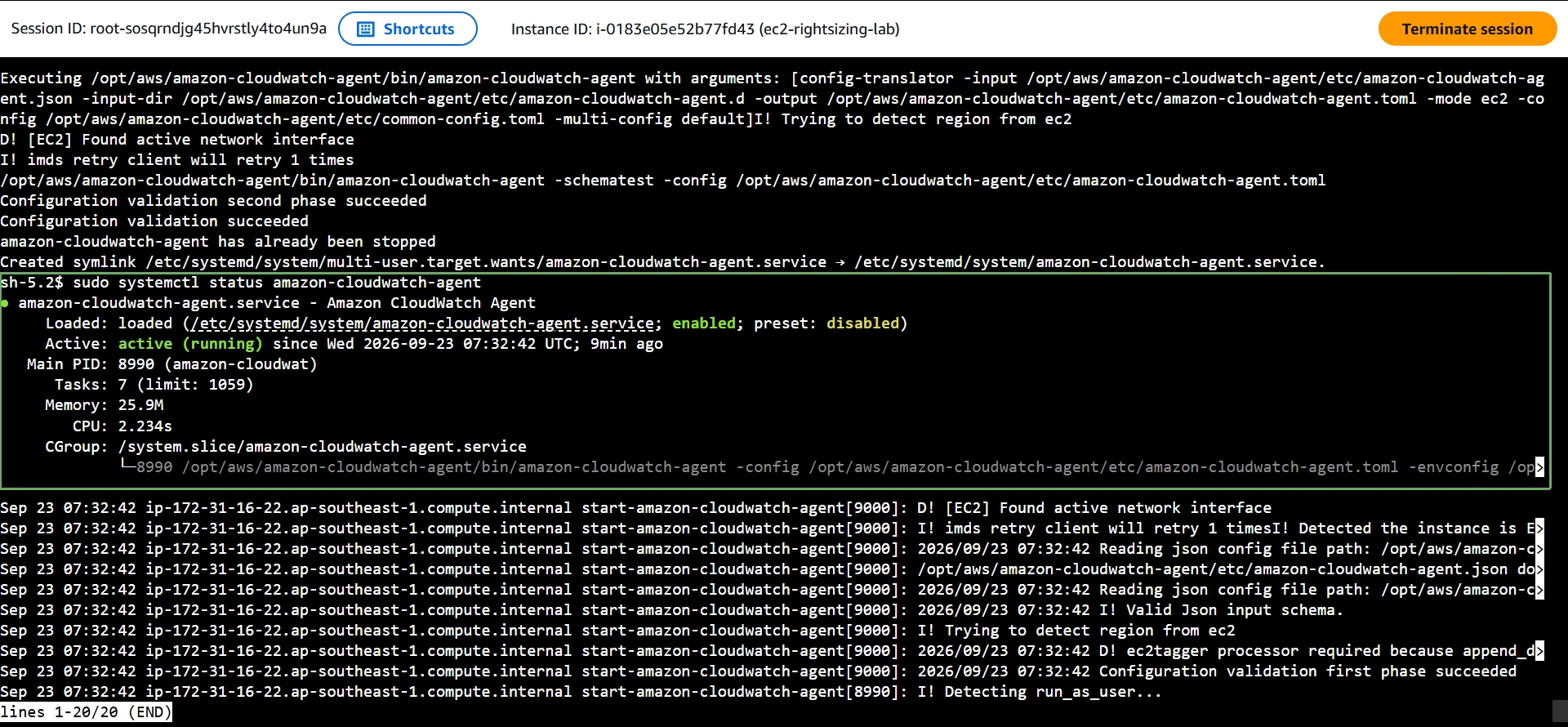
If step 10 fails instead with an error like open /usr/share/collectd/types.db: no such file or directory, see the Troubleshooting section at the bottom of this page before continuing.
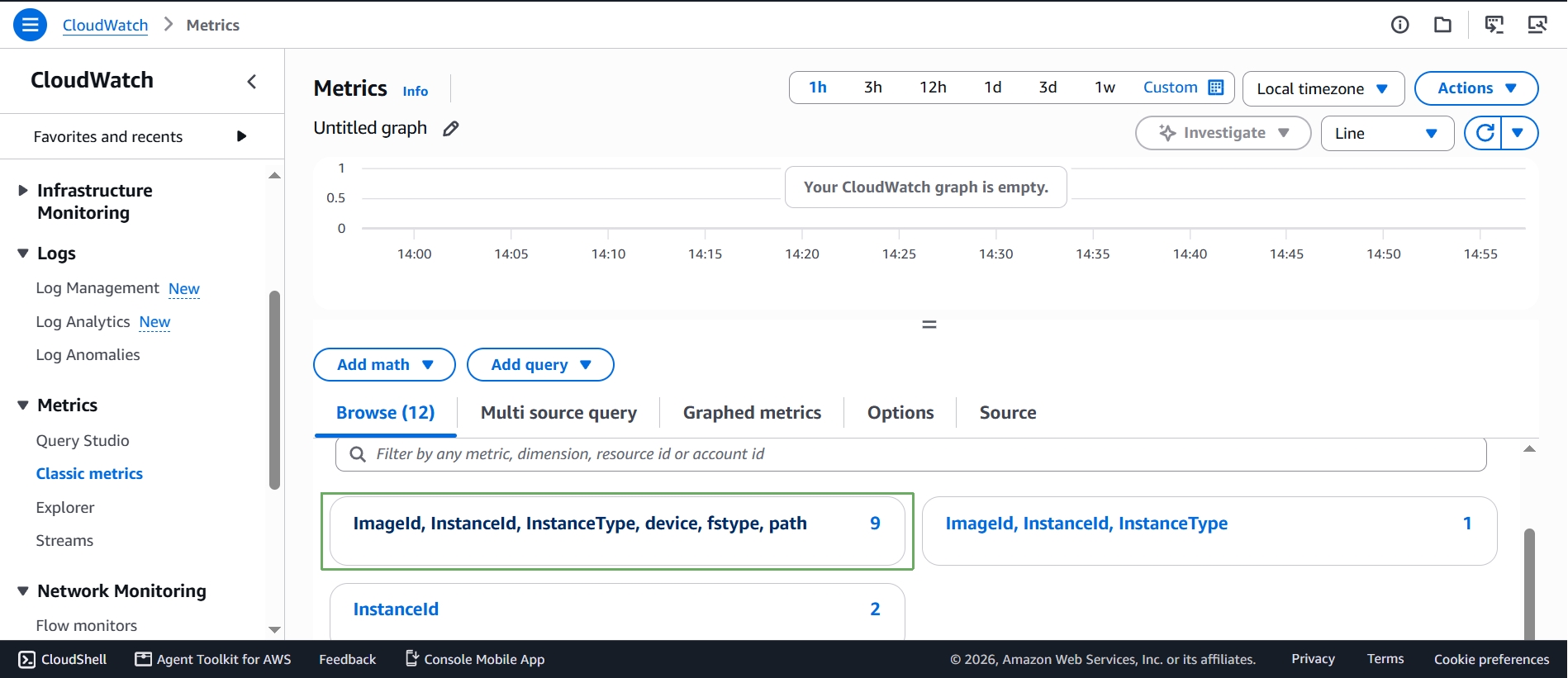
- Wait about 5 minutes for the first data points to arrive, then go back to the CloudWatch console, select Metrics > Classic metrics, and look for the Custom namespaces section — your CWAgent namespace should now be listed.
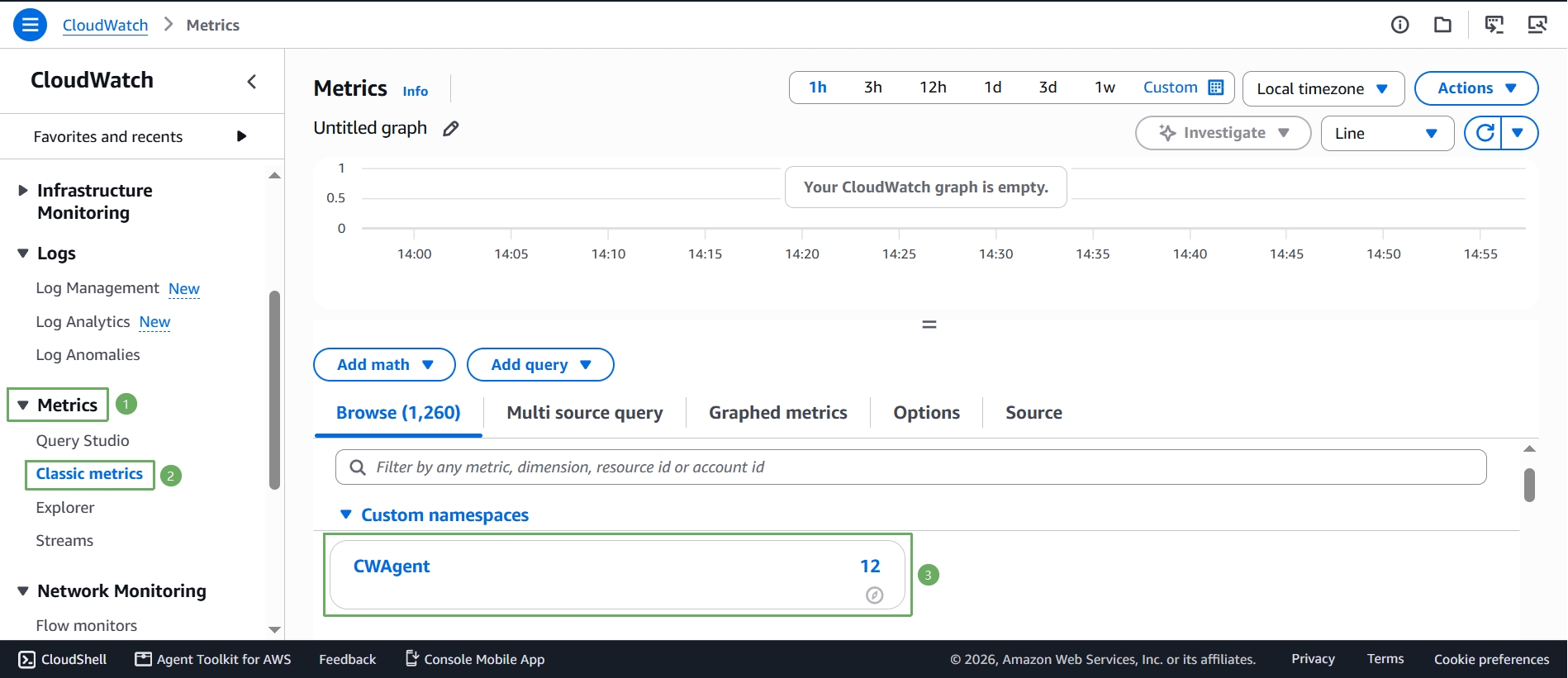
- Select CWAgent and browse the dimension groups. The group ImageId, InstanceId, InstanceType (with a count of 1) is your mem_used_percent metric; the group with device, fstype, path (count 9) is disk_used_percent broken down by mount point.
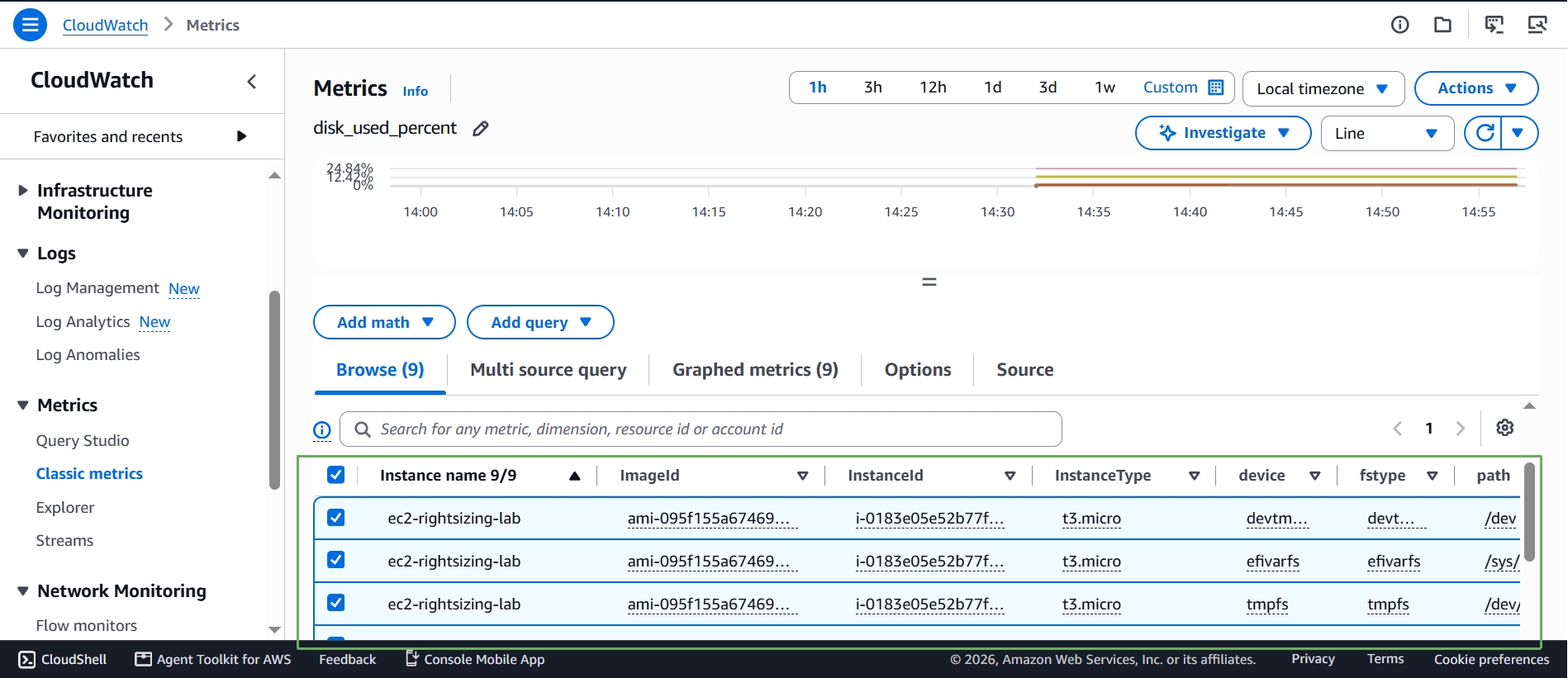
- Selecting the disk group, for example, graphs
disk_used_percentacross all 9 mount points for your instance — the same way you’d select themem_used_percentrow to graph memory.
Now that the CloudWatch agent is installed and running, CloudWatch can track memory utilization for this instance — the missing piece needed for AWS Compute Optimizer to give you a full, accurate recommendation.
Troubleshooting: “open /usr/share/collectd/types.db: no such file or directory”
If step 10 fails with an error like:
Error running agent: Error loading config file /opt/aws/amazon-cloudwatch-agent/etc/amazon-cloudwatch-agent.toml: error parsing socket_listener, open /usr/share/collectd/types.db: no such file or directory
it means the wizard’s CollectD question was answered “yes” at some point, which added a collectd block to the config that depends on a file the collectd package (not installed on Amazon Linux 2023) would normally provide.
Fix it by removing that block instead of installing collectd, since we don’t actually need it for this lab:
- Open the generated config file:
sudo nano /opt/aws/amazon-cloudwatch-agent/bin/config.json
- Find the
"collectd": { ... }block inside"metrics_collected"and delete it entirely (remove any trailing comma left behind so the JSON stays valid). Save with Ctrl+O, Enter, then exit with Ctrl+X. - Re-run the fetch-config command from step 10. It should now finish without printing an error, and
sudo systemctl status amazon-cloudwatch-agentshould showactive (running).
If you’d rather start clean instead of hand-editing JSON, just re-run the wizard (step 9) from scratch — this time answering no to both the StatsD and CollectD questions — and then re-run step 10.
Installing and running the agent through Systems Manager is free. The only thing that could cost money is publishing a very large number of custom metrics — this lab publishes just a handful, well within the CloudWatch Free Tier of 10 custom metrics per month.