Review EC2 rightsizing recommendations in Cost Optimization Hub
Review EC2 rightsizing recommendations in Cost Optimization Hub
AWS used to surface EC2 rightsizing tips inside Cost Explorer under “Amazon EC2 Resource Optimization.” That feature has since been folded into Cost Optimization Hub, a single, free dashboard in the Billing and Cost Management console that aggregates savings opportunities — rightsizing, idle-resource deletion, Savings Plans, and Reserved Instances — for EC2, EBS, Lambda, ECS on Fargate, RDS, and more.
Cost Optimization Hub pulls its rightsizing data from AWS Compute Optimizer, so make sure you’ve opted in to Compute Optimizer (covered in Step 8) before checking here — recommendations can take up to 24 hours to appear after opting in and after your instance accumulates enough CloudWatch history (at least a few hours, ideally 14 days).
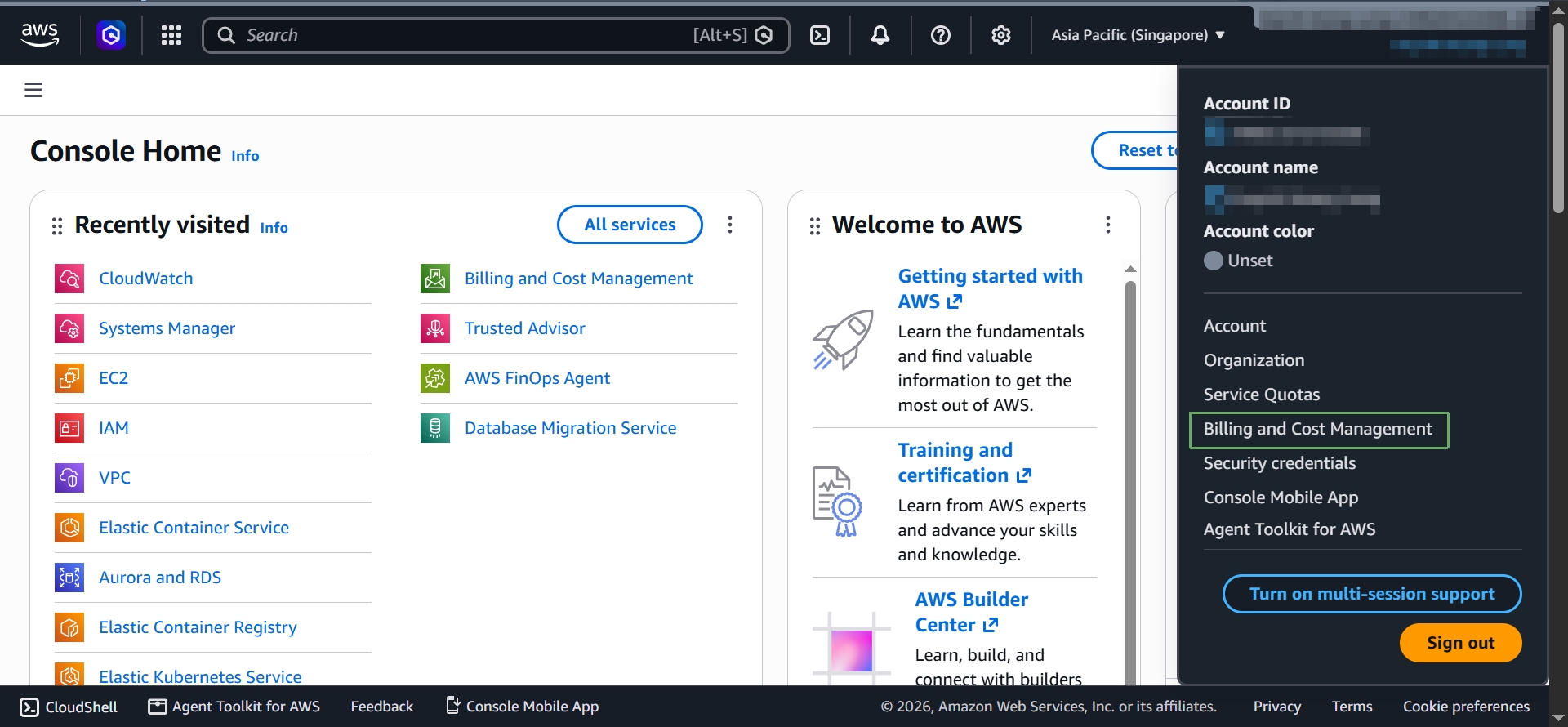
- Select the account menu in the top-right corner and select Billing and Cost Management.
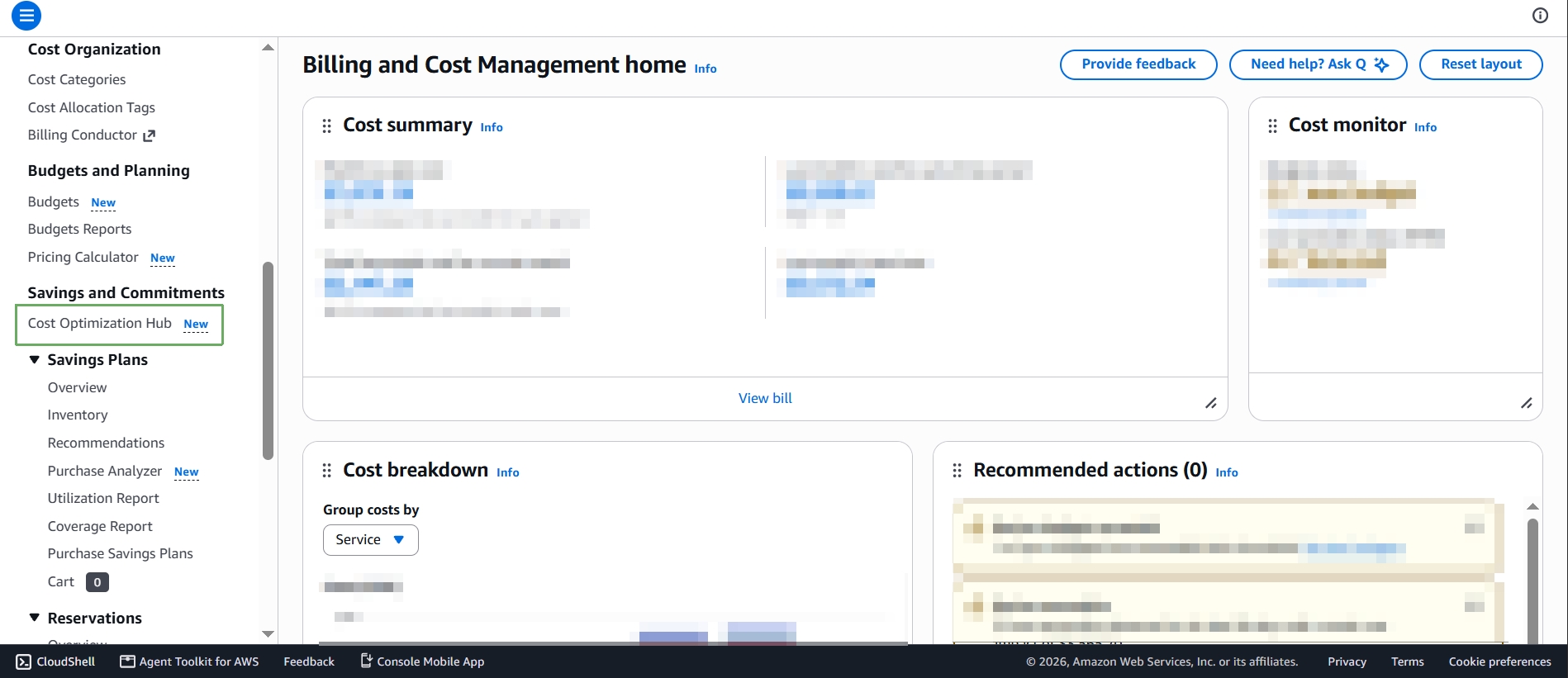
- On the Billing and Cost Management home page, notice the Recommended actions (0) card — this account has no cost-optimization recommendations yet, for the reason explained in the notice below. In the left navigation pane, under Savings and Commitments, select Cost Optimization Hub.
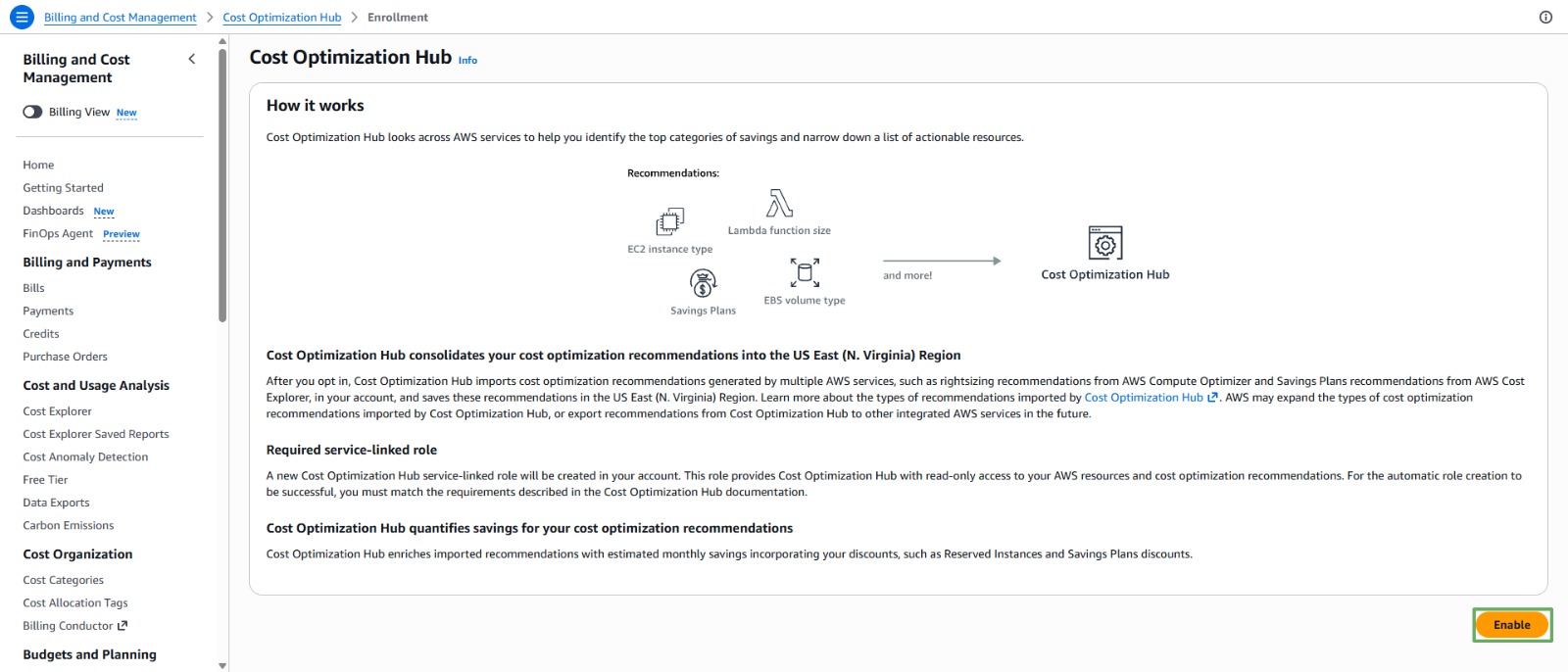
- If you haven’t enrolled yet, you’ll land on an Enrollment page explaining How it works: Cost Optimization Hub imports rightsizing recommendations for EC2 instance type, Lambda function size, EBS volume type, and Savings Plans from services like AWS Compute Optimizer and Cost Explorer, and consolidates them into the US East (N. Virginia) Region regardless of where your resources actually run. Select Enable.
This is the part where a fresh lab account and a real production account diverge, and it’s important to understand why.
Rightsizing recommendations are only ever as good as the usage history behind them. In this workshop, your ec2-rightsizing-lab instance has been running for a very short time with essentially no real workload on it — you didn’t deploy an application, serve traffic, or run a batch job. That’s normal for a lab, but it also means:
- Compute Optimizer needs a meaningful lookback window (ideally 14 days, minimum a few hours) of real utilization data before it can classify an instance as over- or under-provisioned.
- An EC2 instance sitting idle right after launch most often comes back as “Insufficient data” or, once enough time passes, as a candidate to downsize — because near-zero CPU and memory usage looks exactly like an over-provisioned instance to the algorithm.
- Cost Optimization Hub’s “Recommended actions” count may stay at 0 for the whole lab, and that is not a bug — it’s the expected outcome when there’s no real workload for the algorithm to reason about.
The goal of this step isn’t to walk away with a specific dollar figure. It’s to understand where rightsizing recommendations live in the console, what data feeds them (Steps 1–5: launch, CloudWatch, the agent), and how to read and act on them once real usage history exists — whether that’s next week on this same lab instance, or on a production fleet at work. The mechanics you’re practicing here are identical either way; only the data behind them differs.
- Once enrolled, the same Recommendations view can also be reached through other cost-optimization workflows. As an example of what a recommendation screen looks like while you wait for Compute Optimizer to accumulate data, open Savings Plans > Recommendations in the left navigation pane. Here you can set Recommendation parameters — Savings Plans type (e.g. Compute Savings Plans, which applies to EC2, Fargate, and Lambda usage), Recommendation level, term, payment option, and the lookback window (7/30/60 days) — and AWS calculates how much you’d save by committing to a Savings Plan based on your actual usage over that window.
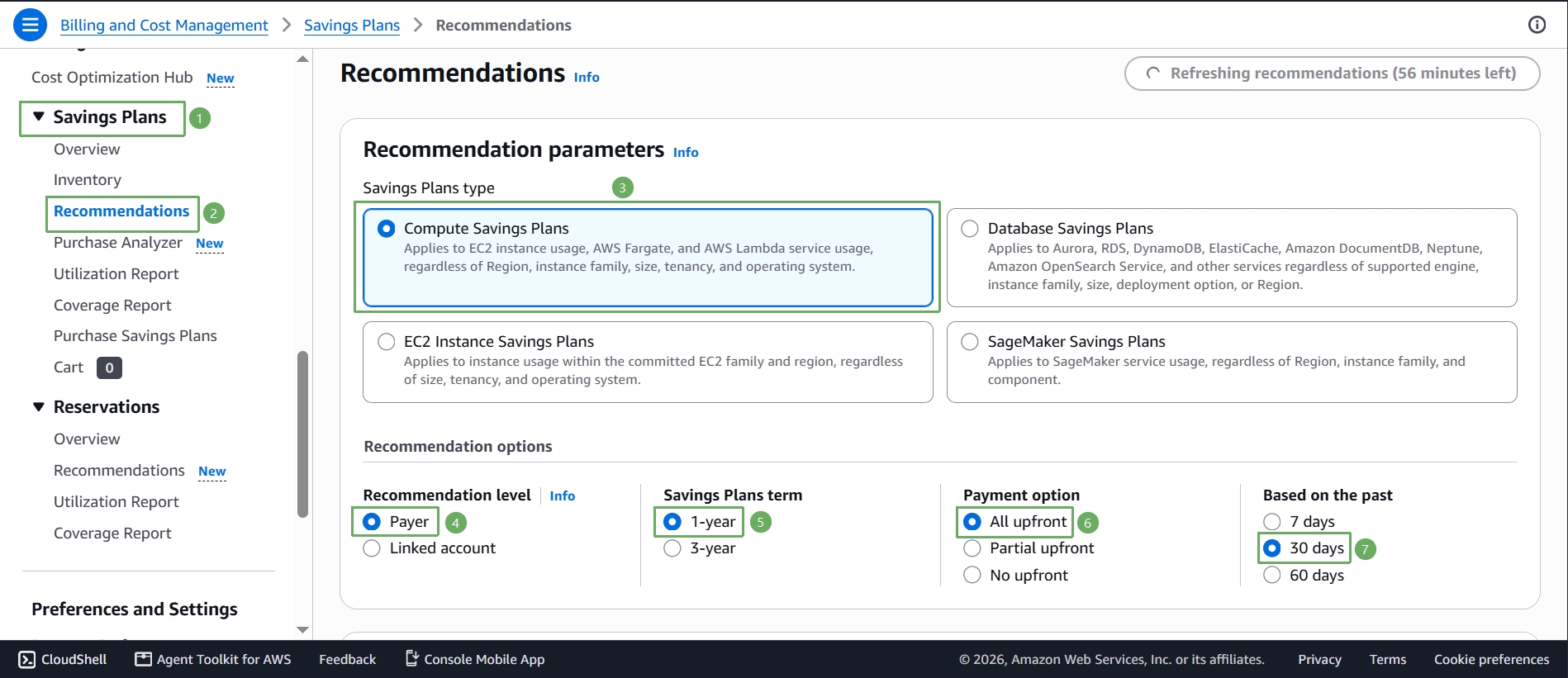
Savings Plans recommendations answer a different question than EC2 rightsizing: rightsizing asks “is this the right instance type/size for this workload?”, while Savings Plans asks “given the usage I already have, should I commit to a 1- or 3-year discount?”. Both are cost-optimization tools and both show up in and around Cost Optimization Hub, but as covered in Step 7, you should always rightsize first — committing to a Savings Plan for the wrong instance size just locks in the waste.
For each rightsizing opportunity that Cost Optimization Hub does surface (once your account has one, whether in this lab after more time or back at work with a real fleet), the table shows:
- Current resource type: the current EC2 instance type and its estimated on-demand monthly cost
- Recommended resource type: the suggested instance type based on CPU and memory utilization
- Estimated monthly savings and Estimated savings percentage: how much you’d save by switching
You can also group and filter recommendations by account, Region, and tag — handy in a classroom setting where each student has their own account or resource tags.
Cost Optimization Hub itself is free to use; you only pay for the compute or storage changes you decide to apply. Nothing in this step generates any charge.