Optimize configuration for compute based on AWS Compute Optimizer
THEORY SECTION
What is AWS Compute Optimizer
AWS Compute Optimizer is a free service (no additional charge) that, given the right permissions and metrics, analyzes your resources and makes recommendations to help you avoid over-provisioned or under-provisioned resources across:
- EC2 instances
- EC2 Auto Scaling groups
- EBS volumes
- Lambda functions
- Amazon ECS services on AWS Fargate
- Amazon RDS instances
Compute Optimizer’s recommendations now also feed directly into Cost Optimization Hub (see Step 6), which is the single place to review rightsizing savings across all these resource types alongside Savings Plans and Reserved Instance opportunities.
Takeaway: when optimizing cost for compute (EC2, Lambda, Fargate), follow this order:
- Optimize instance type and configuration first.
- Only once you’re confident the instance type and configuration fit the workload, consider purchasing Savings Plans or Reserved Instances (see Step 6) for discounts of up to 66% versus on-demand pricing.
Doing step 2 before step 1 makes the optimization mostly meaningless — you’d be committing to pay for an instance size for 1 or 3 years without knowing whether it’s too powerful (wasteful) or too weak (can’t handle the workload).
What AWS Compute Optimizer relies on for analysis and recommendations
AWS Compute Optimizer relies on metrics collected by CloudWatch over a 14-day lookback period by default (extendable up to 93 days with enhanced infrastructure metrics) to analyze and make recommendations, using metrics such as:
- CPUUtilization
- Memory utilization:
mem_used_percent(Linux) or Available MBytes (Windows) - VolumeReadBytes
- VolumeWriteBytes
You can see the full metrics list here: Metrics analyzed by AWS Compute Optimizer. Custom metrics from the CloudWatch agent must be published under the namespace CWAgent for Compute Optimizer to pick them up.
You can use a different namespace to keep your own custom metrics organized in CloudWatch, but if you want full recommendations from AWS Compute Optimizer, the namespace CWAgent is required.
The Memory utilization metric is a custom metric, so it isn’t collected by default. Without it, EC2 sizing recommendations are less reliable, because they’d be based only on CPUUtilization. This is exactly why we installed the CloudWatch Agent in Step 5 — refer back to Step 4 and Step 5 if you need a refresher.
Example 1: AWS Compute Optimizer’s proposal for an EC2 instance when only the CPU utilization metric is available.
- Current:
m5.xlargewith 4 vCPU and 16 GiB memory - Options: 3 alternatives are offered; option 1 is
r6g.largewith 2 vCPU and 16 GiB memory - CPU utilization: the 3 recommendations are based on the instance’s CPU usage
- Memory utilization: no data for this metric, so these 3 options may not truly be optimal
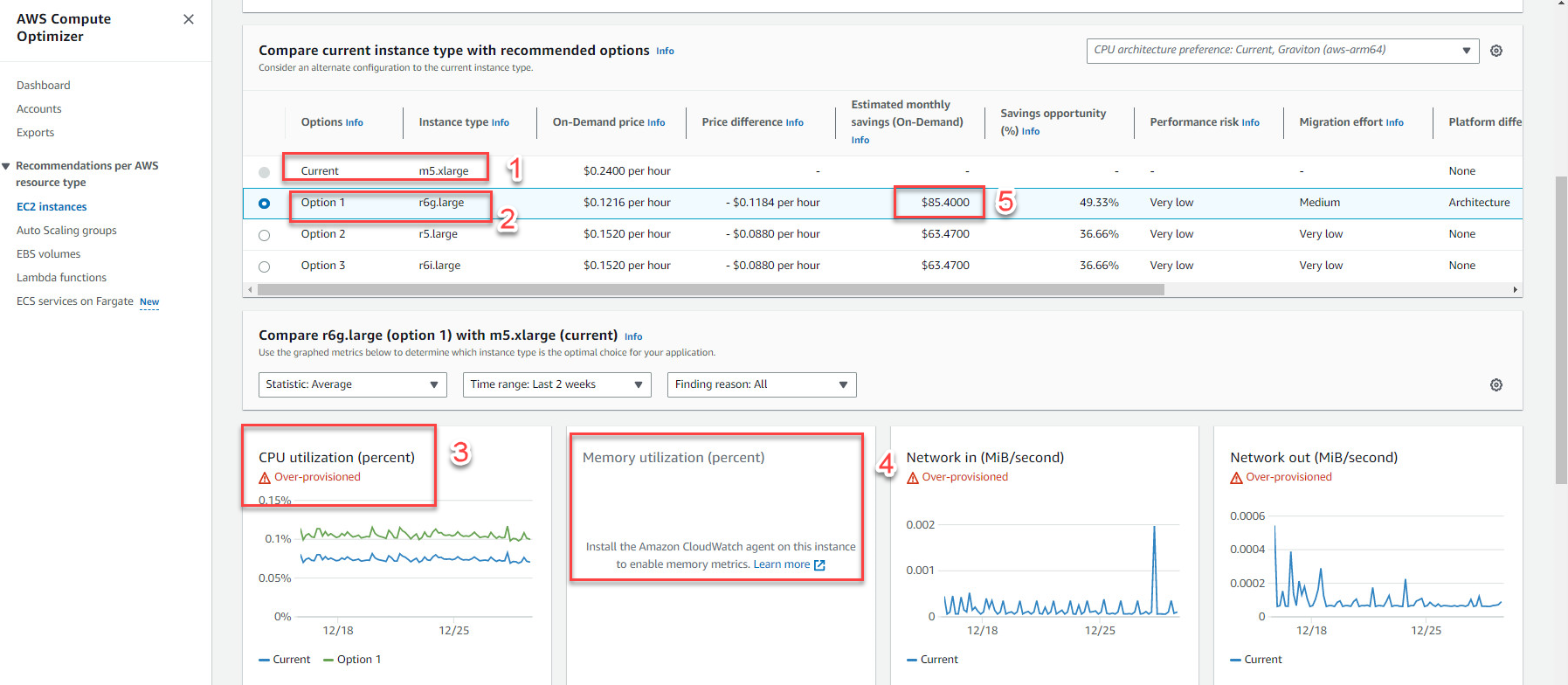
Estimated savings shown for illustration only — actual figures depend on your current instance’s on-demand price and Region.
Example 2: AWS Compute Optimizer’s proposal for the same EC2 instance once both CPU utilization and memory utilization are available.
- Current:
m5.xlargewith 4 vCPU and 16 GiB memory - Options: 3 alternatives are offered; option 1 is
t4g.nanowith 2 vCPU and 0.5 GiB memory - CPU utilization: the 3 recommendations are based on the instance’s CPU usage
- Memory utilization: the 3 recommendations are also based on the instance’s memory usage
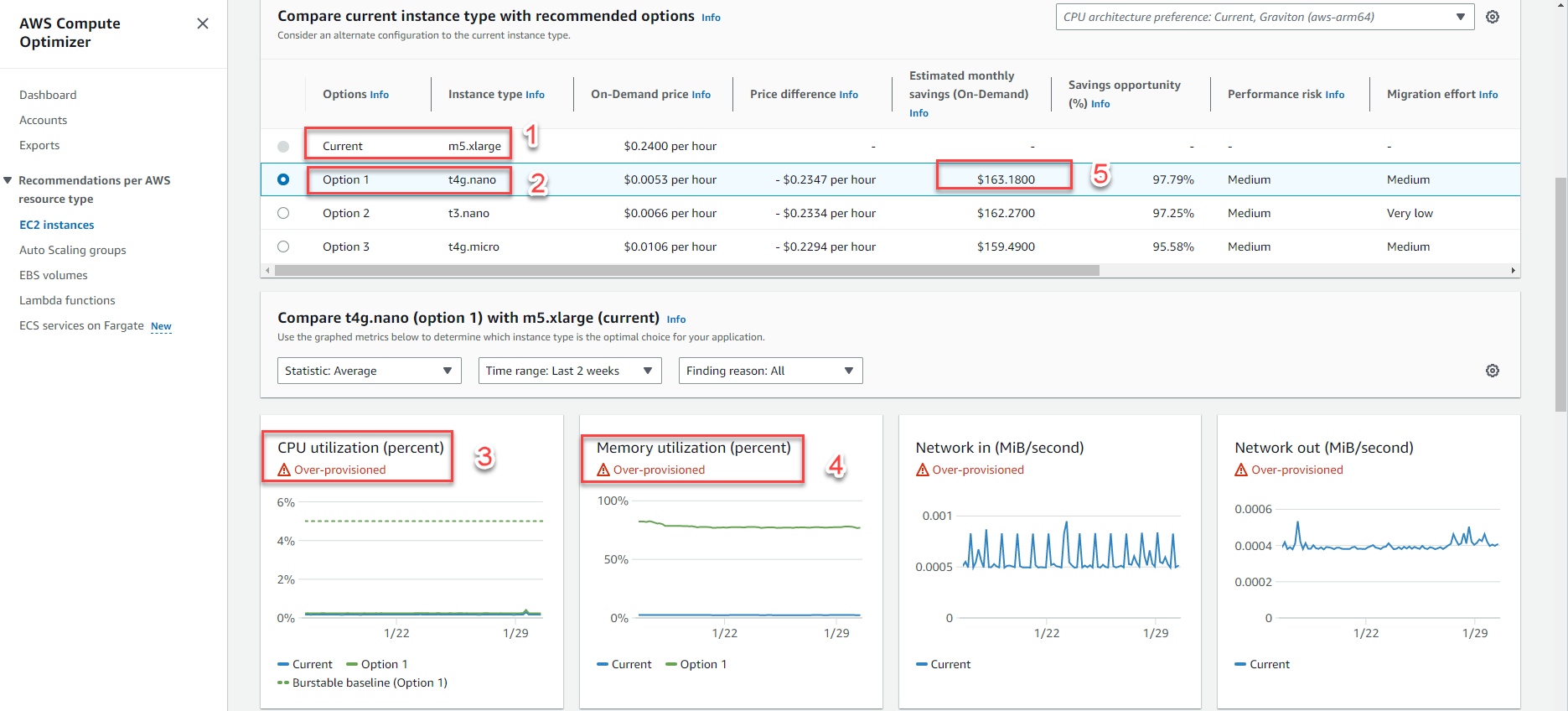
With the fuller metric set, Compute Optimizer’s recommendation is noticeably more aggressive and accurate — this is the effect of giving it complete data, which makes savings estimates far more trustworthy. It’s the same principle behind the “no real workload” caveat in Step 6: the recommendation is only as good as the data behind it.
Which instance types AWS Compute Optimizer supports
AWS Compute Optimizer supports most current instance families, including C5, C6, M5, M6, R5, R6, T3, T4g, and more. See the up-to-date list here: EC2 instance requirements.
Some specialized families (GPU instances like G4/G5, and Mac instances) are not supported — check the same requirements page for the current exclusion list, since AWS periodically expands support.
AWS Compute Optimizer does not generate recommendations for Spot Instances.
Conditions for AWS Compute Optimizer to recommend an Auto Scaling group
- Runs only one instance type (not a mix of multiple instance types)
- The desired, minimum, and maximum capacity values are all equal (a “fixed size” Auto Scaling group)
- No scaling policy attached
- No overrides configured
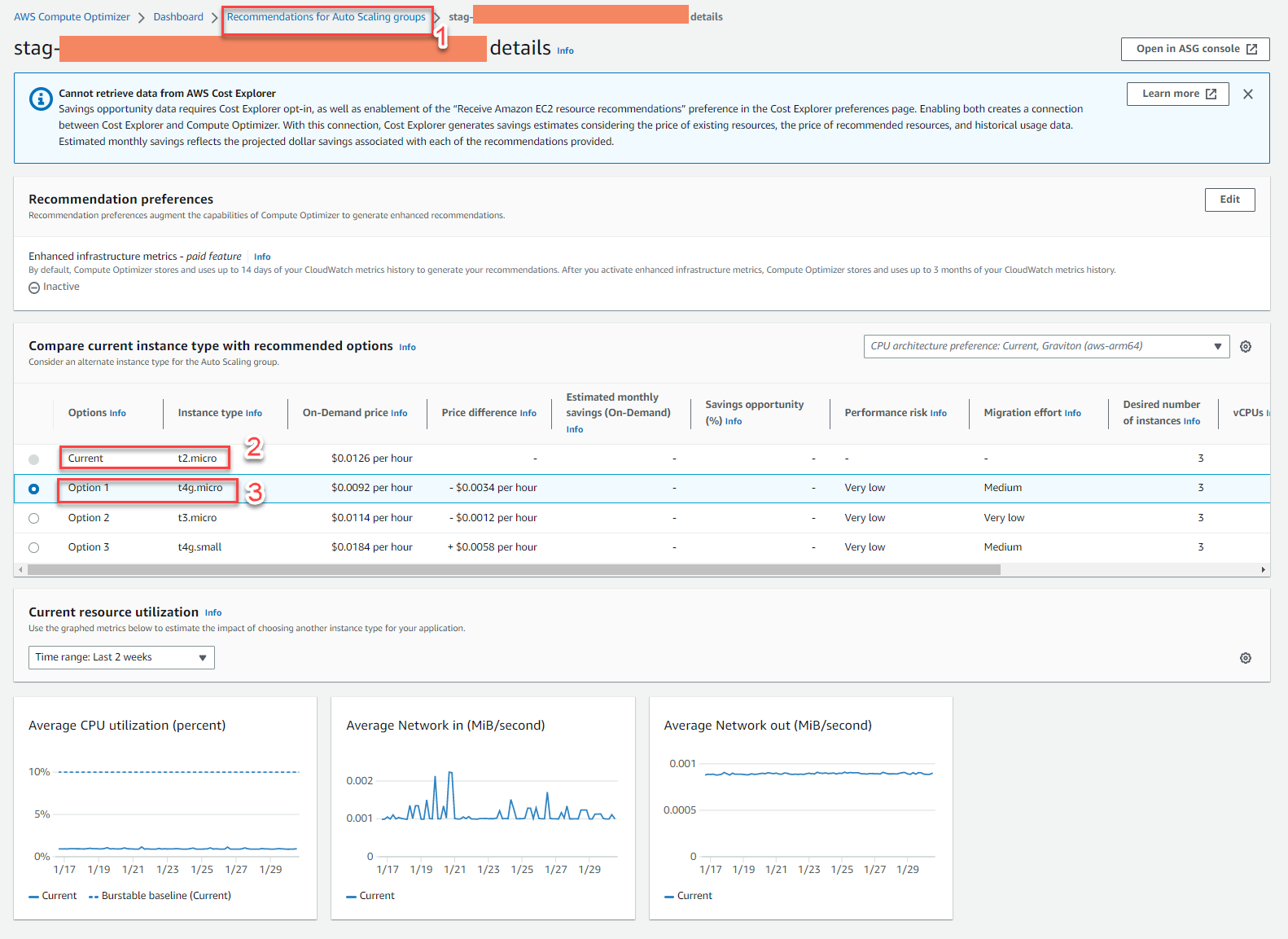
Example 3: AWS Compute Optimizer’s proposal for an Auto Scaling group (ASG), such as one automatically created by AWS Elastic Beanstalk.
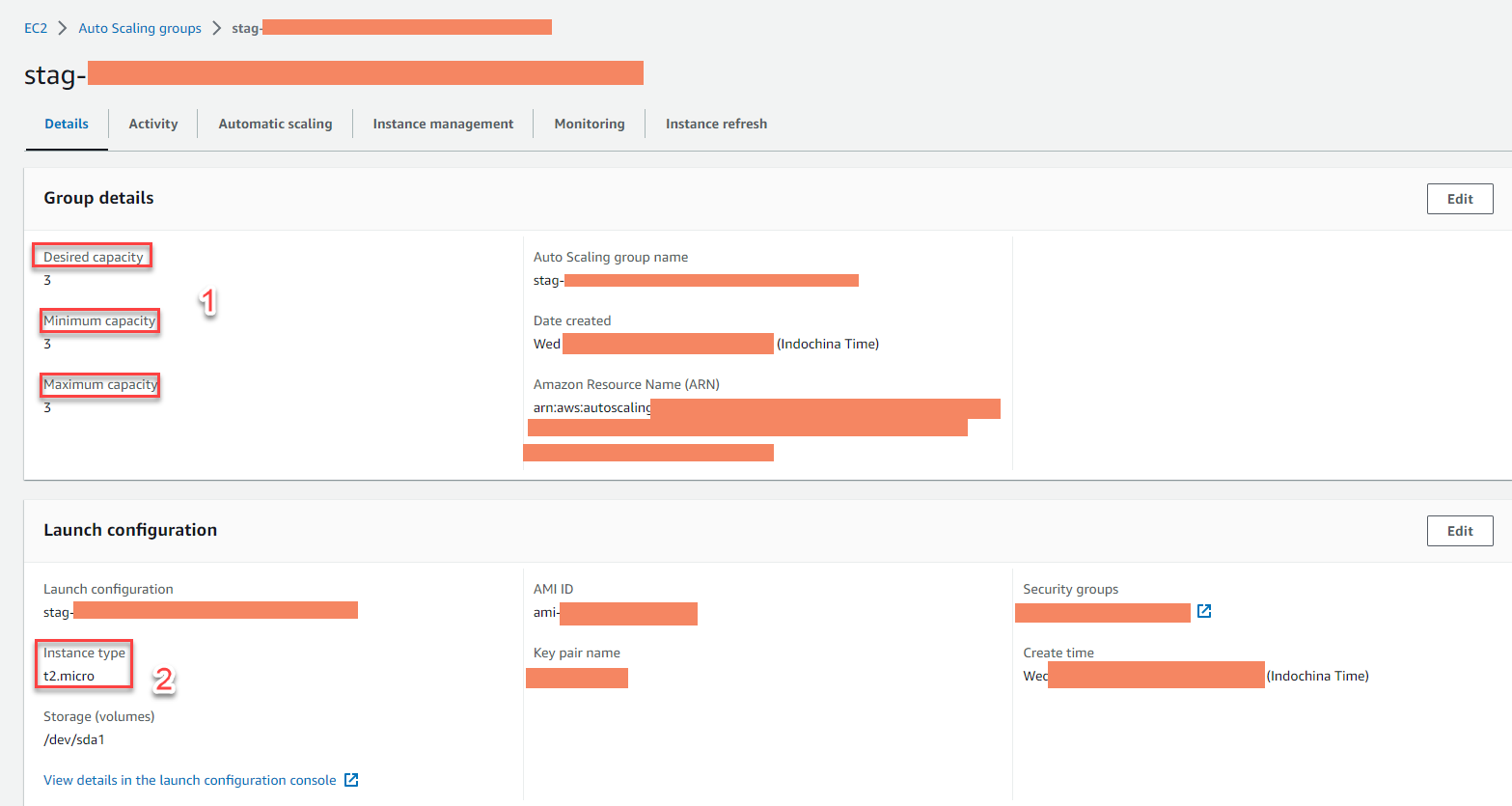
ASG configuration details:
- Eligible: runs only one instance type (e.g.
t2.micro) - Meets the condition: desired, minimum, and maximum are all equal (e.g. 3)
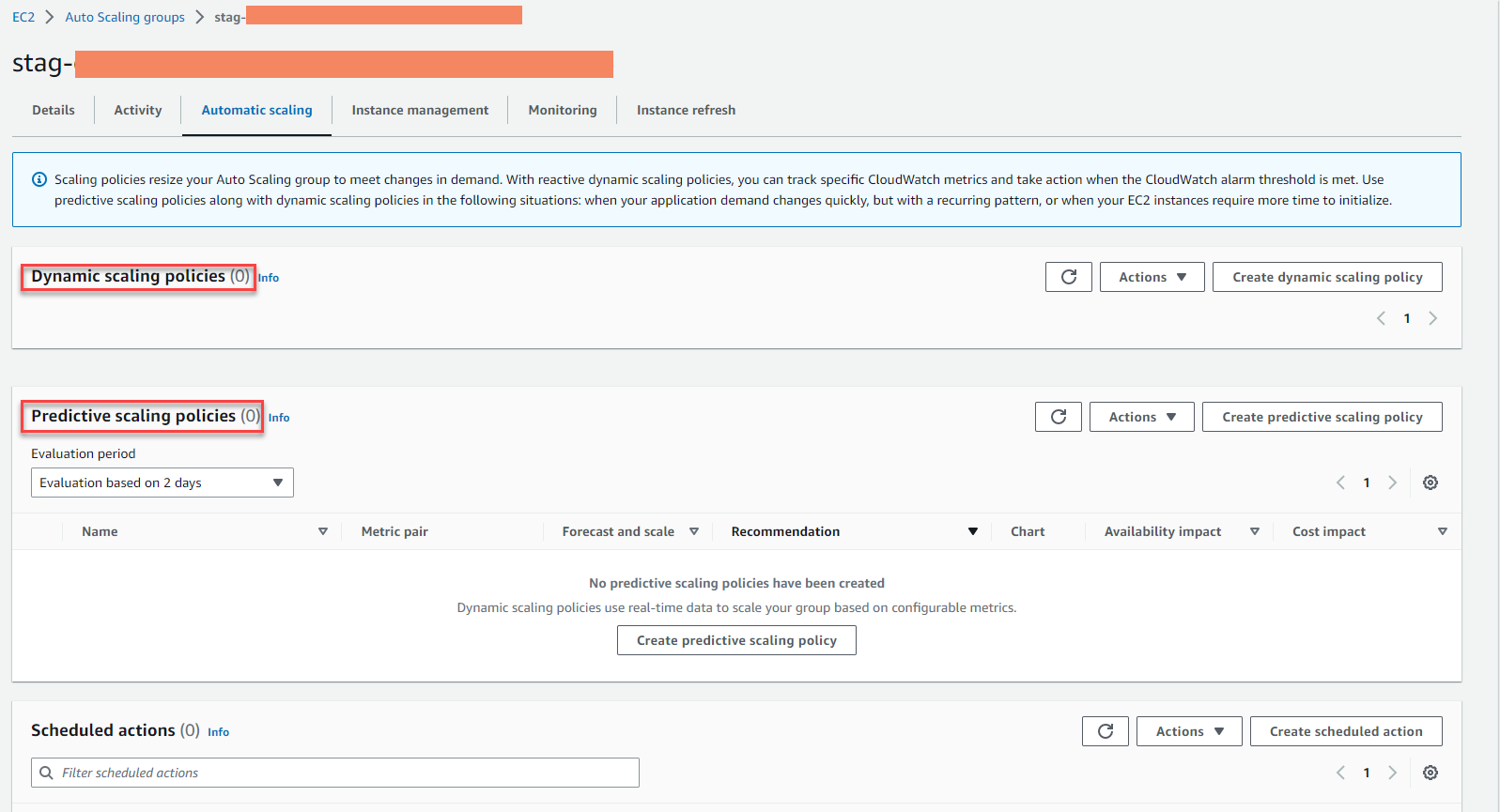
- Meets the condition: no scaling policy attached
- Eligible: runs only one instance type (e.g.
AWS Compute Optimizer’s recommendation:
- Recommended for the Auto Scaling group
- Current: ASG running
t2.micro - Option: option 1 suggests
t4g.micro, an example of a small hourly saving per instance
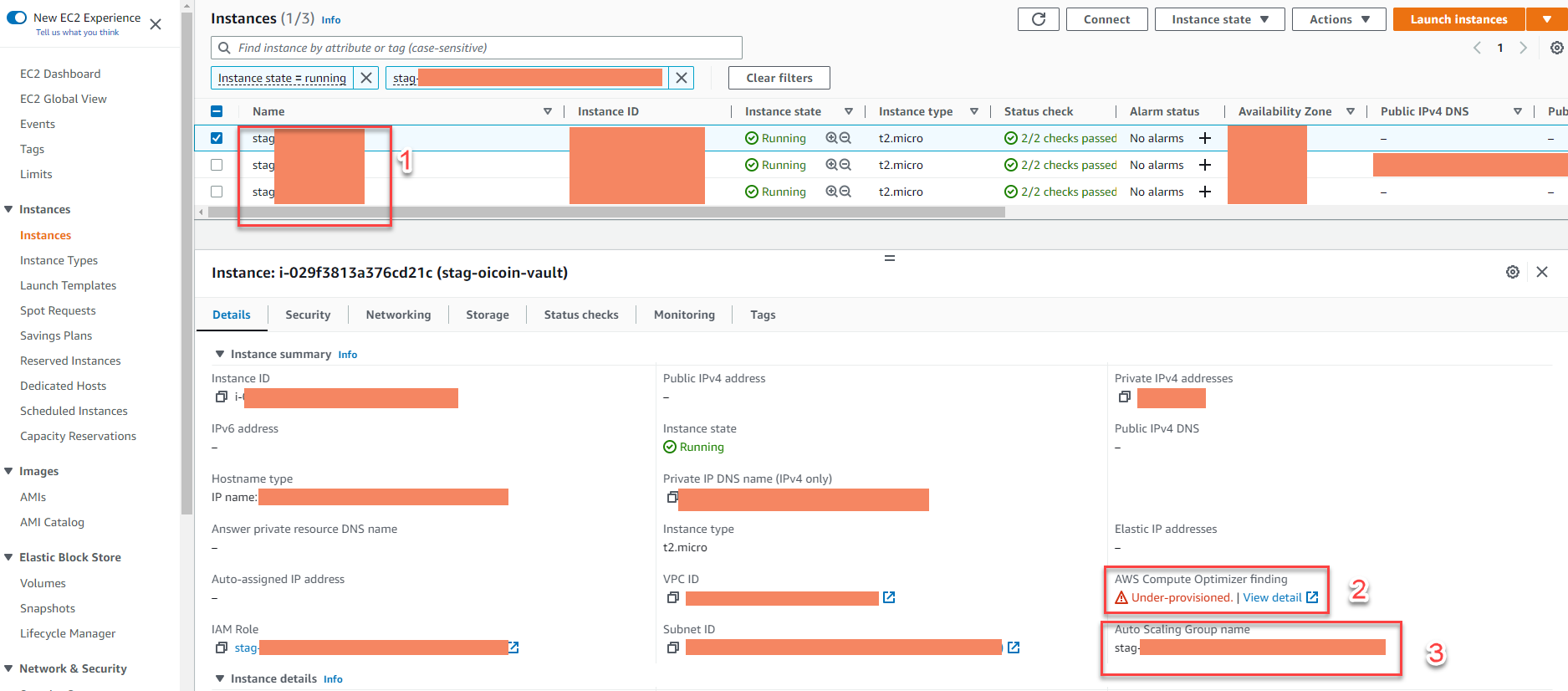
The recommendation is also reflected on the EC2 console:
- 3 EC2 instances under the ASG
- Instances flagged as under-provisioned
- These instances are managed by the ASG
An ASG with mismatched capacity values (e.g. desired=2, minimum=1, maximum=4) won’t receive optimization recommendations from AWS Compute Optimizer. (Learn more about Auto Scaling groups in the Amazon EC2 Auto Scaling documentation.)
Conditions for AWS Compute Optimizer to support EBS
- Supported for General Purpose SSD (gp2 and gp3) and Provisioned IOPS SSD (io1 and io2) volumes attached to EC2
- The EBS volume needs to be attached to an EC2 instance for at least 30 consecutive hours
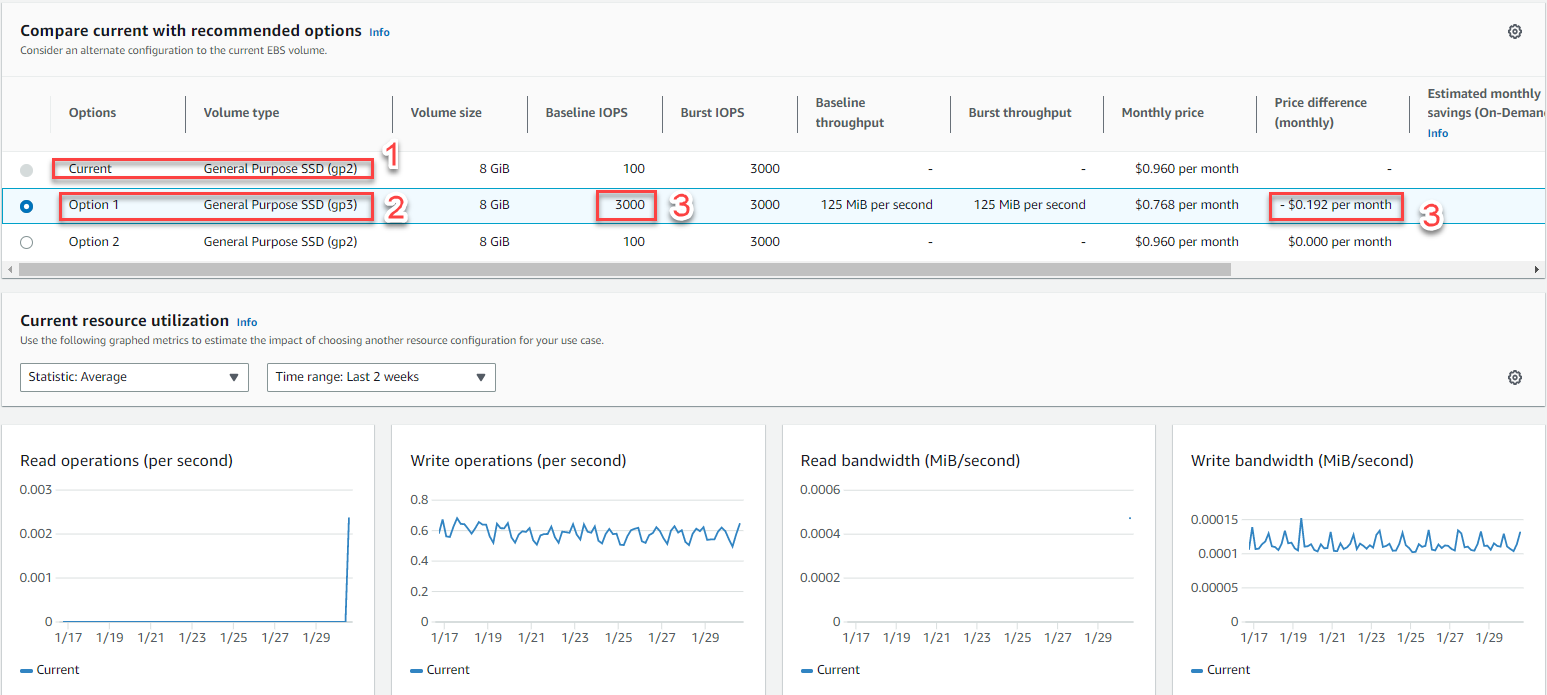
Example 4: AWS Compute Optimizer’s proposal for an EBS volume
- Current: gp2 SSD
- Option: option 1 suggests migrating to gp3 SSD
- IOPS: increased to 3,000, at a lower price — gp3 is generally cheaper than gp2 for the same or better performance
- At scale (hundreds of volumes, hundreds of GB each), this kind of switch can add up to real monthly savings
Conditions for AWS Compute Optimizer to recommend Lambda
- The function’s memory is less than or equal to 1,792 MB (≈ 1.75 GB)
- The function has been invoked at least 50 times in the last 14 days
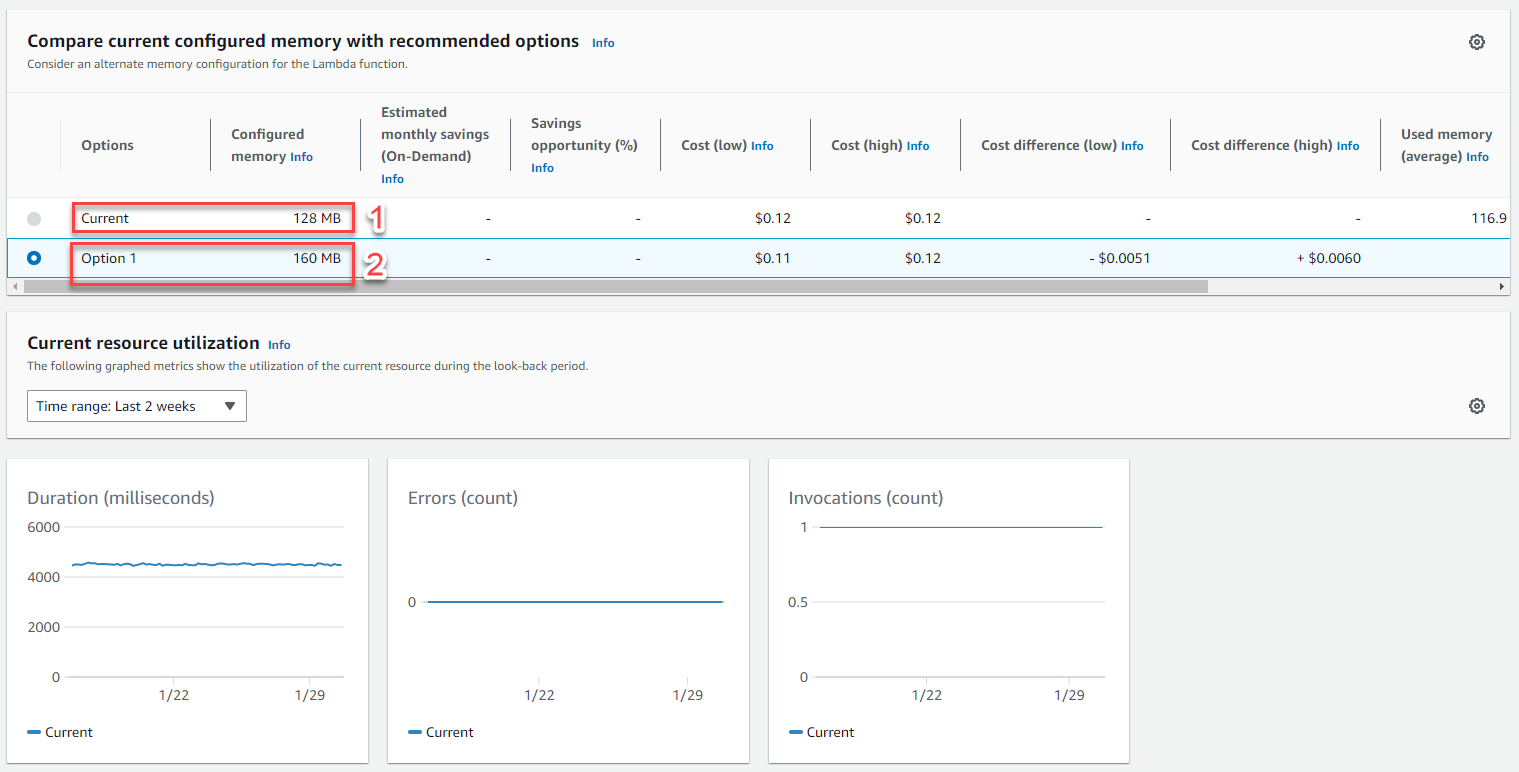
Example 5: AWS Compute Optimizer’s proposal for a Lambda function
The function is flagged as under-provisioned (memory under-provisioned)
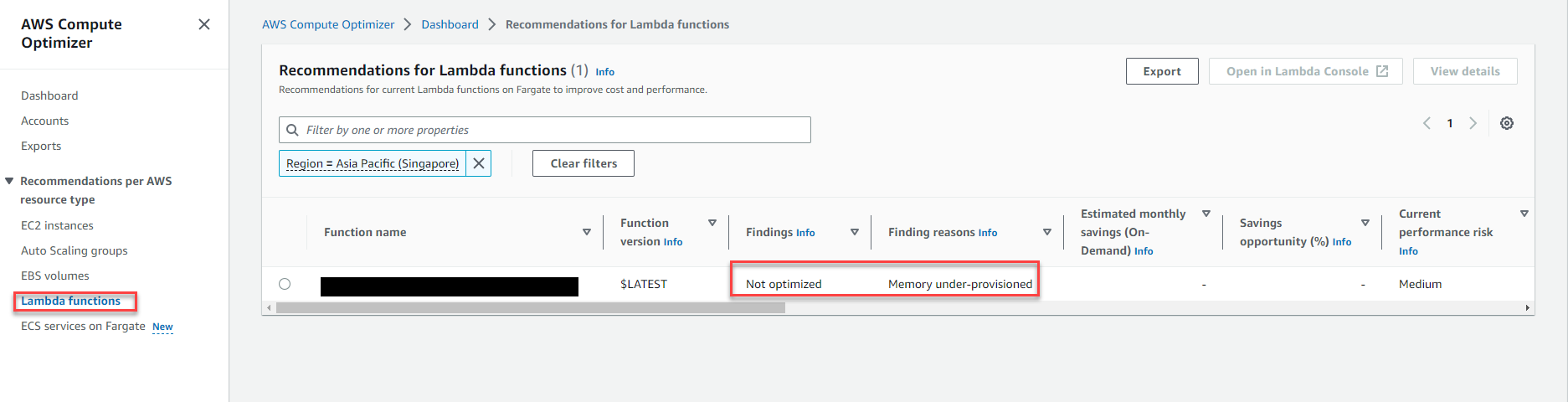
Suggested memory increase:
- Current: 128 MB memory
- Option: option 1 suggests 160 MB memory
Conditions for AWS Compute Optimizer to support Fargate
- Amazon ECS running on Fargate with at least 24 hours of activity recorded by CloudWatch
- Utilization metrics available for the past 14 days
- No step scaling policies attached to the ECS service on Fargate
- No target tracking scaling policies based on CPU or memory attached to the ECS service on Fargate
- The Fargate service has a SteadyState or MoreWork classification
If a target tracking policy is attached to the service’s CPU, Compute Optimizer only recommends memory sizing, and vice versa.
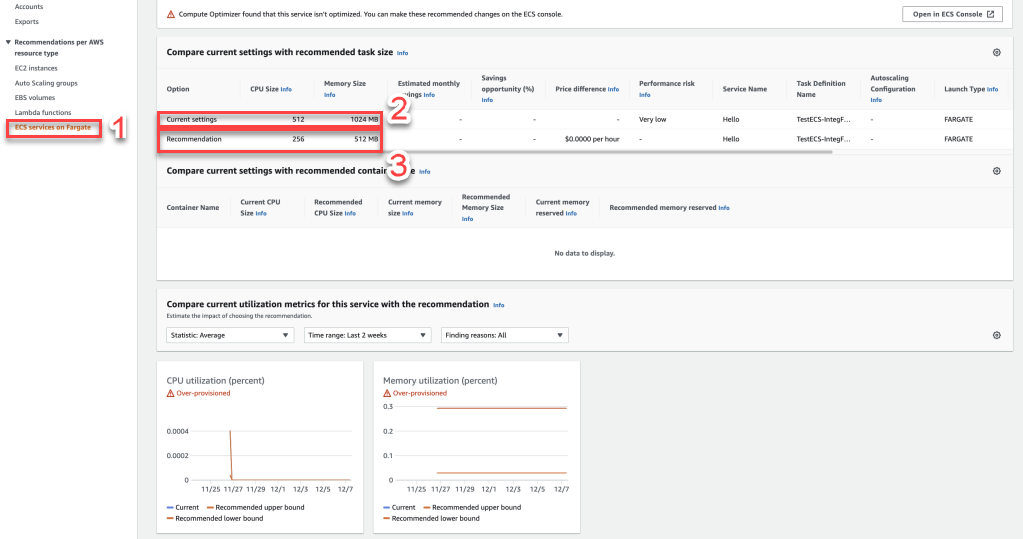
Example 6: AWS Compute Optimizer’s proposal for a Fargate service
- ECS service running on Fargate
- Current setting: current CPU and memory allocation
- Recommendation: adjusted CPU and memory, more cost-effective across the fleet
IMPLEMENTATION SECTION
In this section, we’ll opt in to AWS Compute Optimizer. If you’re signed in as an IAM user or role with AdministratorAccess, no extra permission setup is needed. But if you’re acting as a deployer for a client that follows least privilege, you’ll need to request the two policies below.
- ComputeOptimizerReadOnlyAccess (AWS managed policy)
- A custom policy for the Compute Optimizer service-linked role (customer-managed)
Create the service-linked role policy
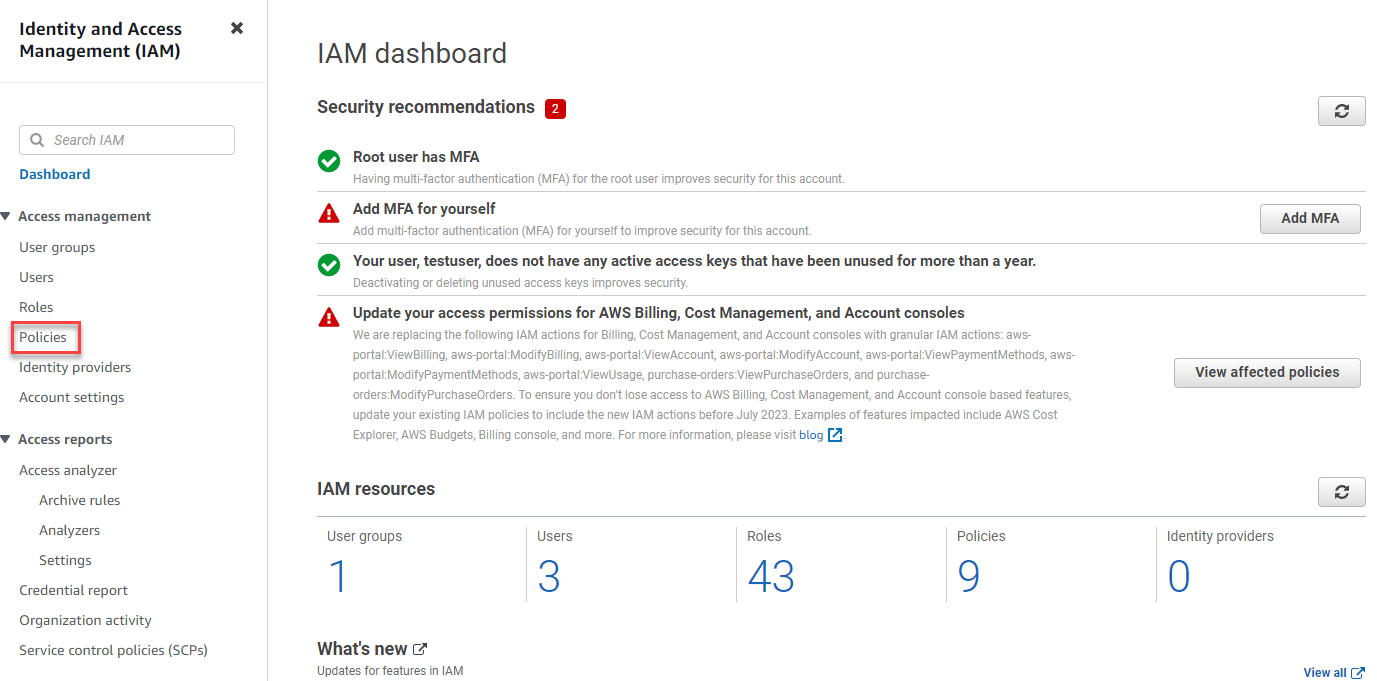
- In the IAM console, select Policies
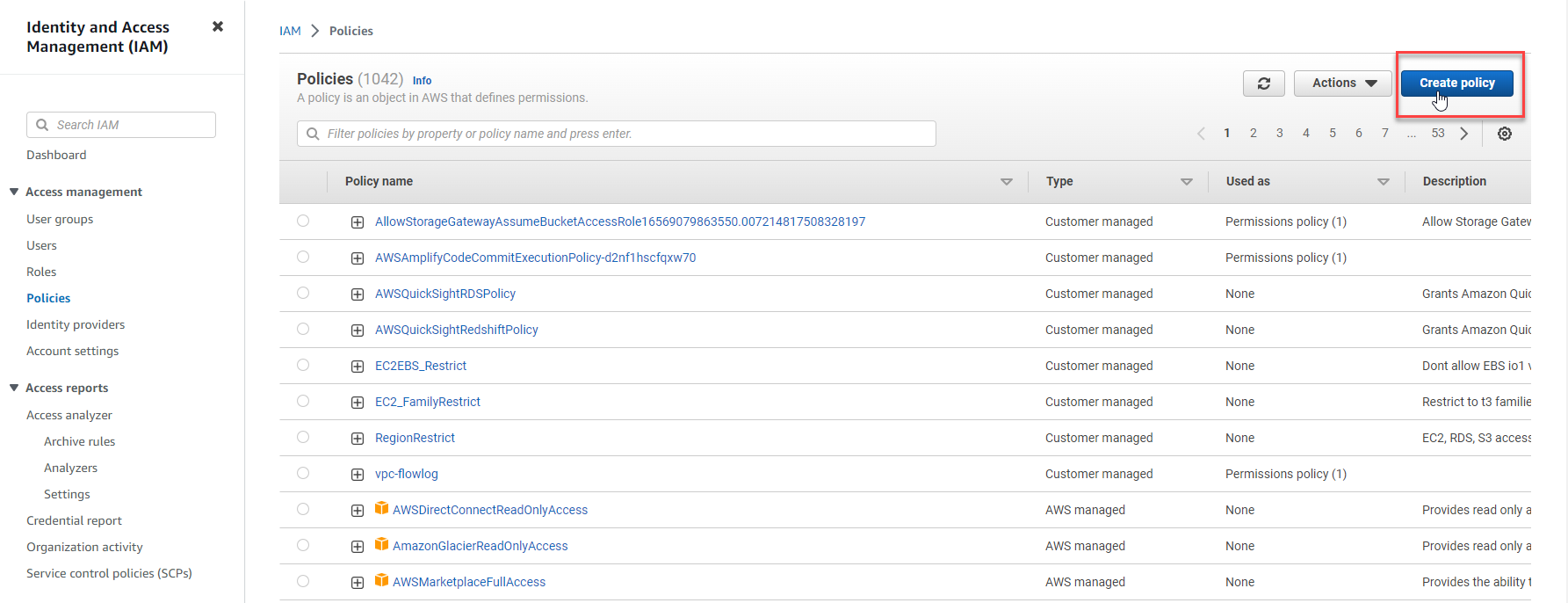
- Select Create policy
- Select the JSON tab
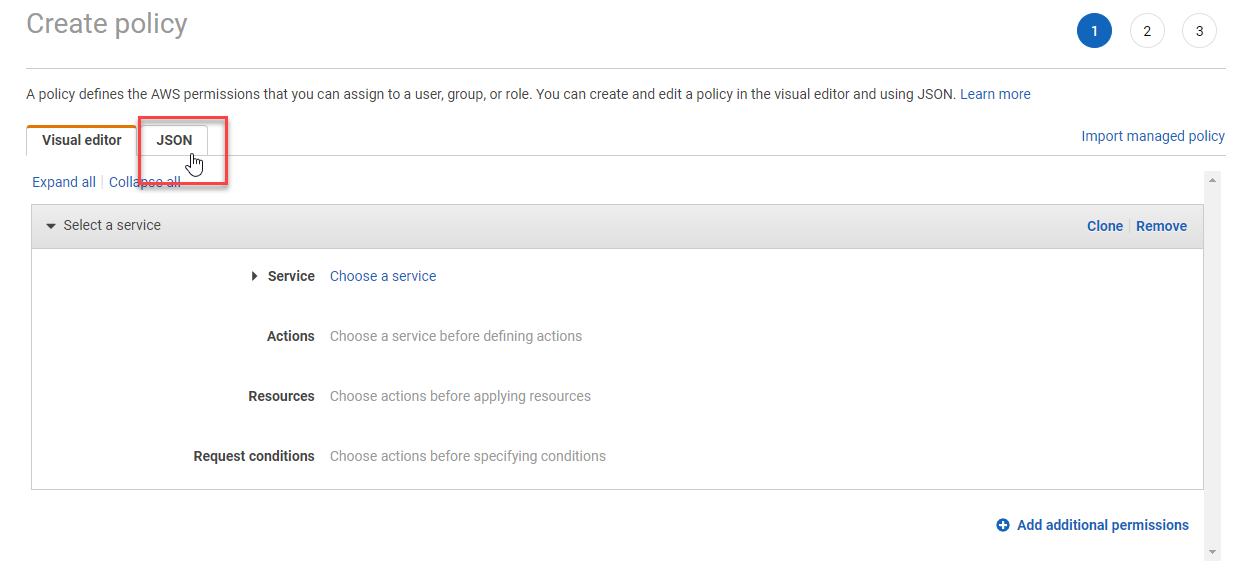
- Paste the following JSON, then select Next:
{
    "Version": "2012-10-17",
    "Statement": [
        {
            "Effect": "Allow",
            "Action": "iam:CreateServiceLinkedRole",
            "Resource": "arn:aws:iam::*:role/aws-service-role/compute-optimizer.amazonaws.com/AWSServiceRoleForComputeOptimizer*",
            "Condition": {
                "StringLike": {
                    "iam:AWSServiceName": "compute-optimizer.amazonaws.com"
                }
            }
        },
        {
            "Effect": "Allow",
            "Action": "iam:PutRolePolicy",
            "Resource": "arn:aws:iam::*:role/aws-service-role/compute-optimizer.amazonaws.com/AWSServiceRoleForComputeOptimizer"
        },
        {
            "Effect": "Allow",
            "Action": "compute-optimizer:UpdateEnrollmentStatus",
            "Resource": "*"
        }
    ]
}
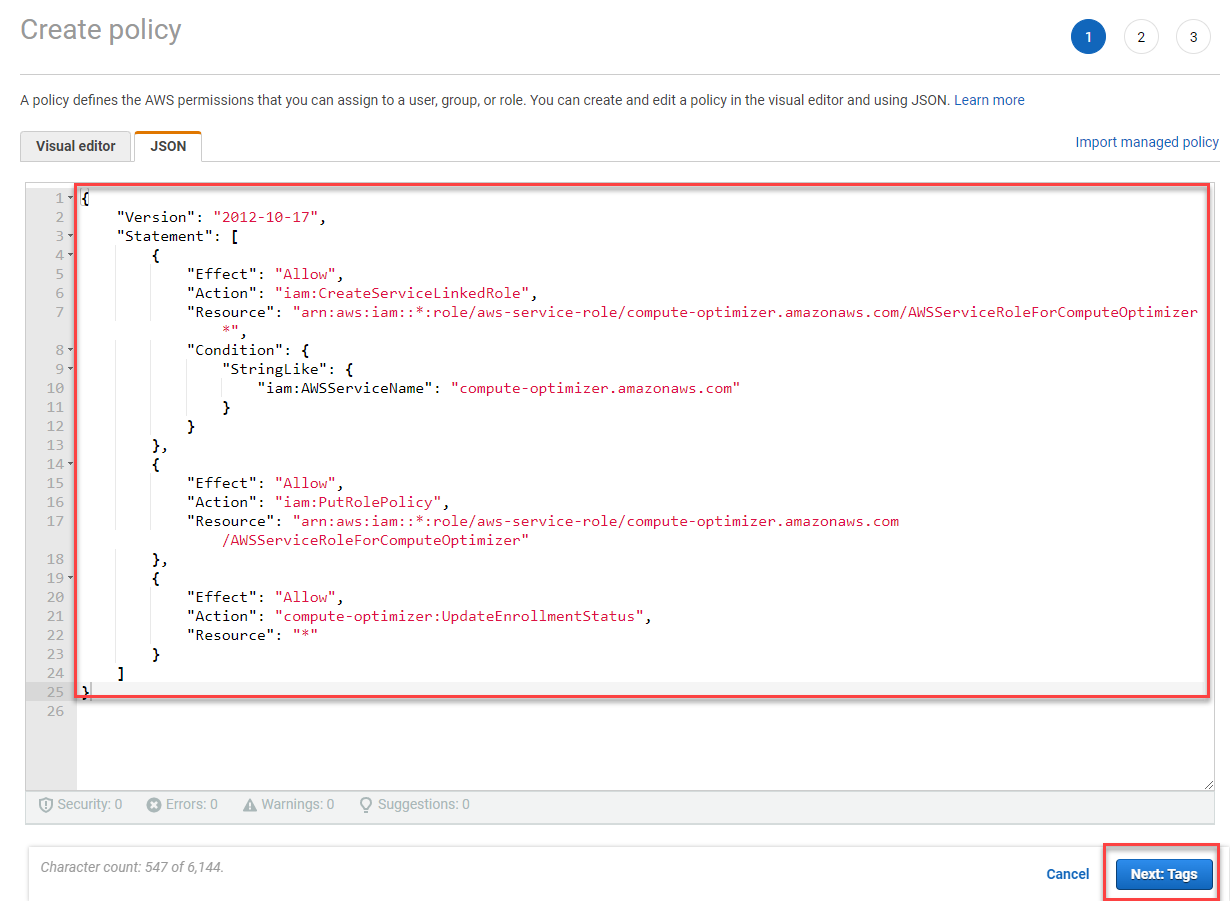
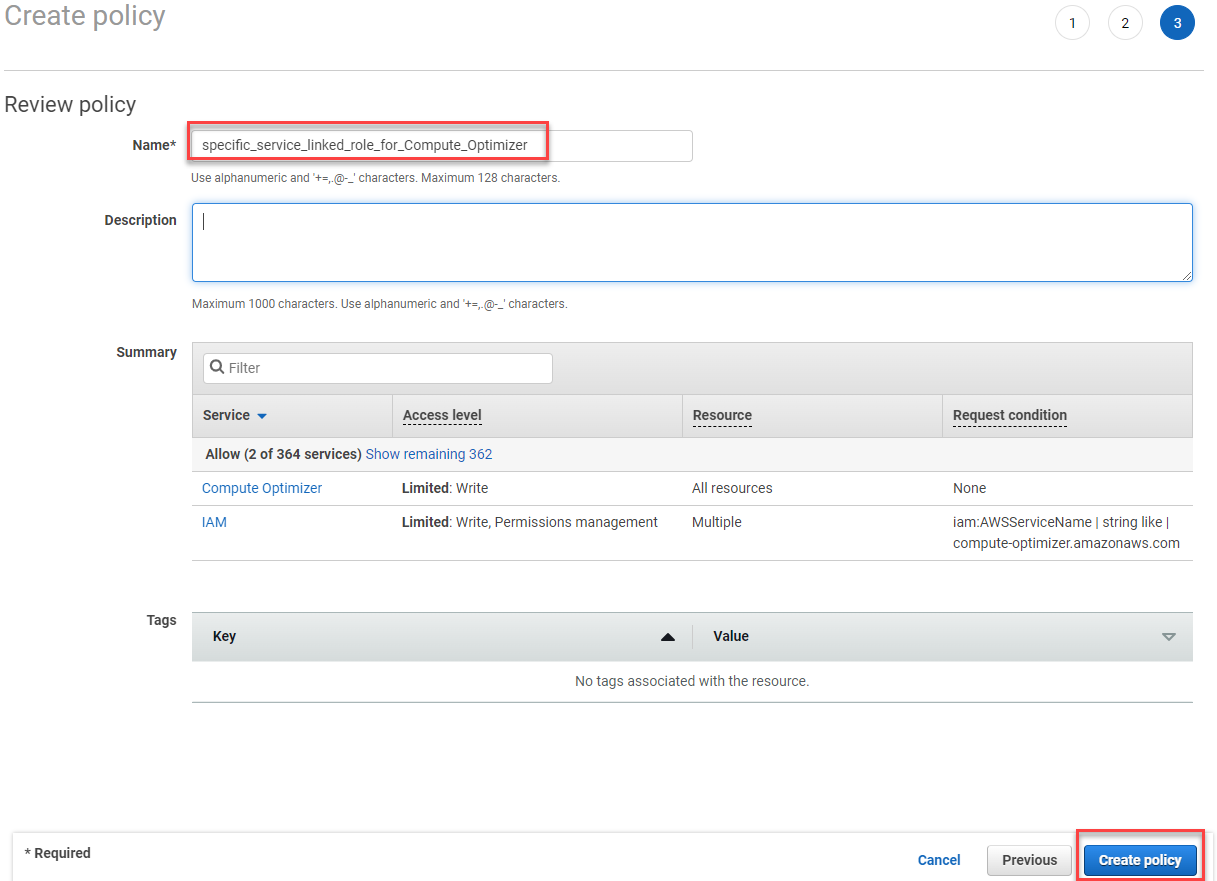
- On the Name, review, and create page:
- Name:
specific_service_linked_role_for_Compute_Optimizer - Select Create policy
- Name:
Assign permissions to your IAM user
- Suppose your user currently has no permissions policies attached, as shown below
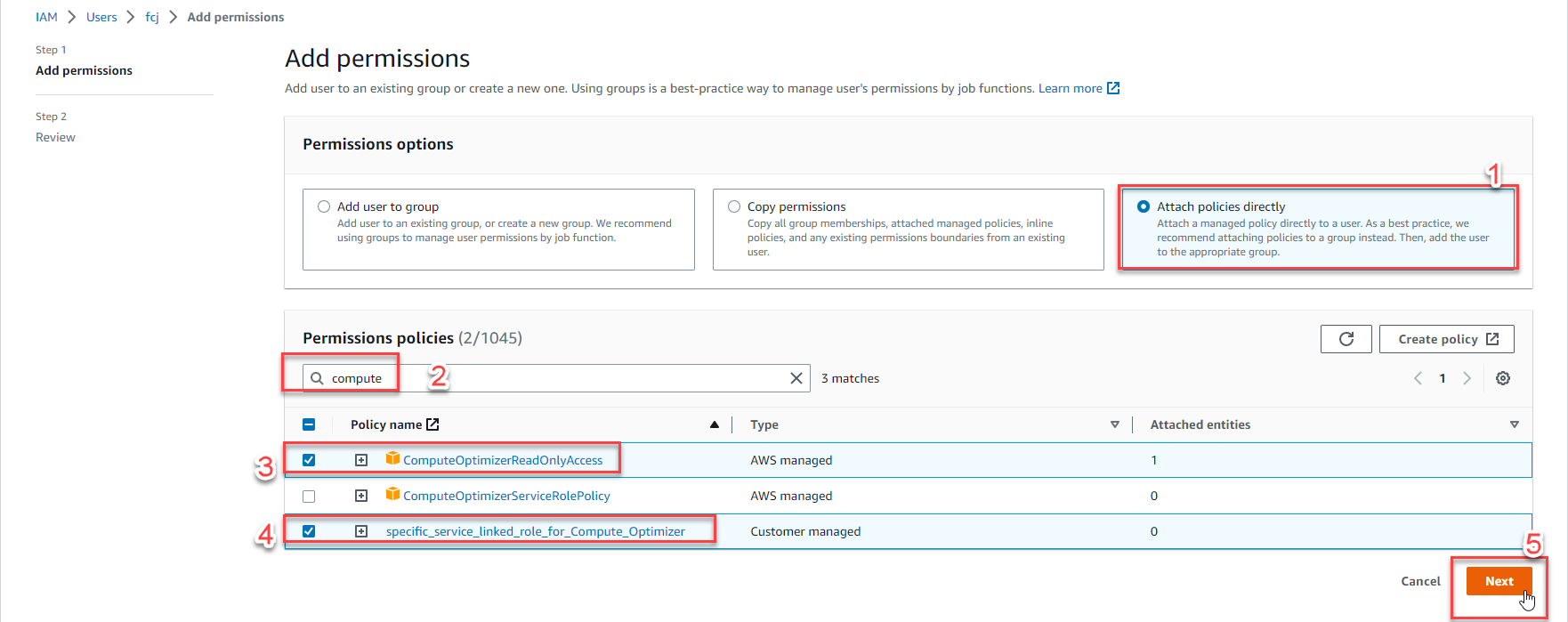
- Select Add permissions
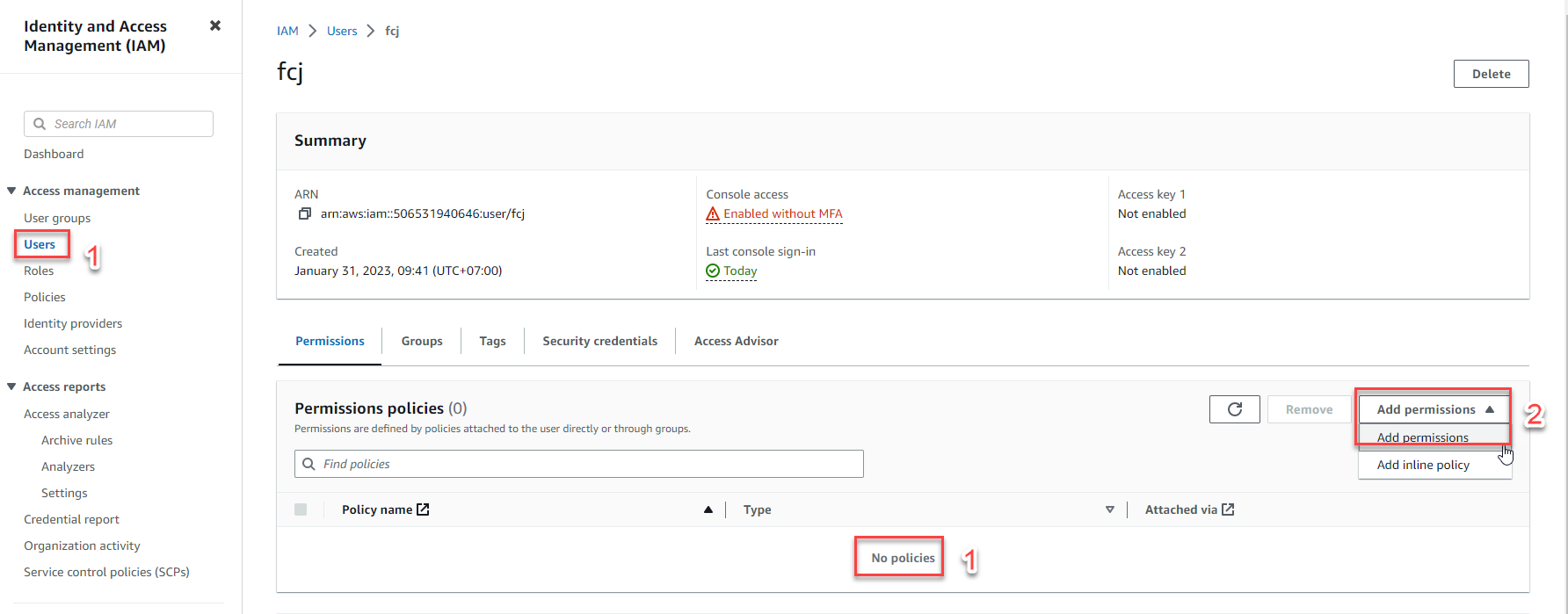
- Select Attach policies directly
- In the search box, type
compute - Select ComputeOptimizerReadOnlyAccess
- Also select specific_service_linked_role_for_Compute_Optimizer (created in the previous step)
- Select Next
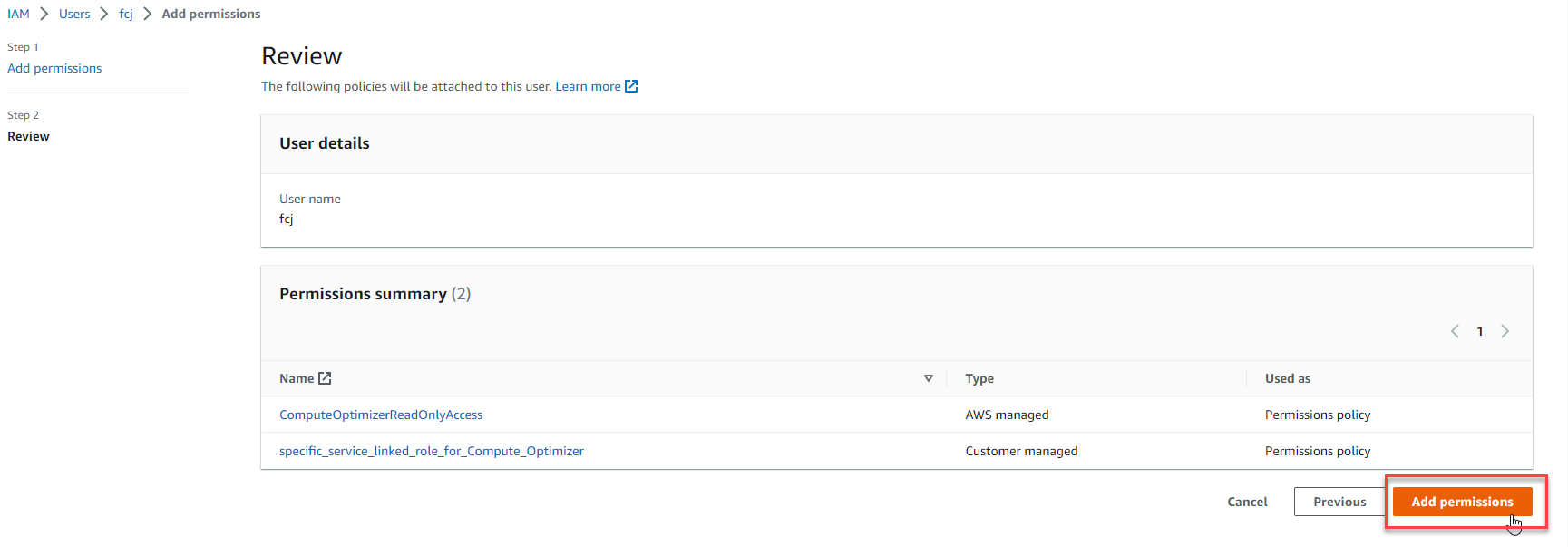
- Select Add permissions
Opt in to AWS Compute Optimizer
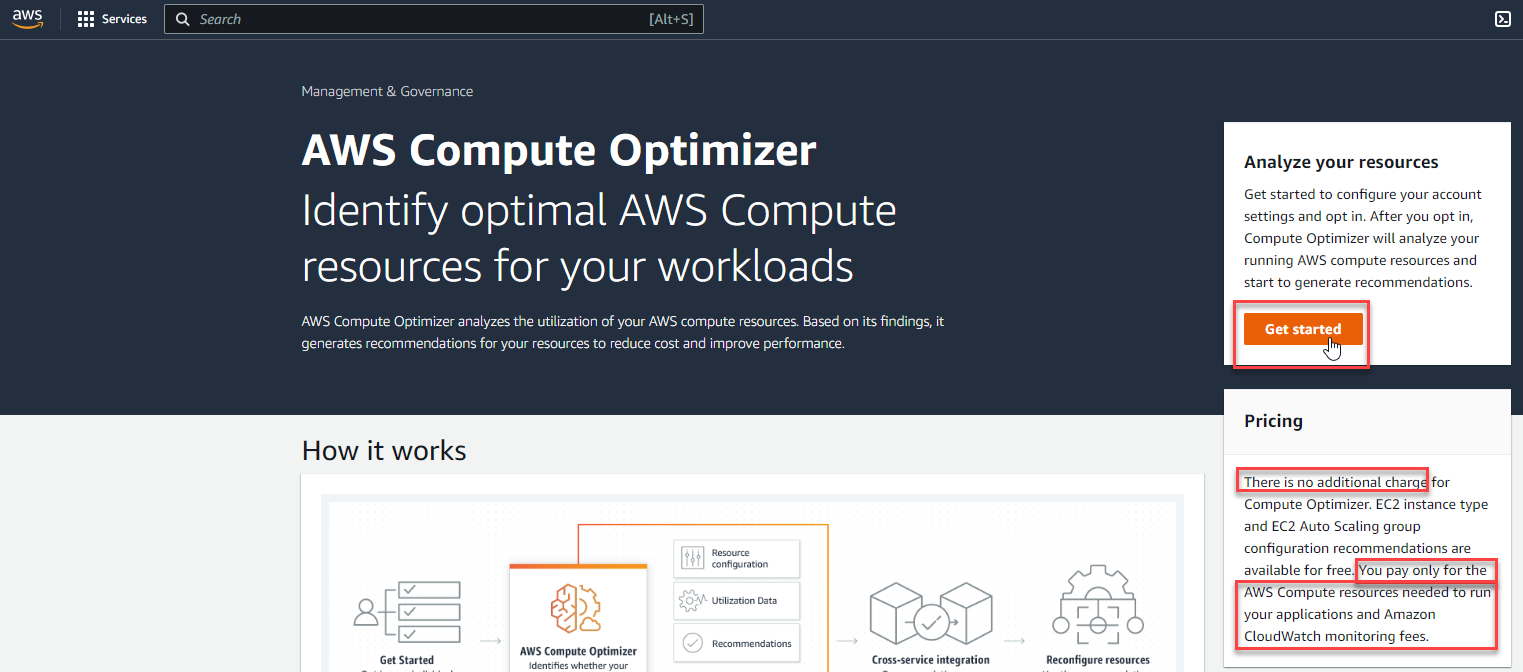
- In the Compute Optimizer console, select Get started
Compute Optimizer itself is free. You only pay when you act on a recommendation (changing an instance type, resizing a volume) or for the CloudWatch monitoring costs of metrics beyond the free tier.
- On the Account setup page, select Only this account
- Select Opt in
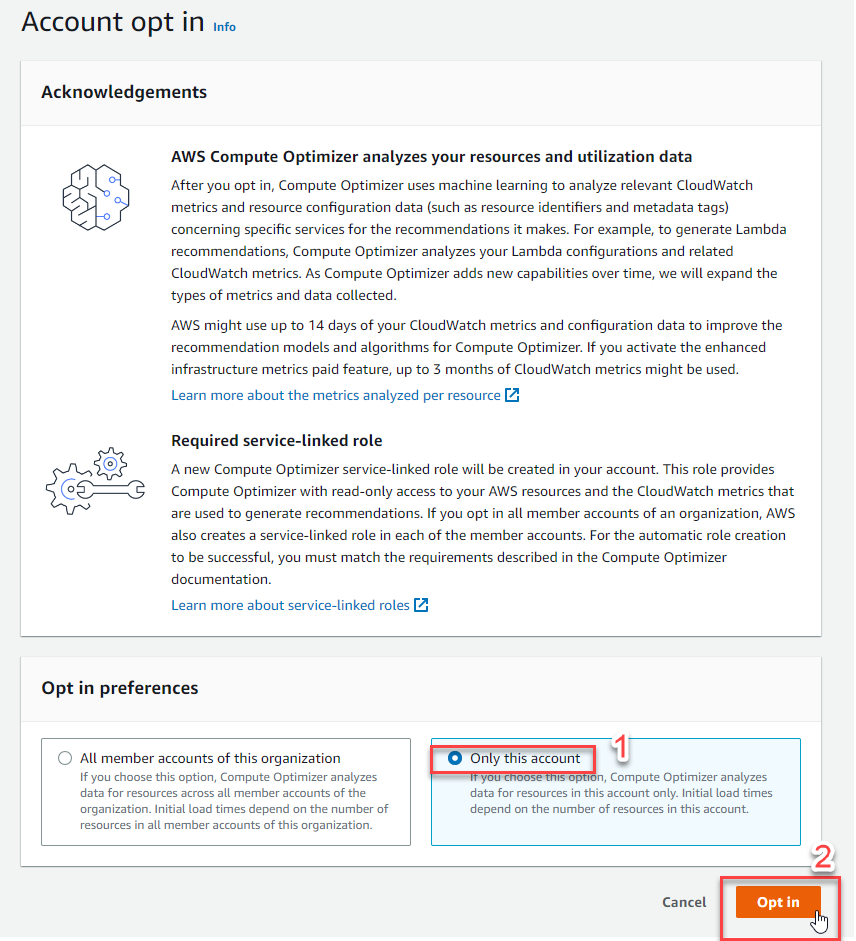
For this lab, we choose Only this account. In a real business environment where Dev/Test and Production live in separate AWS accounts managed by AWS Organizations, you would instead choose All accounts within this organization to get recommendations across every member account.
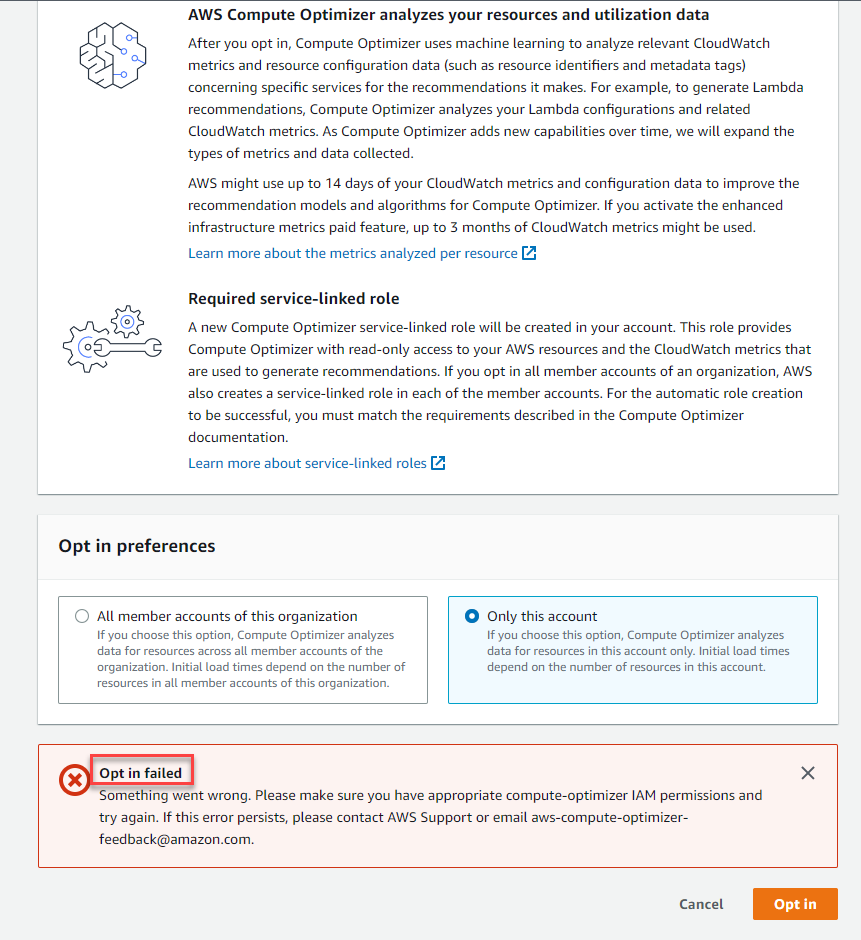
- If your IAM user doesn’t have the required permissions yet, opting in will return an error like the one shown below:
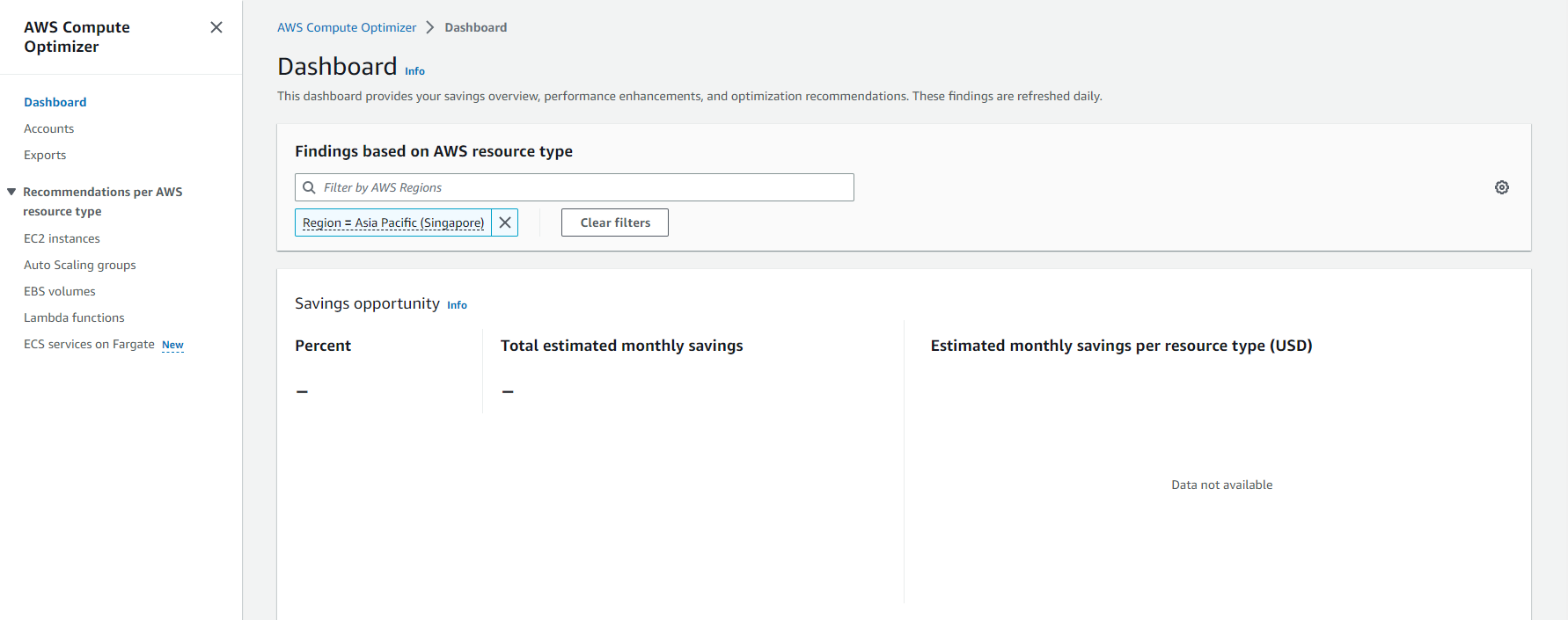
- Once opted in successfully, you won’t see recommendations right away like in the theory examples above — it can take up to 24 hours for Compute Optimizer to generate its first recommendations.
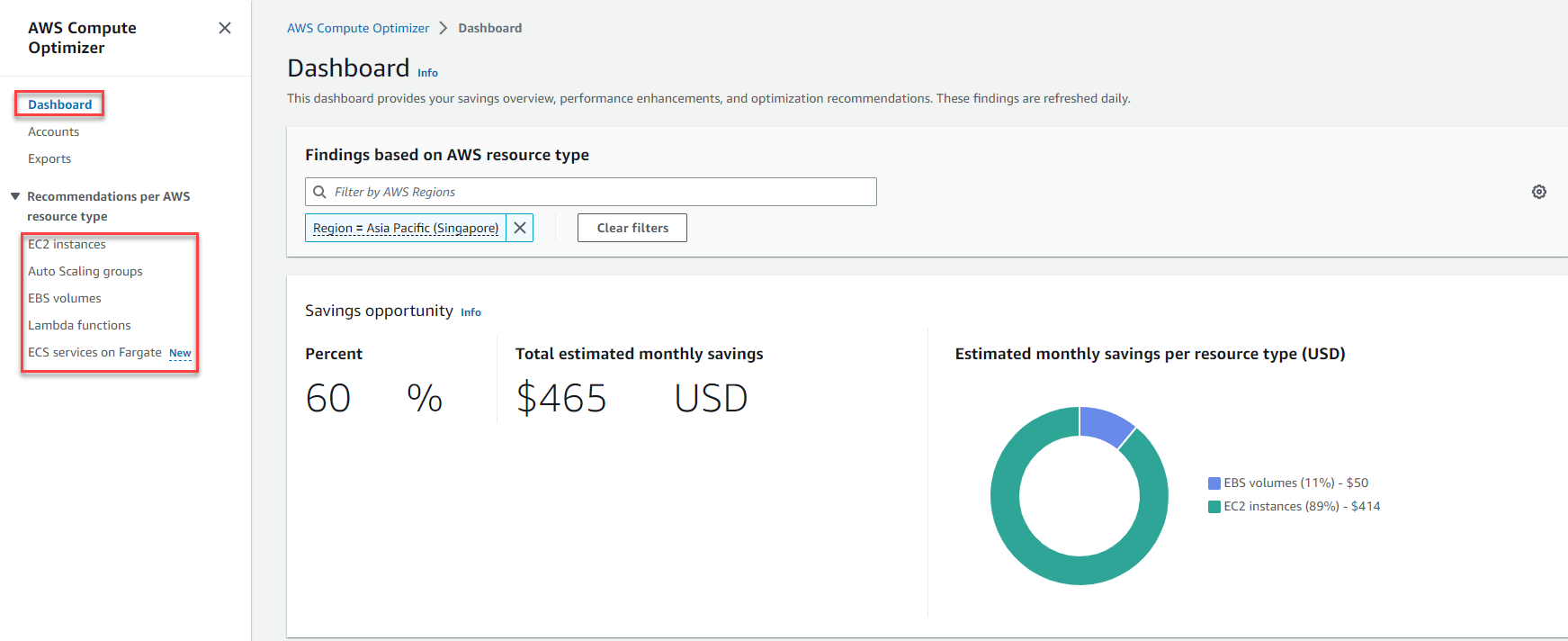
- After the wait, with resources that meet the conditions covered in the theory section, you can review:
- Dashboard: high-level overview
- EC2 instances, Auto Scaling groups, EBS volumes, Lambda functions, ECS services on Fargate, RDS: detailed per-resource recommendations
As explained in Step 6, don’t be surprised if your ec2-rightsizing-lab instance shows up as “Not optimized” with a recommendation to downsize, or with “Insufficient data”, rather than one of the rich, multi-option examples shown in the theory section above. Those theory examples come from instances with real, sustained production traffic behind them over weeks — your lab instance has almost no load at all, so there’s very little for the algorithm to reason about. That’s the expected, correct behavior, not something to troubleshoot. The value of this step is confirming the opt-in and permissions workflow works end-to-end, so that when you point Compute Optimizer at a real workload later, you already know exactly where to look.
- For a complete EC2 recommendation that factors in memory as well as CPU, make sure you’ve completed Steps 1–5 (launching the instance, creating and attaching the IAM role, and installing the CloudWatch Agent with the CWAgent namespace — link).
- Once Compute Optimizer has generated recommendations, head back to Step 6 and check Cost Optimization Hub — it will now show the same rightsizing opportunities alongside their estimated dollar savings, in one consolidated view.