Clean up resources
Clean up resources
You’ve now walked through the full right-sizing pipeline: launch, permissions, monitor, install the agent, and read the recommendations. Before you finish, remove the resources this workshop created so nothing keeps running (or accruing charges) after your Free Tier hours run out.
Deleting resources is irreversible. Only follow these steps once you’re done with the workshop — if you want to keep exploring Cost Optimization Hub or Compute Optimizer recommendations over the next few days (recommended, since they get more accurate the longer the instance runs), wait until then to clean up.
Step 9a: Terminate the EC2 instance
This is the step that matters most for cost — an instance that keeps running is the only resource in this workshop that can generate an ongoing charge once your Free Tier hours are used up.
- Open the EC2 console, select Instances, check the box next to your
ec2-rightsizing-labinstance, then select Instance state > Terminate (delete) instance.
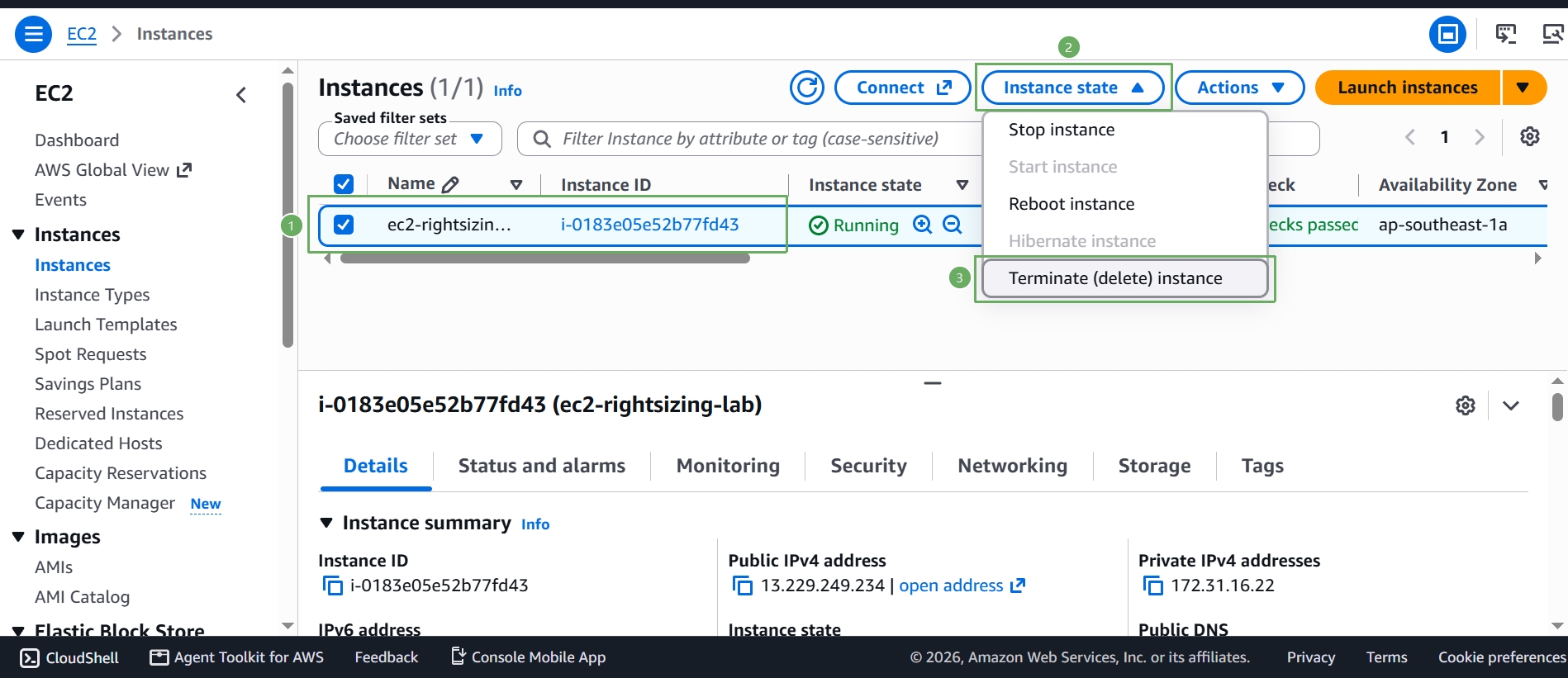
- Confirm you want to terminate it — note the warning that the root EBS volume will be deleted along with the instance, which is expected here since we didn’t attach any extra volumes. Select Terminate (delete).
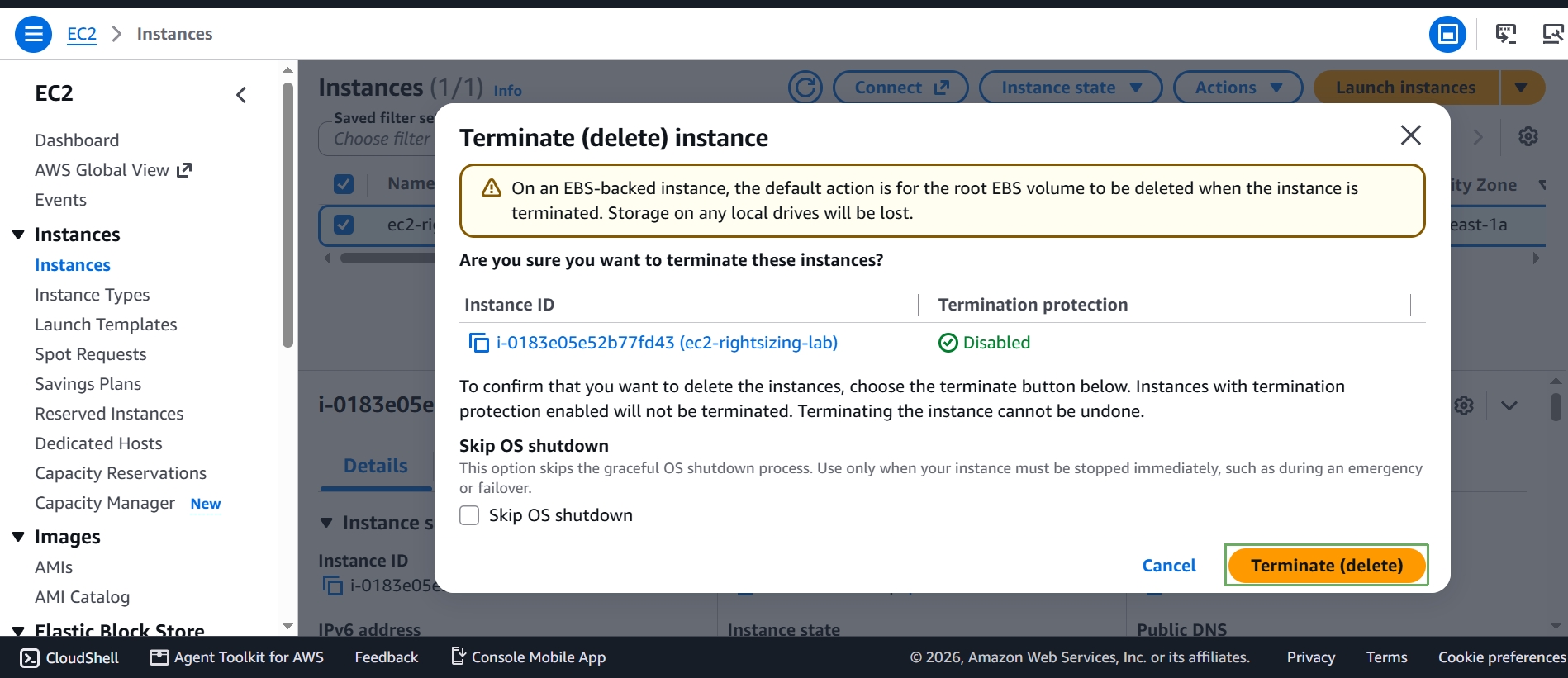
Termination is not instant — the instance state moves to Shutting-down and then Terminated within a minute or two. A terminated instance stops billing immediately once it reaches that state; AWS keeps it visible in the console for about an hour afterward before removing it from the list entirely.
Step 9b: Delete the security group
The ec2-rightsizing-lab-sg security group from Step 1 has no cost by itself, but it’s good hygiene to remove resources you created once the instance that used them is gone — an orphaned security group is exactly the kind of clutter that makes an account harder to audit later.
- Open the VPC console, select Security groups, select your
ec2-rightsizing-lab-sggroup, then select Actions > Delete security groups.
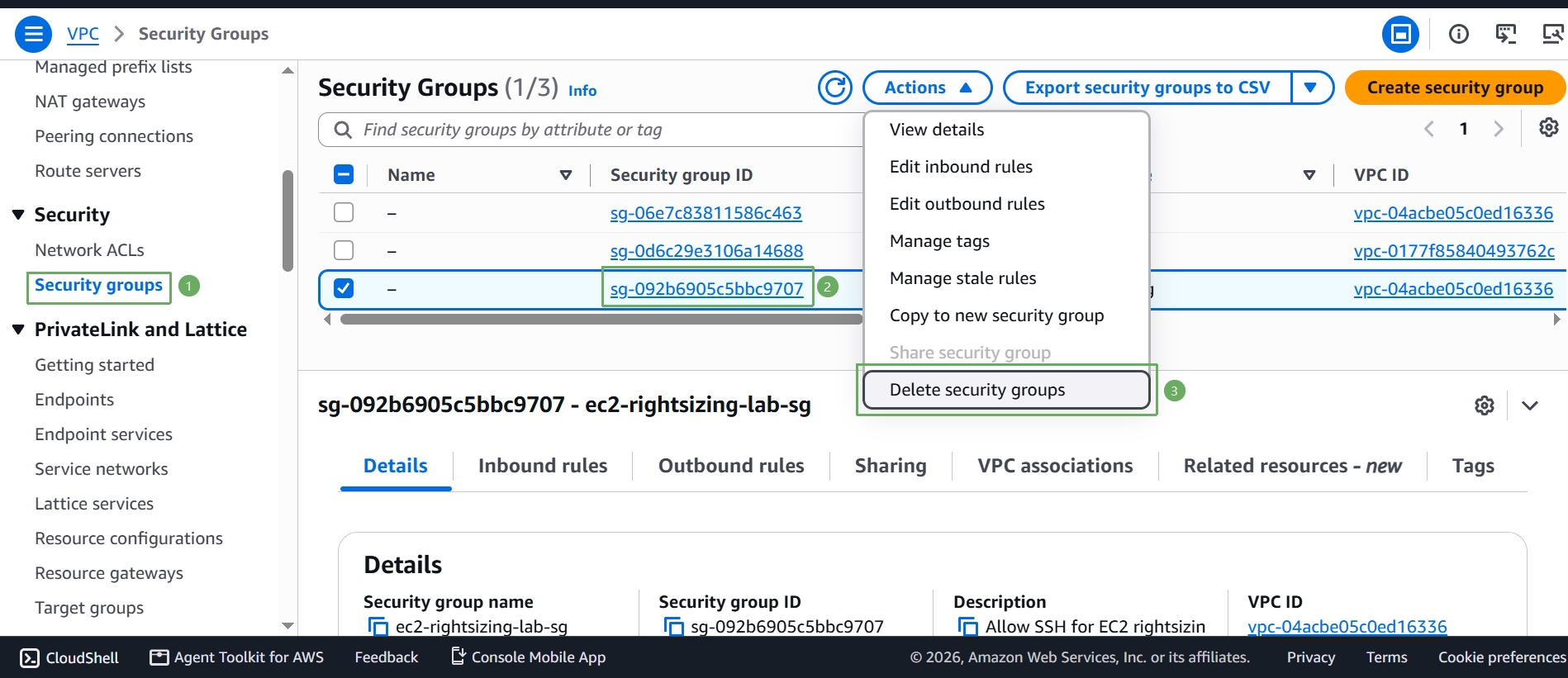
- Confirm by selecting Delete.
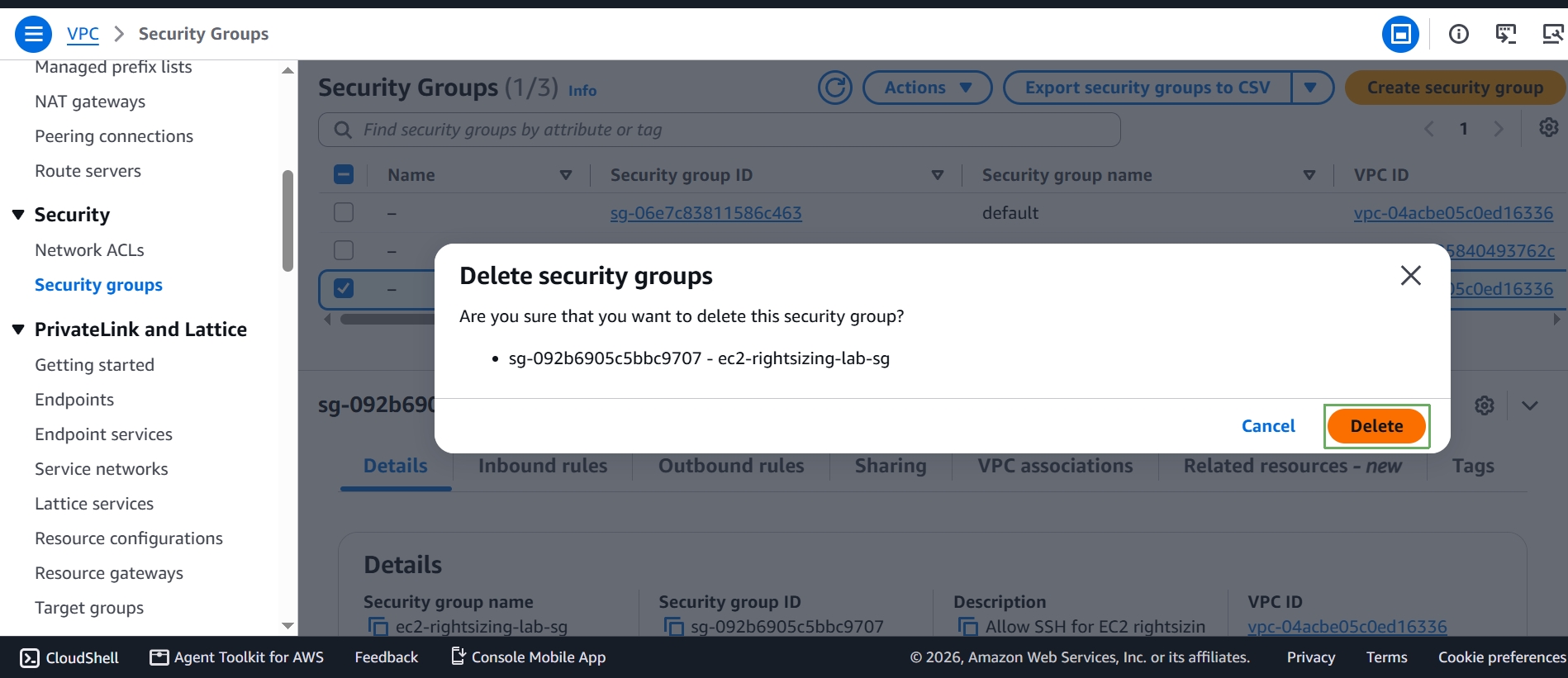
If AWS won’t let you delete it yet, make sure the EC2 instance from Step 9a has fully reached the Terminated state first — a security group can’t be deleted while it’s still attached to a running or terminating instance.
Step 9c: Delete the IAM role
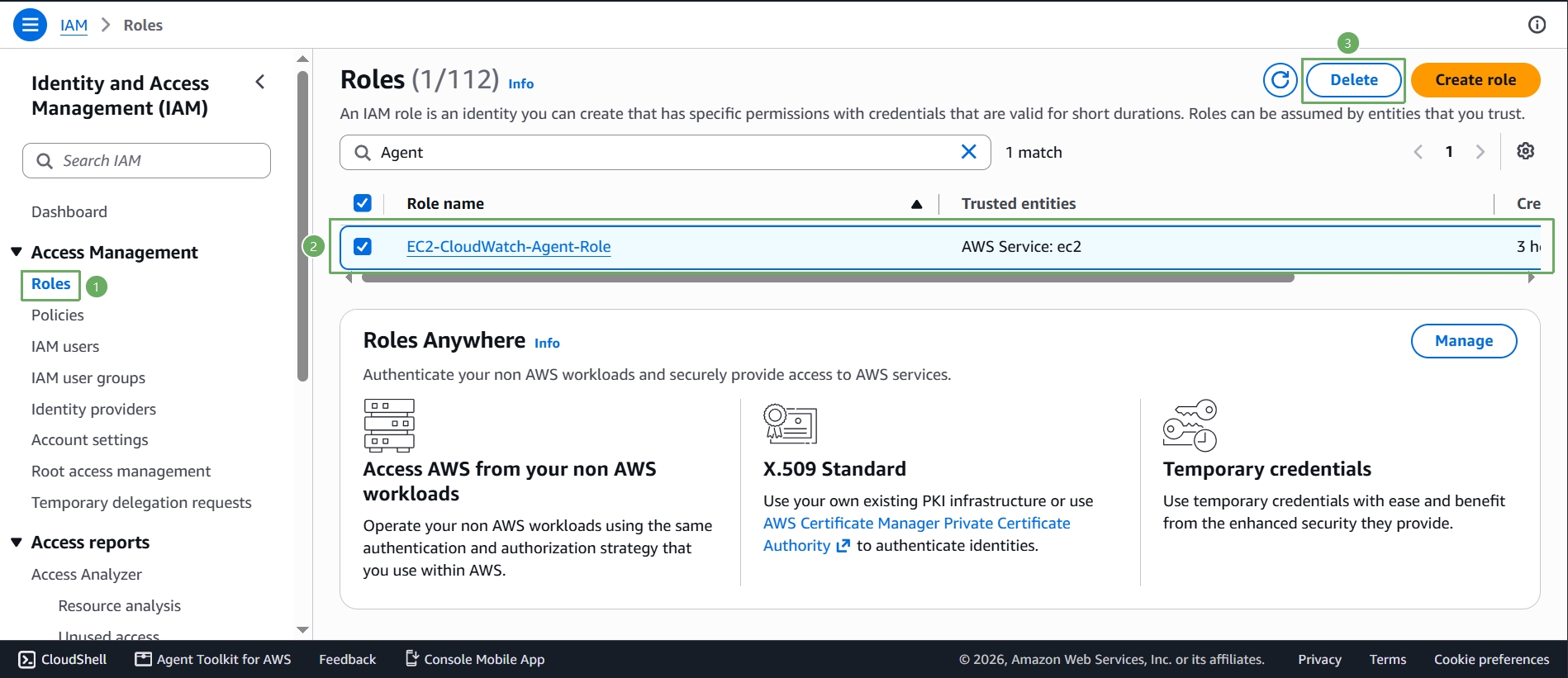
The EC2-CloudWatch-Agent-Role from Step 2 also costs nothing to keep, but removing it closes the loop on the permissions you granted for this lab.
- Open the IAM console, select Roles, select the checkbox next to
EC2-CloudWatch-Agent-Role, then select Delete.
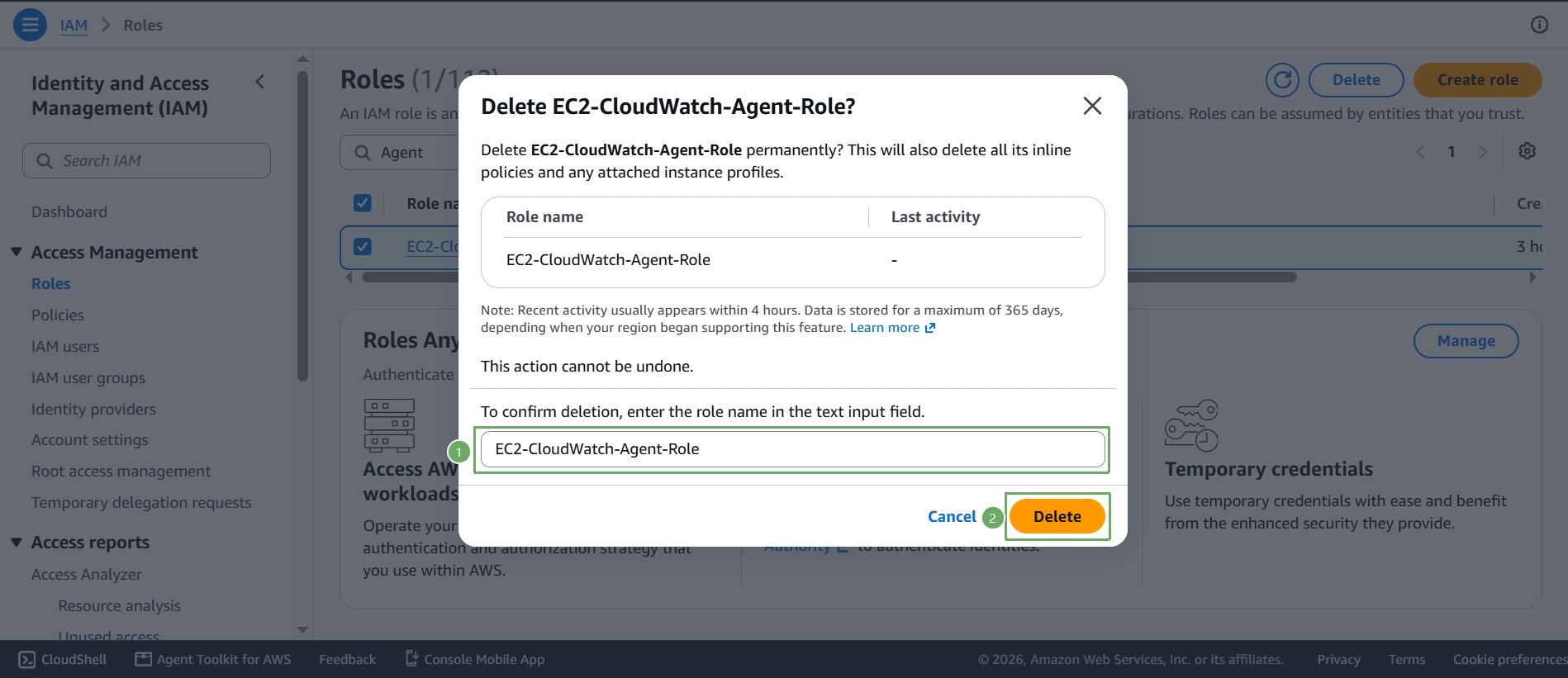
- Type the role name to confirm, then select Delete.
There’s nothing else to clean up: the CloudWatch metrics published by the agent (the CWAgent namespace) simply stop receiving new data points once the instance is gone and age out on their own — CloudWatch doesn’t charge for the historical data points already ingested, only for actively stored custom metrics going forward, and Compute Optimizer / Cost Optimization Hub are both free services with nothing to delete.
What you should take away from this workshop
Right-sizing isn’t about memorizing which instance type to pick — it’s about trusting a repeatable, data-driven process: collect real utilization data over time, feed it into a tool built to interpret it, and act on what the data says instead of guessing. Whether the workload behind that process is a $0 Free Tier lab instance or a fleet of thousands in production, the pipeline you just built by hand — CloudWatch metrics, the agent for memory visibility, Compute Optimizer’s analysis, Cost Optimization Hub’s consolidated view — is exactly the same one AWS teams use to keep cloud spend matched to actual need, day after day.